
Your desktop icons have drifted apart. They sit in a wide grid with big gaps, and switching between small, medium and large icons changes their size but never the gaps.
Before you touch the registry, I would try a fresh sign-in. On Super User, a May 2020 question about it has 185,479 views, and the fix owners kept confirming is two registry values plus that new session.
Why the gaps appear
Windows keeps the desktop grid in two values, IconSpacing and IconVerticalSpacing. They belong to your own account, so another user on the same PC can look perfectly normal.
Owners on Super User saw them change after a new scale or text size, or after a laptop met an external screen with a different scale.
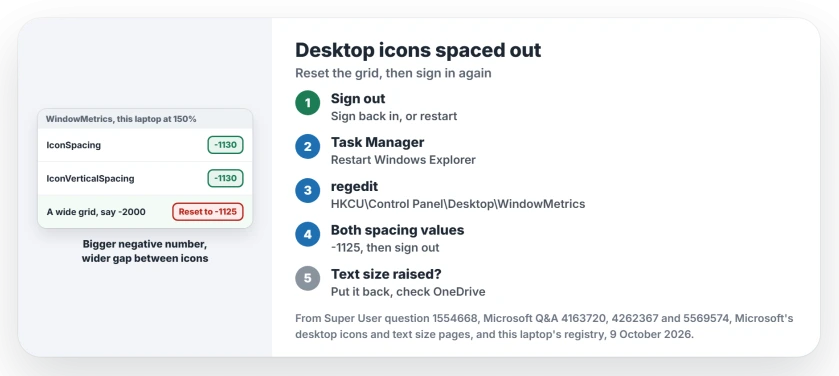
Status: this Windows 11 25H2 laptop, build 26200.9457 at 150% scaling, reads -1130 in both values (9 October 2026). Owners confirm the registry reset and a sign-out.
Ours: the values sit under HKEY_CURRENT_USER, so they are per user. Neither one is -1125 or -1128 on this laptop, the two numbers most answers call the default.
1. Sign out, then sign back in
The cheapest fix comes first. On Windows 11, one Super User owner saw correct values and wrote: "Just closing the current session and log in again worked". A restart did the same for them.
That owner had connected a different second display to the laptop. If yours started after a monitor change, I would try this step first.
2. Restart Windows Explorer
Press Ctrl+Shift+Esc for Task Manager, find Windows Explorer, right-click it and pick Restart. The taskbar and desktop vanish for a second and redraw.
It helped owners whose gaps came after an external display. It is not reliable, though. On Microsoft Q&A an owner wrote that a restart of Explorer "did NOT resolve the problem", and 50+ people marked that reply helpful.
Another owner restarted Explorer right after changing the values and saw the spacing get "much worse, about double". A full restart then fixed it. So if Explorer makes yours worse, restart the PC before you judge.
3. Reset the two spacing values
More owners confirmed this one than any other. Press the Windows key, type regedit, press Enter, then paste this into its address bar:
HKEY_CURRENT_USER\Control Panel\Desktop\WindowMetricsDouble-click IconSpacing and set it to -1125. Do the same for IconVerticalSpacing. Then sign out, sign in again, or restart. The new grid only shows after that.
The asker answered their own question with exactly those values, and an owner replied that it "worked perfect". On Microsoft Q&A, an advisor suggested -1128 instead, and the asker came back with "it worked".
If you prefer typing, these lines do the same in a Command Prompt:
reg query "HKCU\Control Panel\Desktop\WindowMetrics" | findstr Spacing
reg add "HKCU\Control Panel\Desktop\WindowMetrics" /v IconSpacing /d "-1125" /f
reg add "HKCU\Control Panel\Desktop\WindowMetrics" /v IconVerticalSpacing /d "-1125" /f
The first line only reads, so you can note your old numbers before writing new ones.
What number is normal?
There is no single right number. Answers give -1125 and -1128, and one owner runs -840 to pack icons tighter. A Super User answer puts the usable range at -480 to -2780.
An owner pointed out that the values are "expressed in Twips (1/1440 of an inch)". A bigger negative number means a wider gap. So I would leave a small difference like -1130 against -1125 alone, and reset a value like -2000.
Wide vertical gaps after a 25H2 update
On Windows 11 25H2, owners report on Microsoft Q&A that the registry values stopped helping.
One saw it on about 8 PCs "about the time" they installed build 26200.7171. Another said 26200.6899 was the last build where the fix worked for them.
That thread has no fix from Microsoft yet. What they describe is mostly the vertical gap. If that is your desktop, try the sign-out and the values once, and note your build under Settings, System, About before you comment anywhere.
Did OneDrive move your desktop?
One owner traced the gaps to OneDrive moving the Desktop folder into the cloud. Setting the location back and restarting fixed it. Our page on missing desktop icons shows how to check where your desktop folder lives.
What does not change the gaps
Small, medium and large icons change the icon, not the grid. Microsoft documents that View menu on its desktop icons page, plus Ctrl and the mouse wheel for resizing. The Super User asker tried it first, and the gaps stayed.
Text size is different. One answer on that question says an enlarged system text size can space icons out, so set it back under Settings, Accessibility, Text size if you raised it.
If the icons themselves turn blank as well, that is the icon cache, which our blank taskbar icons page covers.
Spacing that stays right while the icons land somewhere new after each power on is another fault, and two owner fixes from 2026 keep them put.
The Short Version
- Sign out and back in.
- Restart Explorer from Task Manager, and reboot if it gets worse.
- Set IconSpacing and IconVerticalSpacing to -1125 under WindowMetrics, then sign out.
- Put text size back if you raised it.
- On 25H2 with wide vertical gaps, the values may not hold yet.
Where to Next
What did your two values read before you changed them? Add them in a comment with your scaling, so the next reader can compare.

Isaac Smith is the founder and editor of PC Glance, a website that covers computers, laptops, and technology. He is a tech enthusiast and a computer geek who loves to share his insights and help his readers make smart choices when buying tech gadgets or laptops. He is always curious and updated about the latest tech trends.