Desktop icons that move and then snap straight back usually have Auto arrange icons turned on. Right-click unused wallpaper on the Windows 11 desktop, open View, and clear that option so you can place icons yourself.
If an icon never moves while you drag, check your mouse or touchpad next. Restart Windows Explorer if dragging works in other apps but the desktop stays stuck.
In this guide
1. Turn off automatic icon arrangement
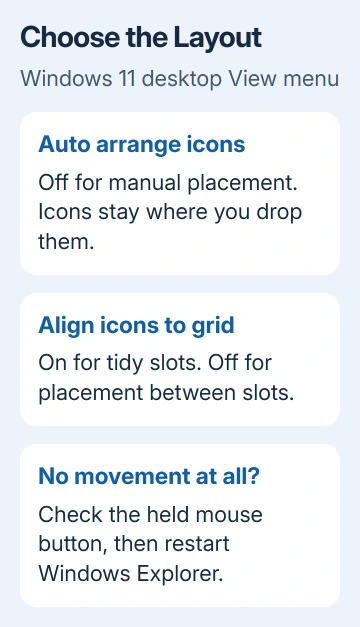
Right-click empty wallpaper rather than an icon. Point to View and check whether Windows has selected Auto arrange icons. Click it once to clear the check mark, then drag one existing shortcut to an empty area.
Hold the primary mouse button while moving the pointer, then release it at the new position. The shortcut should stay in its new location. Moving a shortcut around the desktop changes its position, not the app it opens.
Huawei's desktop arrangement instructions confirm that automatic arrangement prevents manual placement. This explains why you can select an icon but can't leave it where you want it.
Leave Align icons to grid enabled if you want tidy spacing. It snaps shortcuts to invisible slots, but it doesn't keep them automatically sorted. Clear it only when you need positions between those slots.
Avoid choosing Sort by during this check. Sorting rearranges the shortcuts, so a move that worked can look undone. First confirm that one icon stays where you drop it.
If placement works now but changes after the next startup, use the separate desktop icons moving after restart guide. That problem happens after Windows has already accepted the layout.
2. Check whether the button can hold a drag
Type several words into Notepad. Hold the same mouse button and drag across several words. If the highlight keeps growing as you drag, Windows can detect you holding the button outside the desktop.
If highlighting stops before you release the button, switch to your touchpad or another mouse. Connect a USB mouse straight to the PC. If the replacement works, check the original mouse and its connection.
For a touchpad, hold its primary click area with one finger and move the pointer with another. That lets you drag even if the tap-and-drag gesture is disabled. If only that gesture fails, changing desktop settings won't fix it.
Check Settings > Bluetooth & devices > Mouse > Primary mouse button. If it's set to Right, use the right button for selection and dragging, or change it to Left if that's what you normally use.
A normal click can still work when a worn button fails to stay held. I'd try the second mouse before changing drivers; the result helps you choose what to repair without altering Windows settings.
If dragging text works normally, return to the desktop and continue. If dragging stops early in every app with the same device, focus on that mouse or touchpad rather than Windows Explorer.
3. Use ClickLock when holding the button is the difficulty
ClickLock lets you release the mouse button while you move an item, after holding it briefly to start the drag. It can help when holding the button while moving is uncomfortable. It isn't required for normal desktop movement.
Open Settings > Bluetooth & devices > Mouse. Under Related settings, choose Additional mouse settings. On the Buttons tab, select Turn on ClickLock, then select OK.
Microsoft's mouse settings page describes this feature. Briefly hold the primary button on an icon, release it, move to the destination, and click again to drop it.
If icons seem stuck to the pointer, check whether ClickLock was already enabled. Click once to drop the item, then clear the ClickLock option if you prefer ordinary press-and-hold dragging.
ClickLock should let the shortcut follow the pointer and drop on your final click. If ClickLock works but ordinary dragging keeps stopping early, keep checking the physical button rather than changing the desktop layout again.
4. Restart Windows Explorer for a desktop-only freeze
Save your documents and wait for file transfers to finish. Press Ctrl+Shift+Esc to open Task Manager. In Processes, find Windows Explorer, right-click it, and choose Restart.
The taskbar and desktop may disappear briefly while Explorer reloads. Wait until the icons return, then move one shortcut again. Restarting Explorer reloads the desktop without uninstalling any of the apps your shortcuts open.
If Task Manager doesn't list Windows Explorer, open a File Explorer window with Windows+E, then check the process list again. Windows 11 Task Manager uses a navigation sidebar; older layouts may need More details first.
If the whole computer is unresponsive or Explorer immediately freezes again, save what you can and choose Start > Power > Restart. Test the desktop after signing in, before opening a desktop customization app.
If the desktop freezes again only after a customization tool opens, update that tool or keep it closed while checking icon movement. Don't remove unrelated programs to solve one frozen interface.
5. Separate placement from missing icons and wide gaps
If there are no icons to drag, right-click the wallpaper and check View > Show desktop icons. For missing shortcuts, check whether they're hidden or missing from your Desktop folder. Changing how the pointer moves won't bring them back.
Large spaces between icons are another separate symptom. Changing icon size doesn't necessarily change their spacing. Follow the desktop icon spacing checks when icons move but the available positions are unusually far apart.
Dragging a file onto a folder also differs from rearranging shortcuts on empty wallpaper. The first action moves or copies an item; the second changes its position. Use empty desktop space when checking whether placement is working.
If two input devices drag normally in other apps but the desktop still fails after a restart, open Get Help from Start. Ask about Windows 11 desktop icon dragging and explain the results of checking Auto arrange and trying another mouse.
If an employer or school manages the desktop layout, send IT these results. Include whether an icon never moves, snaps back immediately, or moves successfully and changes only after sign-in. Those are different failures.
The Short Version
Clear Auto arrange icons for shortcuts that snap back. Check the held mouse button for icons that never move, use ClickLock if needed, and restart Explorer for a frozen desktop. Treat missing icons or oversized gaps as separate problems.
Checked November 13, 2026.