Get an Acer Predator BIOS update from the support page for its exact model. Extract the matching package in Windows and run its updater with AC power connected. PredatorSense and a generic BIOS file don't replace the model's instructions.
Write down your installed BIOS version first, then read what the update changes. Helios and Triton names cover many different laptops, so the full model matters more than the shared Predator branding.
In this guide
Match the complete Predator model and installed BIOS
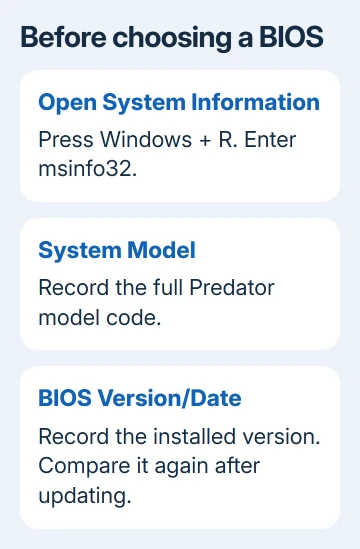
Press Windows + R, type msinfo32, and press Enter. In System Summary, record System Model and BIOS Version/Date. Windows 10 and 11 both include this information.
Keep the entire model code, including the numbers after the family name. Two Predator laptops with similar names can need different firmware. The processor or graphics-card name alone isn't enough to select the package.
The serial number and SNID are also on the label underneath the laptop. You can use these details to find your laptop in Acer's support search. Use them when the marketing name leaves several similar products in the results.
If you need help reading the existing firmware settings, the laptop BIOS access guide covers that task. You don't have to change boot settings just to find a download in Windows.
I'd write down the model and current BIOS version before downloading anything. It makes it easy to check the version afterward and gives support useful details if the updater refuses the package.
Decide whether this release addresses your laptop
Open Acer Drivers and Manuals. Search with your serial number, SNID, or another detail the search accepts. Confirm that the support result matches your laptop.
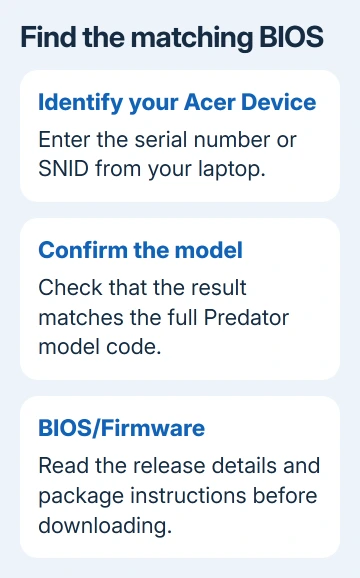
Open BIOS/Firmware and read the release description and packaged instructions. Check whether you need an earlier BIOS version first or any preparation steps. Don't assume every laptop can jump directly to any release.
BIOS updates change the software that starts your hardware, rather than routinely increasing frame rates. Acer's notebook instructions recommend updating when the release offers a fix or improvement relevant to your laptop.
If the release offers nothing relevant and your laptop works, the BIOS update decision guide helps decide whether to proceed. An old firmware date isn't a reason by itself to install another release.
If the version already installed is the same as the offered version, don't force a reinstall just to complete a checklist. If the support page doesn't list your model or a suitable package, ask Acer before using a neighboring model's file.
Prepare the laptop for the firmware change
Create backup copies of documents and other irreplaceable files. Save open work and close running applications so Windows is ready to restart. Set aside a quiet period with uninterrupted power for the update.
Connect the proper AC adapter and keep it connected throughout the update. Follow any battery-charge requirement displayed by the package. If the laptop can't maintain reliable power, fix that before starting the BIOS update.
Check whether the Windows drive uses BitLocker or device encryption, and make sure you can read its recovery key on a separate device or on paper. A firmware change can trigger a recovery-key request before Windows starts.
For manual firmware updates, suspend BitLocker in Control Panel > System and Security > BitLocker Drive Encryption. Choose Suspend protection > Yes.
Suspension doesn't decrypt the drive. If your Windows edition lacks this control or work manages the PC, ask IT or support how to handle encryption first. Keep the recovery key available even if the updater suspends protection for you.
Download and extract the model's package
On your device's BIOS/Firmware page, select Download for the chosen release. Keep the downloaded archive in a known folder, such as Downloads. Keep any accompanying instructions with the package.
Right-click the archive and choose Extract All, then finish extraction and open the resulting folder. Run the updater from the extracted folder so it can use the supporting files that came with it.
Read the included instructions before launching the application. Filenames and folders differ between Predator models. Follow the instructions in your package instead of looking for an application filename used on another laptop.
Use the supplied Windows updater as directed. Don't rename firmware files or build a recovery USB unless this model's instructions require it. A Windows installer and a recovery procedure aren't interchangeable.
Run the updater and let it finish
Double-click the supplied application in the extracted folder. Review any Windows permission prompt and approve it only for the package you downloaded from the correct support page. Follow the updater's on-screen directions.
Check any model and version information before accepting. If it reports an unsupported model, missing prerequisite, or insufficient power, stop and resolve that message. Don't bypass those checks.
Once the BIOS update begins, leave the AC adapter connected and let the process finish without forcing shutdown. The package can restart the laptop as part of installation; watch its progress instead of assuming a restart means it failed.
Update times differ between Predator packages. Follow the progress display and package instructions. If it appears stuck, get Acer's model-specific advice before interrupting it, rather than following another model's time limit.
Confirm the version and restore protection
After Windows starts normally, open msinfo32 again. Compare BIOS Version/Date with the version you recorded and the release you downloaded. A downloaded archive still sitting in Downloads doesn't confirm an installation.
If you suspended BitLocker manually, return to BitLocker Drive Encryption, select Resume protection, and confirm. Check that protection is active before treating the update as complete.
Check whether the update fixed the problem you installed it for. Keep unrelated BIOS options unchanged while checking the original problem.
If the version hasn't changed, send Acer the updater's message, full Predator model, current BIOS, intended release, and Windows version. Ask what needs to be installed first and how to run the update on that exact model.
For a laptop that no longer starts afterward, request recovery or repair instructions for its exact model. Don't use another Helios or Triton's recovery image because its filename looks similar.
The Short Version
Identify your Predator precisely, read the package instructions, and connect AC power and keep your recovery key ready. Extract and run the correct package. Confirm the installed BIOS version and resume encryption protection if suspended.
Checked November 13, 2026.