
Windows 11 can restart your laptop straight into BIOS through Settings > System > Recovery > Advanced startup. This avoids trying to catch a startup key before Windows loads, and it's the route I'd choose while the desktop still works.
In the recovery menus, the option is called UEFI Firmware Settings. It opens the modern setup screen that many laptop makers still call BIOS. Opening it doesn't install a firmware update.
Start with the Windows recovery route
Save your documents and finish any work that a restart would interrupt. Press Windows + I to open Settings, then select System followed by Recovery.
Find Advanced startup under Recovery options and select Restart now. Confirm the second restart prompt. Your laptop should leave the desktop and open a recovery screen with large menu options.
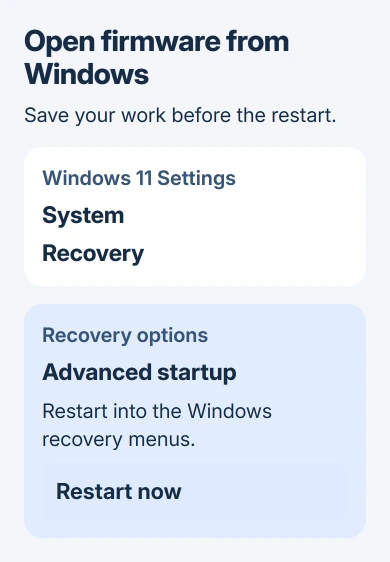
Use the control beside Advanced startup to open the troubleshooting menu. It changes where your laptop goes after restarting. The separate Reset PC command on the Recovery page does a different job.
Microsoft's firmware access instructions describe the recovery route into UEFI. The Windows method is especially useful when the startup logo passes too quickly for a key press.
If Windows returns straight to the sign-in screen, try the startup-key instructions in the section for your laptop maker. Other recovery commands won't open firmware setup.
Follow the menus until firmware setup opens
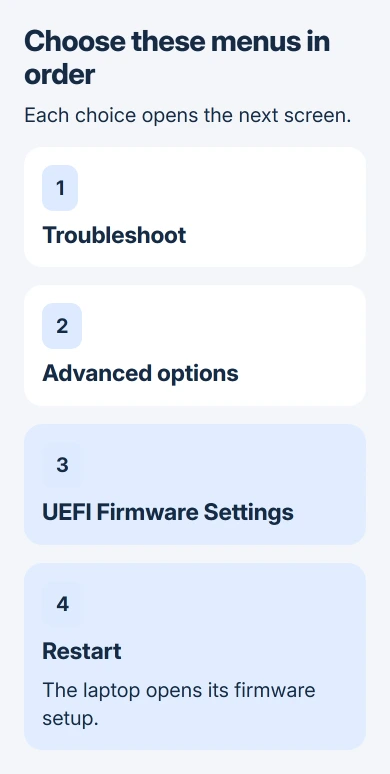
On the recovery screen, make these selections in order:
- Choose Troubleshoot.
- Open Advanced options.
- Select UEFI Firmware Settings.
- Choose Restart on the firmware settings screen.
The laptop restarts again and opens its maker's setup screen. Look for a model name, system information, firmware version or setup tabs instead of the Windows desktop.
The layout depends on your laptop's make and model. Some setup screens work with a mouse; others have tabs you move through with the keyboard. Either can be the right screen.
Follow the labels on your screen; keyboard help may appear along an edge. You can read the model or firmware version without changing a setting or opening an update tool.
If you're checking whether your laptop needs a newer version, read the BIOS update decision guide before using a downloaded firmware file.
Use the laptop's startup key when Windows won't open
The startup key works before Windows loads, so you can use it when the desktop won't open. Shut down the laptop and use its built-in keyboard. Follow the sequence for your exact make and model.
For a Dell laptop, switch it on and begin tapping F2 when the Dell logo appears. Stop when setup opens. Some models briefly show a message that they are preparing to enter setup.
If the key changes brightness or volume instead, try Fn + F2. The setup access page also lists F12, then BIOS Setup, as an alternative where that entry appears.
For an ASUS notebook, start with the laptop fully shut down. Keep F2 held while pressing Power, and release F2 after the BIOS screen appears. That hold-first sequence differs from tapping at the Dell logo.
The ASUS entry procedure also covers the Windows recovery route and shows several setup layouts. Follow the controls on your own laptop; the screen won't look the same on every model.
For another manufacturer, check the exact model's setup instructions. F2 isn't a universal laptop key, and a boot-device menu isn't always the same thing as BIOS setup.
If Windows begins loading, you missed the moment to press the key. Let startup finish, shut down normally and try the correct sequence again. Don't repeatedly cut the power to force a recovery menu.
When UEFI Firmware Settings is missing
Open System Information from Windows search and look at BIOS Mode in the system summary. It shows whether your Windows installation starts in UEFI or Legacy mode.
With Legacy startup, Windows may not offer UEFI Firmware Settings. Try your laptop maker's startup key next. The laptop still has a firmware menu even when this Windows option is missing.
Don't switch between Legacy and UEFI just to make that option appear. Changing how your Windows installation starts is a separate job that may need changes to the disk first.
If your work or school owns the laptop, IT may have set a firmware password or limited the menu on purpose. Ask them to make the change you need instead of trying to bypass the password.
The startup key also helps when the Windows recovery menu is missing or won't work. If neither method opens setup, give the laptop maker your model and say whether you see a startup logo before it fails.
Read the setting, then leave without an unwanted change
Write down the setting's current value before editing it. If you only came to check a model, version or hardware detail, use the setup screen's exit option and choose not to save changes when asked.
Find your drive's BitLocker recovery key before changing boot or security settings. Windows can ask for that key the next time it starts, even though your files are still on the drive.
Changing how the laptop handles its storage needs preparation too. The RAID-to-AHCI procedure explains how to prepare Windows; skipping that work can leave it unable to start.
An update tool installs new firmware, while a defaults command restores setup values. You don't need either command just to open setup through Windows.
If setup won't let you change something, note the setting's name and whether it's dimmed or password-protected. Give those details to the laptop maker or your administrator so they know what's blocked.
The Short Version
Open Advanced startup, then choose Troubleshoot > Advanced options > UEFI Firmware Settings > Restart. If that option is missing, use your laptop maker's startup key. Exit without saving if you only came to read a setting.
Checked November 6, 2026.

Isaac Smith is the founder and editor of PC Glance, a website that covers computers, laptops, and technology. He is a tech enthusiast and a computer geek who loves to share his insights and help his readers make smart choices when buying tech gadgets or laptops. He is always curious and updated about the latest tech trends.