
You turned off automatic updates for Office, and Microsoft AutoUpdate still jumps onto your screen, sometimes every few hours, to say there is nothing to install. It takes the focus from whatever you were doing.
I would turn automatic updates back on, which feels backwards, because Microsoft's own notes tie that window to the other modes. A Microsoft Q&A question from April 2020 about the daily pop-up still shows 300+ under Same question.
Why it opens when nothing needs updating
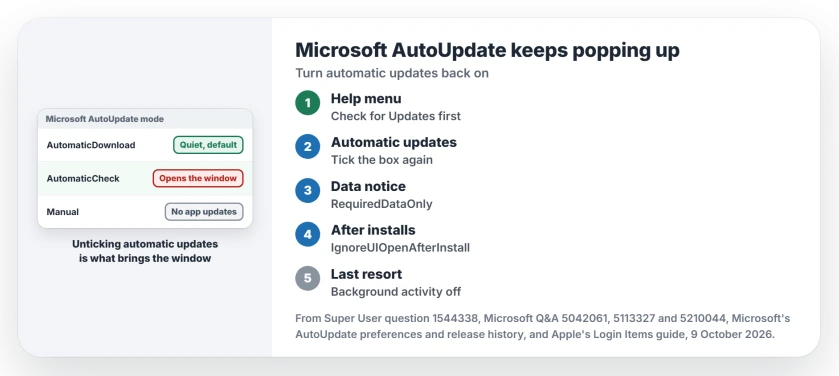
AutoUpdate, MAU for short, has three modes, and in the default one Microsoft documents that "MAU checks for updates on regular intervals and push updates automatically".
In AutomaticCheck, which is what you get with the automatic box unticked, MAU "launches the GUI when it detects an available update". So turning automatic updates off is what brings the window.
Microsoft's release notes say the same: AutoUpdate 4.22, in April 2020, kept the window hidden on "devices that are updating their Office apps via Microsoft AutoUpdate in 'Automatic' mode".
Status: Microsoft AutoUpdate 4.85, released 18 September 2026, is the current version. Microsoft documents steps 2 to 4; owners report the background switch and the launchctl route.
Ours: this was checked against Microsoft's preference reference and its release history, not on a Mac.
Microsoft writes that reference for IT admins. The same keys sit in your own preferences, though, and a Microsoft moderator gave one as a Terminal command on Q&A.
1. Update AutoUpdate itself
Open Word, Excel or Outlook, then Help, Check for Updates. If AutoUpdate offers an update to itself, take that first.
Microsoft has fixed this window more than once. Version 4.49, in July 2022, stopped it opening "when there are no app updates shown on GUI".
Can't get to that menu because no Office app will open? Our page on Word and Excel not saving shows where AutoUpdate lives, so you can run it on its own.
2. Turn automatic updates back on
In the AutoUpdate window, tick Automatically keep Microsoft apps up to date. Microsoft's update page describes that box as the way to get fixes "as soon as they become available".
Updates then install in the background. When one needs an app closed, Microsoft documents a message inside the app or a notification, not the full window.
If the box is grayed out, an organization manages your license. "If your license is managed by an IT department, they have control over that setting, not you", another member told one owner on Q&A.
3. The data notice that keeps coming back
Do you only ever see the Required Data Notice, again and again? You are not alone. One owner wrote that "it just pops up and shows the data notice and I click OK and nothing happens".
Microsoft documents why: when the AcknowledgedDataCollectionPolicy preference is missing or wrong, AutoUpdate keeps "Repeatedly showing Data Collection policy". Open Terminal on your Mac and set it:
defaults write com.microsoft.autoupdate2 AcknowledgedDataCollectionPolicy RequiredDataOnlyRequiredDataOnly is the one value Microsoft lists for it. Quit AutoUpdate, then open it once. Your notice should be gone.
4. Stop the window after each update
Does it only appear right after something installed? Microsoft added a switch for exactly that in AutoUpdate 4.26. Paste this into Terminal:
defaults write com.microsoft.autoupdate2 IgnoreUIOpenAfterInstall -bool TRUEWith it set, Microsoft says "the MAU GUI doesn't launch after installation or an update". The window can still open in AutomaticCheck mode when updates turn up, Microsoft adds. That is one more reason for step 2.
5. Still every two hours? Slow the agent
A launch agent starts AutoUpdate on a timer. On Super User, an owner found "the interval on my local machine is 7200" seconds. That is two hours. The top answer, with 146 votes, turns your agent off:
launchctl disable gui/$(id -u)/com.microsoft.update.agentIt works, at a cost owners mention: "after every update, it is reseted back to 7200". So you redo it after each update. Another owner found AutoUpdate could not look for updates at all until they ran launchctl enable with the same label.
There is a softer switch too: Apple's Login Items & Extensions page lists App Background Activity, which lets apps keep working while closed, update checks included. Older macOS versions call it Allow in the Background.
Turn Microsoft AutoUpdate off there. An owner on macOS Sequoia 15.3.1 confirmed it works. Another said AutoUpdate still appeared and needed a force quit.
A 2023 owner on Q&A saw "hourly pop-up alerts that you cannot dismiss" after disabling the updater. So I would try steps 2 to 4 first. Keep these two for a Mac where nothing else works.
What I would not do
Delete the MAU2.0 folder. Owners do it and the window stops, but so do your security updates. A Super User owner warned that it "potentially blocks the path for any future updates, even manually".
Set HowToCheck to Manual either. A Microsoft moderator offered it as a Terminal command, and Microsoft's own reference says "Setting to Manual results in MAU not offering updates automatically".
It offers an update you already installed
Then look for a second copy of the app. A reply on Q&A from April 2020 explains: "This happens when you have more than one copy of one or more Microsoft Office applications on your system".
Search Finder for the app's name, keep the one in Applications and delete the older copy. Apple's own update agents misbehave in a similar way, and our page on dasd and appstoreagent covers those.
The Short Version
- Update AutoUpdate itself from Help, Check for Updates.
- Tick Automatically keep Microsoft apps up to date; the window belongs to the other modes.
- Data notice on repeat: set AcknowledgedDataCollectionPolicy to RequiredDataOnly.
- Window after every install: set IgnoreUIOpenAfterInstall to TRUE.
- Last resort: App Background Activity off, or launchctl disable, redone after updates.
Where to Next
How often does AutoUpdate open on your Mac, and which step quieted it? Tell other readers in a comment.

Isaac Smith is the founder and editor of PC Glance, a website that covers computers, laptops, and technology. He is a tech enthusiast and a computer geek who loves to share his insights and help his readers make smart choices when buying tech gadgets or laptops. He is always curious and updated about the latest tech trends.