
Your Remote Desktop window stops updating in the middle of work. The picture sits still. Yet your typing still reaches the other PC, and it all shows up once you close the window and reconnect.
I would check how the connection travels first, since the 2019 Super User thread describing this exact freeze now has 371,779 views.
The fix its owners confirmed goes on the PC you sit at. Not the one you connect to.
Why the picture stops while your typing gets through
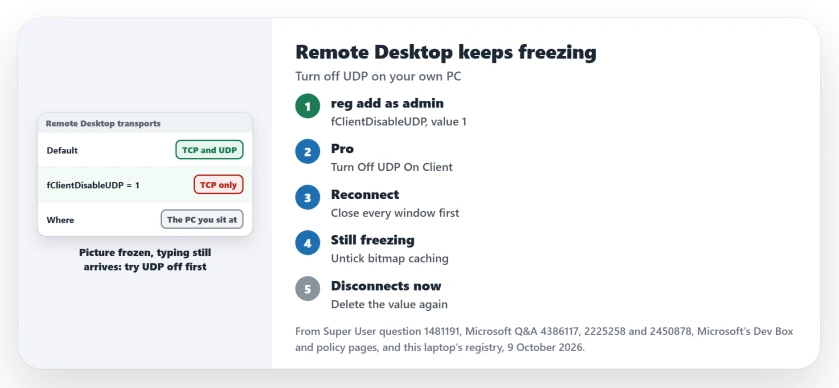
Remote Desktop can carry your session over two transports, TCP and UDP. Microsoft says in its policy text that unless you change it, the traffic "will attempt to use both TCP and UDP protocols".
The asker described a stall on one of them, where the image froze while "what I type and mouse clicks are still being sent". Two answerers guessed at lost or out-of-order UDP packets. That part stays a guess.
Status: Microsoft documents the UDP switch on its Learn pages, and owners in two forums confirmed it ends the freezes. Tested against this Windows 11 Home 25H2 laptop's registry on 9 October 2026.
Ours: this laptop already had the policy key the fix writes to, holding three USB redirection values. There was no fClientDisableUDP, so the fix adds one value and touches nothing else.
Turn off UDP on your own PC
Open Command Prompt as administrator on the PC you sit at. Paste this one line and press Enter:
reg add "HKEY_LOCAL_MACHINE\SOFTWARE\Policies\Microsoft\Windows NT\Terminal Services\Client" /v fClientDisableUDP /d 1 /t REG_DWORDThen close every Remote Desktop window and connect again. That is all.
The command comes word for word from Microsoft's Dev Box connection troubleshooting page. Its aim, in Microsoft's words: "Explicitly tell the client not to attempt a UDP connection".
On Pro you can use the policy instead. In gpedit.msc, go to Computer Configuration, Administrative Templates, Windows Components, Remote Desktop Services, Remote Desktop Connection Client. Set Turn Off UDP On Client to Enabled.
Is your PC on Home? Then you have no gpedit.msc, as this laptop confirmed, but the reg line does the same job because the policy writes that very value. Once it is on, your sessions "will only use the TCP protocol", per Microsoft.
What owners reported after the change
Owners report the freezes stopping. The accepted Super User answer came from someone hit since July 2019, whose "workaround on the client works for me, so that RDP no longer freezes".
You may recognize this one. An owner had been "restarting RDP about 20 times a work day" before the change, and afterwards they went a whole day without a freeze.
Years later, another wrote that it "helped my hanging RDP-connections from 21H1 to Windows 11". So it still applies to your Windows 11 PC.
Do Teams calls set it off for you? On Microsoft Q&A, an owner whose session froze only during calls wrote that disabling UDP "seems to have resolved the freezing issue for me". That thread shows 100+ under Same question.
The trade you make for a still picture
TCP alone can feel slower to you. One owner put it well: "Switching to TCP-only does seem a bit more laggy, but the lag is more ordered". I would take ordered lag over a frozen window.
It can also go wrong. One owner on a Checkpoint VPN said the change "resulted in frequent outright disconnects instead of frozen-screen symptoms". If your sessions start dropping, take the value back out:
reg delete "HKEY_LOCAL_MACHINE\SOFTWARE\Policies\Microsoft\Windows NT\Terminal Services\Client" /v fClientDisableUDP /fStill freezing? Two settings owners switched off
First, the cache. Click Show Options in Remote Desktop Connection, open the Experience tab and untick Persistent bitmap caching.
An owner on a Windows 11 24H2 work PC did this, and afterwards "my session became much more stable", in their words. The asker there had found the UDP switch "helps a little, but the Win 11 PC still freezes".
So keep both changes if your freezes get rarer but not gone.
Next, the sound. Under Local Resources, choose Settings and pick Do not play. Two owners in an old Q&A thread said turning the audio off fixed it. That thread has 100+ on Same question too.
This one has the thinnest record: a 2019 asker tried it, lost their sound and still froze.
Did it start right after an update?
Then suspect the update. Early in 2025, admins on Q&A saw sessions hang at the welcome screen after KB5050094. One wrote that "KB5052093 have fixed the Issue for me". The asker's problem went away too.
So run Windows Update on both PCs first. A hang before your desktop even appears is a different fault: the wait at Securing remote connection has its own page about port 80.
Does the window freeze, or does it never connect?
A frozen picture with typing still going through is this page. A window that cannot connect at all is another job.
So is one that connects only some days. Our Remote Desktop not connecting page starts with the edition check that answers many of those.
Using Google's Chrome Remote Desktop rather than Microsoft's app, and only copy and paste fails? That comes down to two clipboard settings.
Connected and smooth, but your own taskbar covers the session in full screen? An app by your clock is asking for attention.
The Short Version
- Picture freezes, typing still arrives: turn off UDP on your own PC with the reg line, then reconnect.
- On Pro, Turn Off UDP On Client in gpedit.msc does the same.
- Still freezing: untick Persistent bitmap caching, then try Do not play for audio.
- Disconnects after the change: delete the value again.
Where to Next
Did UDP off end your freezes, or was it the bitmap cache? Leave a comment with the Windows version on both ends.

Isaac Smith is the founder and editor of PC Glance, a website that covers computers, laptops, and technology. He is a tech enthusiast and a computer geek who loves to share his insights and help his readers make smart choices when buying tech gadgets or laptops. He is always curious and updated about the latest tech trends.