
You make a new folder and nothing appears until you press F5. You delete a file and it stays on screen. Your desktop does the same thing.
I look for a network location first, because one that has gone offline is the cause owners keep finding. More than 200 people marked one Microsoft Q&A thread about it as their question too, and new copies came in April and May 2026.
Why one dead share stops the refresh
Tried the registry fix already? You are not alone. On Super User, the owner behind the question tried it, then a Folder Options trick and a system file scan. None of it helped. Then they found a Samba share pinned to Quick access.
Their words: "After deleting the file share from my pinned Quick Access, the problem disappeared." Readers added their own versions in the comments, and yours may be one of them.
One had a work share that only answered over the company VPN, and another had pinned a folder inside their WSL Linux install. Windows reaches your WSL files as a network location too.
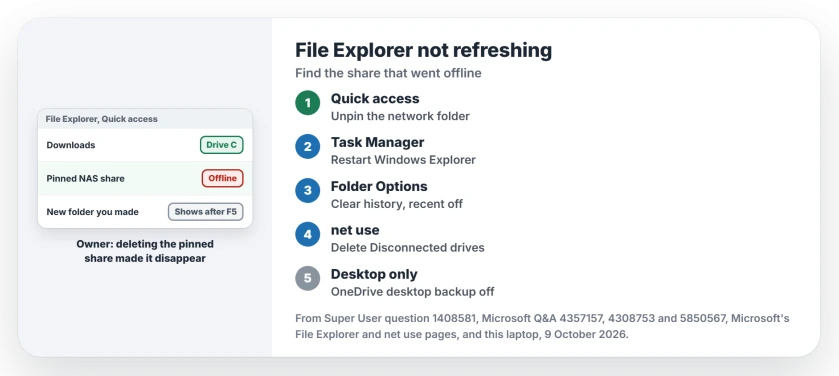
Status: Microsoft documents unpinning, the Quick access privacy switches and net use. Removing the offline share fixed it for owners. This laptop, build 26200.9457, checked 9 October 2026.
A Q&A asker in 2022 saw the same trigger with mapped drives. In their words, "the Desktop and File Explorer do not refresh automatically when a mapped network drive is no longer connected".
Their drives came from work and dropped out at home without the VPN. If you work the same way, files from those drives sit in your Quick access as recent items.
Ours: this laptop has no mapped drives, and its 31 Quick access entries all sit on drives C and D. None of its 1,097 recent items points to a network path, so it has no share to go missing.
1. Unpin the share from Quick access
Open File Explorer and look down the left pane, under Home or Quick access. A pinned folder with a server or NAS name in its path is your first suspect.
Right-click it and choose Unpin from Quick access. Microsoft's File Explorer help page gives that route. For a single file under Recent, choose Remove from Quick access.
Then restart Explorer. Open Task Manager, right-click Windows Explorer and select Restart. One commenter had to do exactly that before the change took.
Now make a test folder. If it shows up at once, the share was the cause.
2. Clear the history and turn off recent items
Unpinning leaves the recent and frequent lists alone, and a network file in there can do the same damage. The 2022 asker's workaround was to clear both lists and switch them off.
In File Explorer, select the three dots, then Options, and on the General tab, under Privacy, untick Show recently used files and Show frequently used folders. Select Clear next to Clear File Explorer history, then OK.
Microsoft's page describes those switches for Windows 10 as well: "clear the check boxes and select Apply". The result is plain. "Now Quick access will only show your pinned folders."
A reader on that thread answered "Thanks for the workaround, this helps". Another emptied the Recent folder itself and wrote "I deleted everything out of there and it started to work again for me."
%AppData%\Microsoft\Windows\RecentThat folder holds shortcuts and jump lists, not your files. Pinned jump list items go with it.
Does Explorer freeze when you right-click the share? An adviser in April 2026 suggested emptying that folder first, then unpinning.
3. Remove mapped drives that no longer connect
Open Command Prompt and type net use. Microsoft describes it this way: "Used without parameters, net use retrieves a list of network connections."
The April 2026 asker ran it and found a drive marked Disconnected, left over from a printer's USB storage. Their adviser had already named a network share as the first thing to check.
Delete a dead drive by its letter, swapping X for yours:
net use X: /deleteStill need that drive? Map it again later.
4. Restore the Folder Options defaults
No network folder anywhere? The answer its asker accepted on the 200+ thread was simple. Open Options and select the restore button on each of the three tabs, then Apply. Over 30 readers marked it helpful.
On Windows 11 25H2 each tab carries a Restore Defaults button. It resets only File Explorer's own options, such as hidden files and file extensions, so note any you changed.
OneDrive is backing up your desktop
Only the desktop lags? Look at OneDrive. Owners on the big thread fixed theirs by unlinking it, and one wrote "REMOVE DESKTOP BACKUP FROM ONEDRIVE" before adding "This is the right solution, I am on Windows 11."
An independent adviser put it the same way in May 2026: "The refresh problem in File Explorer is usually caused by OneDrive".
You can stop backing up only the desktop. Open OneDrive's settings, then Sync and backup, then Manage backup. If it also shows sync errors, OneDrive not syncing walks through those.
The registry key from old guides
You will find a fix that adds a DontRefresh value under a CLSID key. It was the first thing the Super User owner tried, and it failed for them.
Ours: on this laptop, Windows 11 25H2 build 26200.9457, the Instance key that fix edits does not exist. The April 2026 asker found the same thing. I would skip it. Look for the share instead.
Explorer hanging in every folder, rather than slow to refresh, is a different fault. File Explorer not responding covers the search index side.
The Short Version
- A network folder that went offline is the trigger owners found.
- Unpin that folder from Quick access, then restart Windows Explorer.
- Clear File Explorer history and turn off recent files and frequent folders.
- Run net use and delete any drive marked Disconnected.
- Only the desktop lags: turn off OneDrive's desktop backup.
Where to Next
Was something else behind yours, a phone, a cloud drive or a USB disk? Leave a comment and I'll add it to the list.

Isaac Smith is the founder and editor of PC Glance, a website that covers computers, laptops, and technology. He is a tech enthusiast and a computer geek who loves to share his insights and help his readers make smart choices when buying tech gadgets or laptops. He is always curious and updated about the latest tech trends.