
Windows keeps nagging you to fix a work or school account from a job you left. You find it in Settings, and the only button says Manage, which wants a password your old company switched off long ago.
I go to a different page before trying anything else, because the Disconnect button sits there. 34,808 people have viewed the Super User version, and Microsoft Q&A still gets fresh copies in 2026.
Two pages, and only one can disconnect
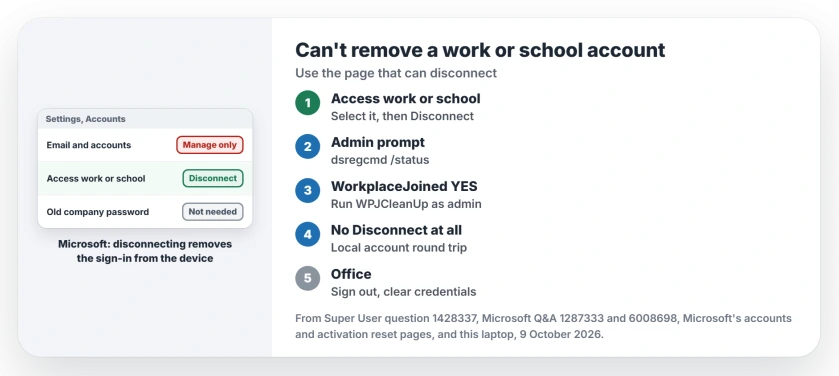
Settings lists accounts in two places. Email and accounts shows the accounts your apps use. Access work or school, the page with the briefcase icon, holds the sign-ins an organization added to your PC.
An answer on that Super User question sends you to the second one: "Then you can select the work account and you get the Disconnect button." Three readers confirmed it in the comments.
One wrote that Email and accounts kept "needing me to login to remove the account I can no longer log into". Another called it "the correct answer for removing an account that no longer exists".
Status: Microsoft documents Disconnect, dsregcmd and its WPJCleanUp tool. Owners cleared stuck accounts with both. dsregcmd was run here on 9 October 2026.
The mix-up still happens. In September 2026 a Q&A user had a duplicate account with only a Manage button, and the adviser opened with "You are almost there but you are at the wrong setting space."
Ours: this laptop is joined to nothing. dsregcmd /status shows AzureAdJoined, DomainJoined and WorkplaceJoined all at NO, and the current user has no WorkplaceJoin key.
1. Disconnect it from Access work or school
Open Settings, then Accounts, then Access work or school. Microsoft's add or remove accounts page puts it in one line: "Select the dropdown next to your work or school account and select Disconnect".
Select Yes. You need no password for this step. Microsoft notes that disconnecting "doesn't delete the account. It removes the sign-in information" from your PC.
An owner on the 20+ Q&A thread followed those steps and wrote "It worked and my stubborn problem is now solved." Another, in April 2026: "Thanks, worked for me, I had to repeat the process, but it worked."
Restart afterwards. Is the account missing from that page? Go to step 2.
2. Ask Windows whether the PC is still joined
Type cmd in the Start search, select Run as administrator on the right, then enter:
dsregcmd /statusRead the User State section. When WorkplaceJoined says YES, Microsoft's wording is that "it indicates that your device is Workplace Joined". On our laptop the command also answered from a normal prompt.
A YES with nothing for you to disconnect is the stuck case. The 20+ asker had already tried dsregcmd with the leave switch, and it changed nothing.
3. Run Microsoft's WPJ cleanup
Microsoft publishes a tool for that state on its Microsoft 365 activation reset page. You download WPJCleanUp.zip from there, then "extract the WPJCleanUp folder, and run WPJCleanUp.cmd".
An owner on the Q&A thread ran the version inside it as administrator. It "definitely got rid of the unwanted and otherwise un-removeable Work or School Account from my personal laptop".
If your account is stuck the same way, you have company.
One owner called it "a cleanup tool to remove old work accounts that get stuck." Another, whose account never showed a Disconnect button, wrote "This cleanup tool worked great for me".
Read Microsoft's warning before you run it. Clearing it takes single sign-on away from "All applications in the current Windows session". One owner found "It cleared all the accounts I don't use as well as my work account."
So save your work first and expect to sign in to Office again. Ours: Microsoft's link answered with a 1,334,920 byte file, last changed 15 January 2025. Our laptop had nothing to clean, so we did not run it.
No Disconnect button anywhere
The Super User asker found a longer way round. In Your info they switched to a local account, disconnected the work account, then signed back in with their Microsoft account.
A reader already on a local account did it the other way. They switched to a Microsoft account and back to local, and only then did Disconnect appear.
Set a local password you will remember before you switch. Keep your Microsoft account details at hand for the trip back.
Office still offers the old account
Clearing Windows does not always clear Office. One owner's Disconnect worked, yet "The workplace OneDrive location still shows up when I save a new 365 file." Another found the account in no Windows list at all, only inside Office.
Sign out in any Office app with File, Account, Sign out. Then open Credential Manager, choose Windows Credentials and remove entries with the old address.
Office now says Unlicensed Product? Unlicensed Product in Office covers that side. A PIN you cannot remove can come from the same account, so see PIN Remove grayed out too.
The Short Version
- Use Access work or school, not Email and accounts.
- Select the account, then Disconnect, then Yes. No password needed.
- Nothing there: run dsregcmd /status and read WorkplaceJoined.
- YES with nothing to remove: Microsoft's WPJCleanUp, as administrator.
- Then sign out of Office and clear the old address from Credential Manager.
Where to Next
Did your account come back after a restart? Tell me what dsregcmd showed in a comment, and I'll help you read it.

Isaac Smith is the founder and editor of PC Glance, a website that covers computers, laptops, and technology. He is a tech enthusiast and a computer geek who loves to share his insights and help his readers make smart choices when buying tech gadgets or laptops. He is always curious and updated about the latest tech trends.