
You click Install on a ClickOnce app, and Windows refuses. Your administrator has blocked this application, the box says, even on a PC where you are the only administrator.
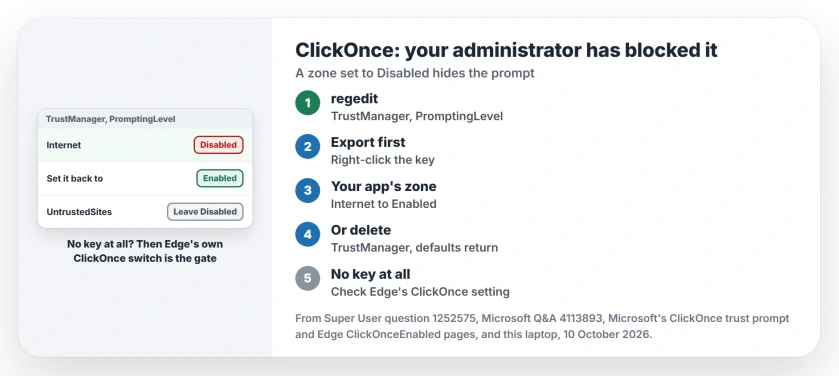
I would open one registry key before trying anything else. ClickOnce keeps a trust setting for each zone there, and a zone set to Disabled hides the prompt that would let you say yes.
In September 2017 an administrator took it to Super User, puzzled that one user was blocked while colleagues with the same policies were not. That question has 234,128 views.
What the block actually means
ClickOnce is how many .NET programs install and update themselves from a web link that ends in .application. Before it installs one, it shows a trust prompt, unless a setting tells it not to.
Microsoft's ClickOnce trust prompt page names five zones: Internet, UntrustedSites, MyComputer, LocalIntranet and TrustedSites. Each one can be Enabled, AuthenticodeRequired or Disabled.
With Disabled, Microsoft says, "The ClickOnce trust prompt isn't displayed". Only apps signed with a certificate your PC already trusts get through. Everything else meets the administrator message, whoever you are.
The full wording owners report is "Your administrator has blocked this application because it potentially poses a security risk to your computer". The install never starts.
Status: the Super User thread and Microsoft's ClickOnce trust prompt page checked 10 October 2026. Setting the zone back to Enabled let owners install again.
1. Read the key before you change anything
Open Run with Windows key plus R, type regedit and press Enter. Paste this path into Registry Editor's address box:
HKEY_LOCAL_MACHINE\SOFTWARE\MICROSOFT\.NETFramework\Security\TrustManager\PromptingLevelLook at the values on the right. A zone that reads Disabled is your block. The accepted answer's author found every value there set to Disabled, and wrote, "I have no clue which application did that".
Ours: this laptop runs Windows 11 Home, and the TrustManager key does not exist on it at all. That is normal, because with no key every zone keeps Microsoft's defaults.
No TrustManager key on your PC either? Then the registry is not what stops you, and the browser section further down is the place to look.
2. Put the zone back to Enabled
Microsoft's defaults for programs are Enabled for MyComputer, LocalIntranet, TrustedSites and Internet. UntrustedSites stays Disabled.
In the left pane, right-click the PromptingLevel key and choose Export first, so you can undo this. Then double-click the value for your app's zone and type Enabled. An app from a website lives in the Internet zone.
Not sure which zone your app comes from? They are the zones Windows also uses to tag downloads, as the Zone.Identifier page shows. A web address counts as Internet; a share on your own network can count as LocalIntranet.
The asker needed nothing more. They changed the Internet value "to Enabled and it works as-intended now". The key and the values are plain String Values. If one is missing, create it with that name.
In PowerShell as administrator, one line does the same for the Internet zone:
Set-ItemProperty -Path 'HKLM:\SOFTWARE\MICROSOFT\.NETFramework\Security\TrustManager\PromptingLevel' -Name 'Internet' -Value 'Enabled'An owner who used it on Windows 10 Pro wrote, "I can confirm this works". Another stressed running it in PowerShell, not the old Command Prompt.
I would leave UntrustedSites on Disabled. A commenter on the script answer pushed back on turning that one on, and its author agreed to change it.
3. Or delete TrustManager and take the defaults
The accepted answer offers a shortcut. Delete the whole TrustManager key "and everything is working as well", since Windows then falls back to the defaults in the table.
I prefer the single value. A deleted key also removes any setting your employer put there on purpose, and you cannot tell which ones those were afterwards.
Still blocked? Check the browser
Edge has its own ClickOnce switch. Microsoft's Edge policy page says plainly that "Disabling ClickOnce can prevent ClickOnce applications (.application files) from launching properly".
Edge 87 and later open ClickOnce links by default, per the same page, but a flag or a work policy can turn that off. Then Edge just saves the file.
One commenter hit exactly that wall: after the registry fix, Edge still kept the setup file instead of starting it.
Is it safe to bring the prompt back?
Enabled installs nothing by itself. It brings back the dialog where you choose, and Microsoft describes it as the setting where "end users can grant trust to ClickOnce applications".
So you are trusting the publisher one app at a time, as with any download. Getting apps onto a laptop safely covers how to judge where a download comes from.
On a work PC, ask first. A policy can write Disabled back at the next refresh, and IT may have set it for a reason.
The Short Version
- The message means a ClickOnce zone is set to Disabled.
- Check TrustManager, PromptingLevel in HKEY_LOCAL_MACHINE.
- Set your app's zone, usually Internet, back to Enabled.
- Keep UntrustedSites Disabled.
- No key at all? Look at Edge's ClickOnce setting instead.
Where to Next
Installed it at last? Leave a comment naming the zone that was Disabled on your PC, and what you think set it.

Isaac Smith is the founder and editor of PC Glance, a website that covers computers, laptops, and technology. He is a tech enthusiast and a computer geek who loves to share his insights and help his readers make smart choices when buying tech gadgets or laptops. He is always curious and updated about the latest tech trends.