
You type an app's name into Windows search, and the right result comes up. Its icon is missing. You get a blank square or a generic placeholder, while the same icon looks fine in the Start menu's app list.
I would try the odd fix first. It is quick, and it has the most owners behind it. Change your display scale to another size and back. That forces search to draw its icons again.
The fault goes back years. A 2019 Microsoft Q&A question about app icons missing from Start menu search results lists 100+ people with it, and a 2017 Super User question has 61,469 views.
Why only search loses the icons
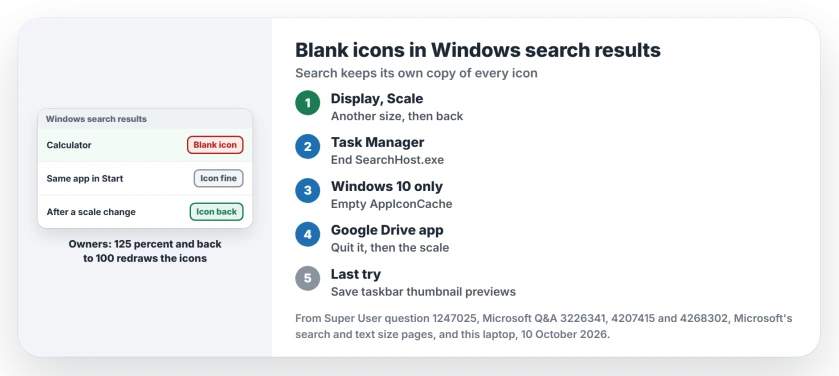
Windows search keeps its own copy of every app icon, apart from the Start menu and the taskbar, so when that copy is damaged or stale, search shows blanks or old icons, and everything else stays correct.
Owners on Q&A describe both versions. One saw the same placeholder for every app. Another saw old icons in search after apps updated, while the Start list had the new ones.
A third owner made a second account to test. Its search icons were fine. So the problem lives in your user's own files, not in Windows as a whole.
Status: owner threads from 2017 to 2022 and Microsoft's search and text size pages, checked 10 October 2026. The scale toggle fixed it for most owners.
1. Change the scale, then change it back
Microsoft points you to Display and the drop-down next to Scale; in Settings that is System, then Display. Pick the next size up, such as 125 percent if you are on 100. Wait for your screen to redraw.
Then set it back to what it was. On Windows 10 the same menu is under Make everything bigger.
The tip began as a June 2018 forum post and reached Super User in an answer with 28 votes. One commenter guessed that search keeps "another cache somewhere for the search results", and the scale change "causes that cache to be rebuilt".
Owners kept confirming it for years. One wrote "THIS works" after living with the problem for several years. A few needed a sign out and back in, or had to change it on each monitor.
One owner's detail matters if it fails. For them "The 100% option was key", and switching between 175 and 200 did nothing.
2. Restart the search process
Open Task Manager with Ctrl, Shift and Esc and select Details, where Microsoft's search troubleshooting page says to right-click SearchHost.exe on Windows 11, or SearchUI.exe on Windows 10, and select End task.
Microsoft says search starts again on its own when you next search. Windows search not working at all covers the reset script if results stop appearing too.
3. Windows 10: empty the search app's icon cache
On Windows 10, the search app keeps your icons in a folder of its own. Close search first. Then open this folder in File Explorer and delete what is inside.
%LOCALAPPDATA%\Packages\Microsoft.Windows.Search_cw5n1h2txyewy\LocalState\AppIconCacheAn owner on Q&A, whose Store app icons were missing from search only, found that removing everything there fixed it. "After that icons started being rendered as well", in their words.
Ours: this Windows 11 laptop has no Microsoft.Windows.Search folder at all, since search here runs inside MicrosoftWindows.Client.CBS, and its folder holds an apps index but no AppIconCache. On a Windows 11 PC, use steps 1 and 2.
4. Check Google Drive's desktop app
Several owners found Google's sync app involved. Back then it was called Backup and Sync or Drive File Stream. One commenter "can confirm that Google File Stream was involved somehow" and nothing else worked until it was removed.
If you use Drive, quit it from its tray icon, then repeat the scale change and restart. I would only uninstall it if the icons come back the moment Drive starts again.
The thumbnail previews box
The accepted fix on Super User goes through the old System Properties window. Search for sysdm.cpl, open Advanced, click Settings under Performance, tick Save taskbar thumbnail previews, then restart.
Ours: that label is still in this laptop's Windows 11 system files. One owner had it fix a Surface. Another tried it with no luck, so I keep it as your last try.
Are the icons blank on your taskbar too, not only in search? That is Explorer's own icon cache, and the blank taskbar icons page clears it.
Can deleting that cache hurt anything?
It is a cache of pictures, not your apps or settings, and the owner who emptied it saw the icons drawn again afterwards, which suggests search rebuilds what it needs.
Do not delete the whole Microsoft.Windows.Search folder, only what is inside AppIconCache.
The Short Version
- Search keeps its own icon copies, so only search results go blank.
- Change Display, Scale to another size and back; sign out if needed.
- End SearchHost.exe (Windows 11) or SearchUI.exe (Windows 10).
- Windows 10: empty AppIconCache in the search app's folder.
- Google Drive's desktop app was behind it for several owners.
Where to Next
Icons back in your results? I read every comment. Say which step brought your icons back, and whether you run Windows 10 or 11.

Isaac Smith is the founder and editor of PC Glance, a website that covers computers, laptops, and technology. He is a tech enthusiast and a computer geek who loves to share his insights and help his readers make smart choices when buying tech gadgets or laptops. He is always curious and updated about the latest tech trends.