

Every time you plug headphones in, a box asks "Which device did you plug in?" and waits for an answer. Or you ticked the box to stop asking, chose the wrong device, and now your mic is dead.
I would open the audio maker's app first. That is where the box lives, and both fixes sit in the same place.
The Super User question on switching it off has 169,138 views since February 2017. Microsoft Q&A has the reverse, where a question about getting the box back counts 100+ people with it.
The popup is not Windows
Windows has no such box. It comes with the sound driver your PC maker installed, often Realtek's, and on many Dell laptops the Waves MaxxAudio Pro app.
A Microsoft support agent in one Q&A thread put it plainly; in their words, "the audio driver itself, as well as the software, are the factors associated with the phenomenon".
Ours: this laptop's sound chip is from C-Media, with C-Media's own control panel. No Realtek or Waves app is installed, so this box has nowhere to come from here.
So your Windows sound settings never show it. The maker's app holds it, or nothing does.
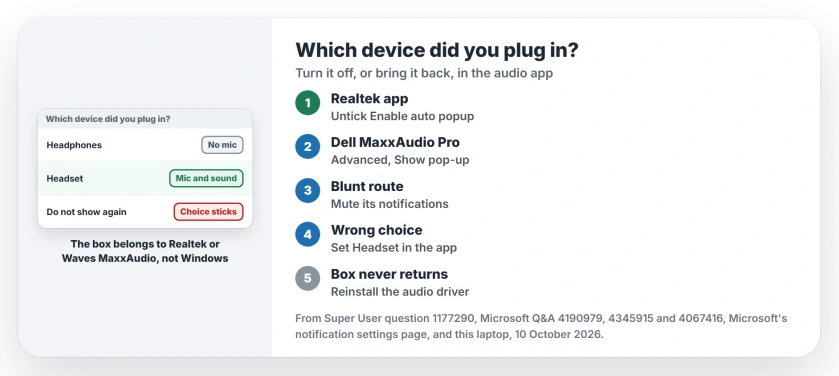
Status: owner fixes from Super User and Microsoft Q&A plus Microsoft's notifications page, checked 10 October 2026. Unticking the popup in the audio app worked for owners, and so did muting it.
Your answer decides what the jack is
The box is not small talk. Your one headphone jack can carry headphones, a headset with a microphone, or a mic alone.
Headphones for a headset silences its microphone. Pick Headset for plain headphones, and Windows waits for a mic that never answers.
One Q&A asker chose Line in and ticked the box to stop asking. Another chose Headset and lost the built-in mic. Once the box is gone, Windows sound settings cannot change that choice.
Switch it off in Realtek's app
Search your Start menu for Realtek Audio Console. Older PCs have Realtek HD Audio Manager in Control Panel instead.
Open Device advanced settings. The old manager hides it behind a gear. Untick Enable auto popup dialog when device has been plugged in.
The Super User answer gives exactly that step. One owner confirmed "Uncheck Enable auto popup" worked, though they found it under the gear icon, then Options.
Another owner saw a newer box. Their fix was turning Enable Jack detection when device is plugged in to Off, in Realtek Audio Console.
On a Dell: MaxxAudio Pro
Open Waves MaxxAudio Pro on your Dell and choose Playback. Select Advanced at the bottom, then untick Show pop-up dialog when device is connected.
Some owners could not find Advanced at all. One got the app open by finding Waves MaxxAudio Service Application in Task Manager, opening its file location, and running MaxxAudioPro.exe from there.
Another owner disabled the Waves Audio Service in Services and restarted. They wrote that it ended "No more annoying pop-up when I plug in the headphones". I would expect your app's sound tuning to stop too.
The quieter route: mute its notifications
No switch in sight? Silence the app instead. Open Settings, then System, then Notifications.
Microsoft says on its notification settings page to "Select the app under Notifications from apps and other senders", then turn it off. Look for Realtek Audio Console or Realtek HD Audio Console.
Owners with Acer laptops confirmed it, one a Predator Helios 300. One owner warned that it "stops the popups but also the audio switching" on their MSI laptop. I would try your app's own switch first for that reason.
Clicked the wrong device? Bring it back
Set the jack yourself in the same app. A Q&A volunteer told one Dell owner to pick Headset, or Headphones with mic, inside MaxxAudio Pro. Choose the one with a microphone if yours has one.
To get the box back for good, tick the popup option again in Realtek's app or in MaxxAudio Pro. Then replug once to test it.
One Dell owner on Windows 11 had the option ticked and still saw nothing, until a thorough reinstall of the audio drivers did it for them. RtkAudUService64.exe was off at startup, and the box came back with a working mic.
If the microphone still stays silent after that, our microphone page checks privacy settings and the input device next.
No audio app at all?
Your PC may never have got the maker's app, or lost it in an update, and one asker could not even find the Realtek folder a volunteer pointed to.
Your PC maker's support page lists the audio driver for your model, often with the app bundled in. If the headphones stay silent instead, the headphones page covers the jack and Bluetooth faults.
The Short Version
- The box comes from your audio maker's app, not from Windows.
- Your answer decides whether the jack expects a microphone.
- Realtek: untick Enable auto popup dialog in Device advanced settings.
- Dell: untick Show pop-up dialog in MaxxAudio Pro's Advanced.
- Wrong choice: set Headset inside the app, or tick the popup option again.
Where to Next
Which app did your PC have, Realtek, Waves or something else? Tell me in a comment, along with the route that worked.

Isaac Smith is the founder and editor of PC Glance, a website that covers computers, laptops, and technology. He is a tech enthusiast and a computer geek who loves to share his insights and help his readers make smart choices when buying tech gadgets or laptops. He is always curious and updated about the latest tech trends.