
You type \\OTHERPC\C$ into File Explorer, enter an admin name and password for that PC, and Windows refuses. Net use reports System error 5, Access is denied.
I would check which kind of account you typed before anything else. Windows treats a local admin account on the far PC differently from a domain one.
Two machines at work started it for one Super User asker in June 2017, and their question has 104,093 views. A 2020 Microsoft Q&A question about the same refusal has an accepted answer, yet owners voted for another one.
Why the far PC says no
Every Windows PC shares its drives as C$, D$ and so on for remote admin work. Ours: even this Windows 11 Home laptop lists C$, D$ and ADMIN$ when you run net share.
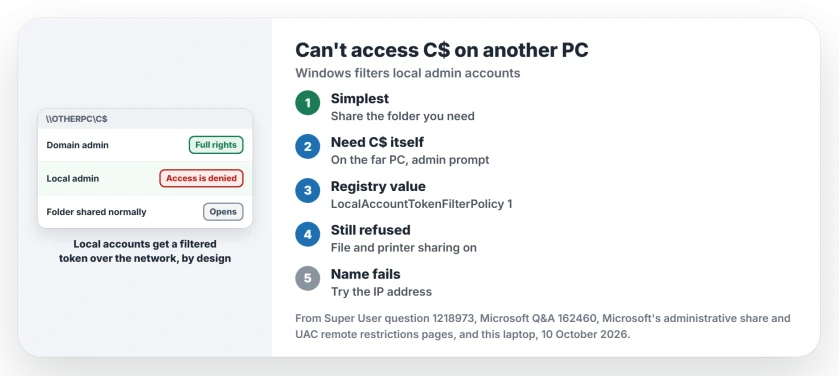
The account decides it. Microsoft says on its administrative share page that "By default, Windows prevents local accounts from accessing administrative shares through the network".
So a local admin account gets in with its admin rights stripped, or as Microsoft's UAC page puts it, such users "won't connect as a full administrator". Domain admins keep their full rights.
Microsoft calls it "This behavior is by design". Nothing on either PC is broken.
Status: Microsoft's administrative share and UAC remote restrictions pages and owners on Super User and Q&A, checked 10 October 2026. The registry switch let local admins in.
The fix Microsoft prefers: share the folder
Microsoft's first answer is not C$ at all. It recommends a normal share with the permissions you choose.
On the far PC, right-click the folder you need, open Properties, then the Sharing tab, and share it with your account. Pick read or read and write.
No account for you on that PC yet? Adding a user in Windows takes a minute, and a plain standard account is enough for a normal share.
I would start here when you only need files. A normal share asks for nothing more than that folder, and it leaves the admin shares locked.
If the share itself will not open, the shared folders page covers network discovery and connecting by IP address.
If you really need C$: one registry value
Some admin tools need C$ itself. Then you switch off the filter on the far PC, the one you connect to.
Open Command Prompt as an administrator there and run this line.
REG ADD HKLM\SOFTWARE\Microsoft\Windows\CurrentVersion\Policies\system /v LocalAccountTokenFilterPolicy /t REG_DWORD /d 1 /fMicrosoft documents the values. Value 0 is the default, and value 1 means "build an elevated token", so a local admin keeps full rights over the network.
Owners on Super User confirmed it worked. One wrote that they "can confirm no reboot was required". On Q&A, an owner said the same answer "should be marked as the correct answer".
Ours: this laptop has no LocalAccountTokenFilterPolicy value at all, which means the default. Yours will look the same unless someone added it.
A related UAC split hits mapped drives on your own PC. A drive you map as administrator can vanish from File Explorer, since the elevated session has its own drive letters.
What that switch gives away
Microsoft explains why the filter exists. It "helps prevent local malicious software from running remotely with administrative rights", and turning it off removes that brake for every local admin account on the PC.
On a home network with two of your own PCs, that may be a fair trade. On a work network, I would ask whoever runs it first, since a central policy can undo your change anyway.
To undo it, set the value to 0.
Still refused? Three more checks
Is sharing on at the far PC? The asker's own answer was switching file and printer sharing on in Advanced sharing settings.
One owner with domain virtual machines called it "exactly the answer I needed", while another insisted it did nothing.
Does the name fail but the IP work? One owner reached \\10.5.0.33\c$ while the PC name kept failing, and another found the cause was DNS answering from a flaky Wi-Fi link.
Has someone trimmed your security policy? One answer describes Administrators missing from the "Access this computer from the network" right in Local Security Policy, set by a domain rule. Windows 11 Home does not include that tool.
One more case: a Windows 11 Pro owner kept getting "server is not configured for remote administration" even with the value set on their own PC. The same command worked from a Windows Server 2012 R2 machine.
The Short Version
- Windows blocks local accounts from admin shares over the network, by design.
- Microsoft's preferred fix is a normal share of the folder you need.
- For C$ itself, set LocalAccountTokenFilterPolicy to 1 on the far PC.
- That switch removes a defense against attacks spreading between PCs.
- Still refused: sharing settings, the IP address, then the network access right.
Where to Next
Reached your C$ at last? Write in the comments which check did it, and I will see whether another case belongs here.

Isaac Smith is the founder and editor of PC Glance, a website that covers computers, laptops, and technology. He is a tech enthusiast and a computer geek who loves to share his insights and help his readers make smart choices when buying tech gadgets or laptops. He is always curious and updated about the latest tech trends.