
You map a network drive with net use in an admin Command Prompt, and File Explorer never shows it. Or the drive sits in File Explorer, but an admin window answers "The system cannot find the drive specified".
I would stop remapping the same drive over and over. Windows gives an admin account two sessions, and each one keeps its own drive letters.
A Microsoft Q&A post from April 2024, titled as the solution to drives missing in File Explorer, has 30+ under Same question. The Super User version from 2016 has 39,070 views.
Two sessions, two sets of letters
Microsoft documents the split on its mapped drives page: "When UAC is enabled, the system creates two logon sessions at user logon". One runs with admin rights, the other without.
A drive letter belongs to one of them. Microsoft says the links behind your letters "are specific for a logon session and are not shared between logon sessions".
File Explorer runs without admin rights. So a drive mapped from an admin window lives only there, as Super User's highest-voted answer puts it, and Explorer cannot see it.
Ours: this laptop has UAC on, with EnableLUA set to 1 and the prompt at value 5, which Microsoft's UAC table calls "Prompt for consent for non-Windows binaries". It has no mapped drives and no EnableLinkedConnections value.
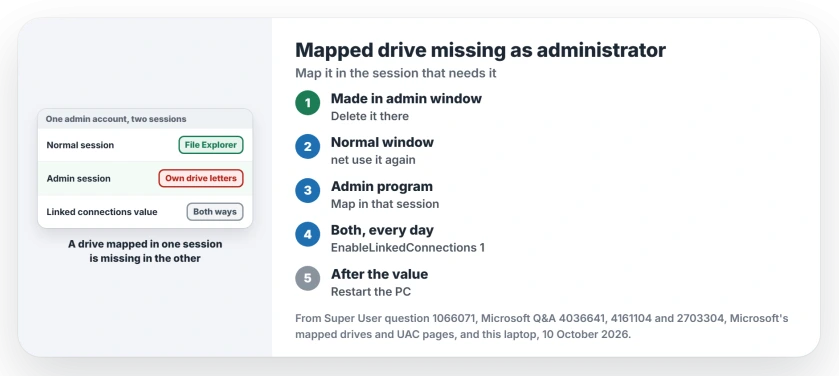
Status: Microsoft's mapped drives, UAC and Administrator protection pages, this laptop's UAC values and owner fixes, read 10 October 2026. Remapping in the right session fixed it.
Mapped it in an admin window? Do it again in a normal one
This is the common case. Delete the drive in the admin window where you made it:
net use Z: /deleteThen open Command Prompt the normal way and map it again:
net use Z: \\SERVER\Share /persistent:yesThe owner behind the Q&A post did exactly that, and "the drive was visible in File Explorer". They reproduced the fault and the fix on a second Windows PC.
A Super User owner reached the same result. Their admin-window mapping never reached File Explorer, while the same net use line in a normal window did.
Connecting to the same server as a second account fails differently, with error 1219, because Windows takes only one account name per server.
An admin program cannot see your drive? Map it inside that session
The reverse happens with installers and admin tools. Microsoft notes the issue "also affects other applications that run in an elevated context (run as administrator)" when they use drive letters.
Its second workaround is plain: "Map the required drives again in the elevated session". An owner on Q&A ran net use inside the admin prompt and replied "Perfect, thank you!"
Ours: Microsoft ties the problem to drive letters, so typing the full \\SERVER\Share path into the installer skips the letter entirely. I would try that before any registry change.
Making a script shortcut run elevated has its own snag: the Run as administrator box goes gray until Target starts with a program.
One registry value that shares both ways
If you need the letters in both sessions every day, Microsoft gives a value for it. Open Registry Editor as admin and go to this key:
HKEY_LOCAL_MACHINE\SOFTWARE\Microsoft\Windows\CurrentVersion\Policies\SystemAdd a DWORD (32-bit) value named EnableLinkedConnections, set it to 1 and restart. Microsoft says it "forces the symbolic links to be written to both linked logon sessions".
Owners on Super User wrote that it "Worked on Win10 Pro", and the answer's author had it running on Windows 10 Home after a reboot. A Q&A asker accepted it on Windows 11 Pro.
One Q&A owner on 23H2 said it did nothing, and a volunteer moderator then showed it working after a restart. So I would restart once more before giving up on it.
When the value is not enough
Microsoft's page names one setting that beats it. If your UAC prompt asks for a name and password rather than Yes or No, Windows starts a third session, and your letters stay out of it.
Its fix is to set that prompt back to Prompt for consent in Local Group Policy Editor. On a home PC signed in as an admin, the default value 5 already asks for consent, so this mostly bites work machines.
Windows 11's newer Administrator protection goes further.
Microsoft says it uses "a hidden, system-generated, profile-separated user account" for admin tasks, and lists "Network Drives/Resources Inaccessible from elevated apps" as a known issue.
For installers it suggests you "copy installation files to a local drive before elevating". That still works when nothing else does.
If the drive fails in every window
Then the share itself is the fault, not your sessions. Our guide to File Explorer not refreshing covers a dead mapped drive, and the admin share page covers access refused by the other PC.
If the drive keeps asking for its password each time you start the PC, an old saved credential is the usual cause.
Command Prompt refusing to move onto a mapped letter in an ordinary window is cd's own behavior, not a session problem. Here is how to switch drives there.
The Short Version
- An admin account has two sessions, and each keeps its own mapped drives.
- Mapped in an admin window? Delete it there and map it again in a normal one.
- An admin program needs it? Map it in that session or type the full UNC path.
- EnableLinkedConnections set to 1, then a restart, shares letters both ways.
- A credentials prompt or Administrator protection keeps them apart anyway.
Where to Next
Which program was refusing your mapped drive? Mention it in a comment, along with whether EnableLinkedConnections fixed it for you. I read each one.

Isaac Smith is the founder and editor of PC Glance, a website that covers computers, laptops, and technology. He is a tech enthusiast and a computer geek who loves to share his insights and help his readers make smart choices when buying tech gadgets or laptops. He is always curious and updated about the latest tech trends.