
You connect with Remote Desktop, type your password, and the window stays black. Sometimes the mouse moves, sometimes nothing happens, and after about 30 seconds the session drops.
I would press one key combination before closing that window, because the session is usually alive and only the picture is missing.
Super User logged 606,113 views on the 2015 question about it. A Microsoft Q&A thread on the same black window after the Windows 10 1903 update shows 400+ under Same question.
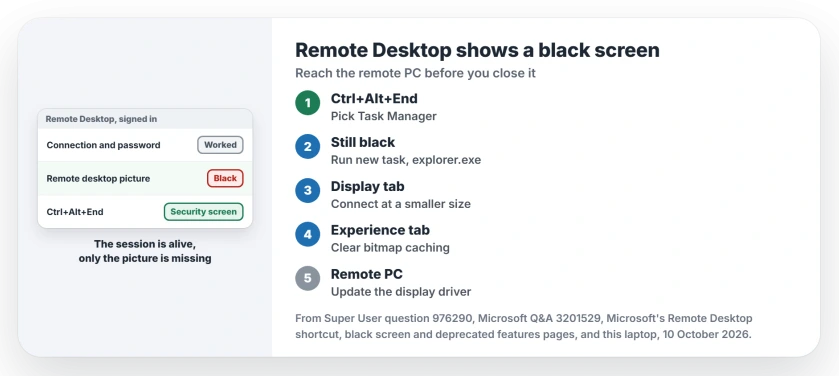
The session is up, the picture is not
A black window means the connection worked and you signed in, and what failed is the step where the remote PC draws its desktop for you.
The top Super User answer names two usual triggers.
It says "The issue appears to be caused by Screen Caching and accessing a system with different display resolution or RDP window sizes". A display driver on the remote PC is the third, and Microsoft wrote about that one.
Ours: Remote Desktop Connection on this laptop is version 10.0.26100.8875, on Windows 11 Home 25H2. Its Experience tab has a Persistent bitmap caching box, and the Display slider runs from 640 by 480 pixels to full screen.
Both settings matter in the steps that follow.
Status: Tested against Microsoft's shortcut, black screen and deprecation pages, this laptop's mstsc.exe and owner fixes, 10 October 2026. Ctrl+Alt+End came first.
1. Press Ctrl+Alt+End inside the black window
Click the black window first so it has the keyboard. Then press Ctrl+Alt+End, or Ctrl+Alt+Fn+End on a laptop without an End key.
Microsoft's Remote Desktop shortcut keys page says it "provides the same functionality as pressing CTRL+ALT+DEL on the local computer". You get the remote PC's security screen, not your own.
Pick Task Manager there. Often the desktop paints itself the moment that screen opens.
If you see only Task Manager, choose Run new task, type explorer.exe and press Enter. That starts the desktop and taskbar the remote PC failed to load.
If it works for you, you are done. One owner wrote "The first solution works for me".
The fix was confirmed by owners as late as Windows 10 1809, and another reached the security screen, signed out from it, and saw the desktop load normally on the next connection.
Do not press Ctrl+Alt+Del by habit. It can land on your own PC, and one owner warned "i accidentally logged myself out, losing unsaved work".
2. Reconnect at a smaller size
If the shortcut does nothing for you, close the black window. Open Remote Desktop Connection, select Show Options and go to the Display tab.
Drag the slider down to a size the remote screen supports, then connect. One owner wrote "Connecting with a lower resolution then re-connecting with normal resolution worked in my case".
Another found the remote PC topped out at 1600 by 900 while their own screen ran 1920 by 1080. They connected at 1600 by 900, then opened a second window at the large setting, and that one took over at full size.
A third owner had their laptop at 125 percent scaling and the remote PC at 100. Matching the two fixed it.
3. Untick Persistent bitmap caching
Your copy of Remote Desktop keeps pieces of the remote screen on disk to save time, and when that cache goes stale, you can end up with a black picture.
Microsoft's black screen article has a client fix for you. It reads "Disable the use of Bitmap Caching on the Remote Desktop Protocol (RDP) client".
The article dates from Windows Server 2003. Yet the box still sits on your Experience tab, as it does on this laptop.
Open Show Options, go to Experience, clear Persistent bitmap caching and connect again. The asker on Super User said this alone did not help them, so count it as a quick check for your case, not the cure.
When the remote PC's display driver is the cause
The big 1903 thread had a cause your first steps cannot reach. One reply spoke for Microsoft's team.
Old display drivers report data that Windows had ignored before, and it went on: "Starting with Windows 10 1903 RDP uses this data to initialize the session".
The advice was plain: "The best option is to install an updated display driver from the hardware manufacturer".
If your remote PC's maker has no newer driver, look at one owner with an old Intel G41 chip. They saw the black screen with every driver on offer, switched to Microsoft's basic display driver, and Remote Desktop worked again.
The accepted workaround in that thread forced the older XDDM driver for remote sessions through Group Policy. I would not lean on it today.
Microsoft says on its deprecated features list that support for XDDM remote display drivers is due to be removed, so the workaround has no future on your PC.
Home editions cannot use that route anyway. Ours: this laptop has no TerminalServer policy file, its Remote Desktop service is stopped, and it refuses incoming connections.
If your remote PC runs Home, it can only connect out, never take a session.
Still black: restart the remote PC or change the protocol
Restarting your remote PC clears a stuck session. The asker found a reboot cleared it for a while. Another owner had tried every other answer first. They restarted the remote machine from the command line and wrote "It indeed worked".
The quickest route needs no commands. The security screen that Ctrl+Alt+End opens has a power button in its lower right corner. Restart there restarts the remote PC, not yours. I would use it before reaching for a command line.
If the black screen comes back on a slow or busy connection, turning off UDP fixed it for one owner. Our page on Remote Desktop freezing shows that change on your own PC.
Never get as far as the password? Then the fault is the connection itself, and Remote Desktop not connecting starts with the edition check.
The Short Version
- Click the black window, press Ctrl+Alt+End.
- No desktop behind it? Run new task, explorer.exe.
- Reconnect at a smaller Display size.
- Clear Persistent bitmap caching on the Experience tab.
- Update the remote PC's display driver.
- Or restart it from the security screen.
Where to Next
Did Ctrl+Alt+End bring your desktop back, or did you need the smaller size? Name the step in a comment, plus the remote PC's Windows version, and I will update the steps from your replies.

Isaac Smith is the founder and editor of PC Glance, a website that covers computers, laptops, and technology. He is a tech enthusiast and a computer geek who loves to share his insights and help his readers make smart choices when buying tech gadgets or laptops. He is always curious and updated about the latest tech trends.