
Your USB stick appears in Disk Management. It shows as a disk marked No Media with 0 bytes. Windows asks you to insert a disk, and formatting is impossible.
I would treat that label as a warning before a repair job. Windows can still talk to the small chip that runs the stick. The memory behind it has gone quiet.
The Super User question that collects these cases, posted in January 2015, has over 375,000 views. A Microsoft Q&A question about a stick that shows No Media and 0 MB holds 10+ under Same question.
What No Media actually tells you
Windows defines the status in its own storage message file. No Media "indicates that the object has no media present". An empty card reader reports the same.
On a USB stick the reader and the card are one sealed part. The canonical Super User answer puts it plainly. No Media means "the flash memory controller cannot communicate with the NAND flash memory on the drive".
That answer continues, "This is usually caused by the NAND flash failing". So run the checks first. Keep your hopes for a repair low.
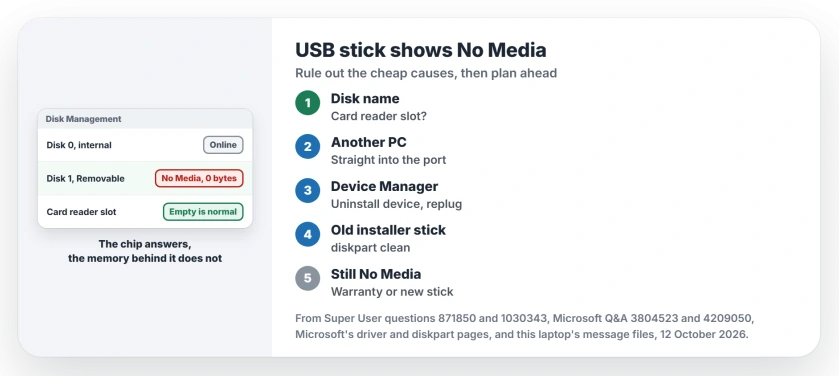
Status: Windows' storage message files, Microsoft's driver and diskpart pages, this laptop's Device Manager and owners' reports since 2015, checked 12 October 2026.
Is it a card reader slot?
Check the disk's name before anything else. Each reader slot counts as its own disk. A slot with no card in it reads No Media all day long.
One Super User asker found their laptop's SD slot listed in diskpart as SD/MMC Disk Device, next to the hard drive. If your No Media disk carries a reader name like that, insert a card and look again.
1. Try another PC and another port
A comment gives the first step. Its advice: "just try the USB flash drive in different PC to determine if issue is local PC issue or not".
Plug it straight into the computer, not into a hub, a dock or a front panel cable, since a weak port can starve the stick of power.
One Q&A owner tried their stick on a second laptop and saw the same failure there. In the end a technician looked at it and they exchanged it under its one-year warranty.
If the stick works on the other PC, the problem belongs to your computer. Our page on USB device not recognized covers the PC side, including the ports that stop answering.
2. Uninstall the disk and plug it back in
Open Device Manager, expand Disk drives, right-click the stick and choose Uninstall device. Under Universal Serial Bus controllers it can also appear as USB Mass Storage Device.
Unplug it, wait a few seconds and plug it back in so Windows builds a fresh entry for it.
Microsoft documents this route for any device: after a restart, "Windows attempts to reinstall the driver for the device", which is in Microsoft's Device Manager steps.
An owner who had used their stick to install Windows wrote that this "made it possible for me to see the entire partition in Disk Management". Another replied simply "This worked for me".
Ours: Device Manager on this laptop still keeps two USB disks that are not plugged in, listed with status Unknown.
Windows keeps old entries like these. Removing the stick's entry is safe, since Windows adds it again when you plug the stick in.
3. A stick that once held a Windows installer
That first owner went one step further. They had nothing on the stick to save, so they ran diskpart's clean on it, then formatted it.
Microsoft says clean "Removes all partitions or volume formatting from the disk with focus". So it erases the stick. I would only run it on one holding nothing you need. The select disk number must be the stick, not your own drive.
diskpart
list disk
select disk 2
clean
Change 2 to the number list disk gives your stick, and compare the sizes before you press Enter. Then format it in Disk Management, as our guide to FAT32, exFAT or NTFS for a USB drive explains.
Clean only works once the disk shows its real size. On a disk still marked No Media, two owners got "Virtual Disk Service error" with the words "There is no media in the device". The message files on this laptop hold that same line.
4. Still No Media? Plan for a replacement
The canonical answer is blunt. In its words, "it is not possible to access any data on the drive, nor is it possible to repartition or reformat the drive". Formatting tools cannot reach memory the controller cannot reach.
If the data matters, a recovery lab can use special equipment to read the memory chips directly. The same answer calls that expensive and gives the plain alternative: "You should simply replace the drive".
Check the warranty first, as the Q&A owner did, because a replacement under warranty costs you nothing. A cheap fake stick can fail the same way. The answer notes such drives "will often show up as a storage device with 8MB capacity".
I would not download controller repair tools from forum links. A later comment found the ChipGenius file from the linked site flagged by 38 of 71 engines on VirusTotal. Another found the Bootice links dead.
The Short Version
- Several No Media disks? Check for card reader slots.
- Try another PC, straight into the port.
- Uninstall the disk in Device Manager, replug.
- Old installer stick? diskpart clean, then format.
- Still No Media: warranty, recovery lab or new stick.
Where to Next
Did the Device Manager step bring yours back, or was it gone for good? Leave me a comment with the brand, because patterns help the next reader.

Isaac Smith is the founder and editor of PC Glance, a website that covers computers, laptops, and technology. He is a tech enthusiast and a computer geek who loves to share his insights and help his readers make smart choices when buying tech gadgets or laptops. He is always curious and updated about the latest tech trends.