
You open a shortcut's Properties and press Advanced. The Run as administrator box is gray. Your account is an administrator, so the block makes no sense.
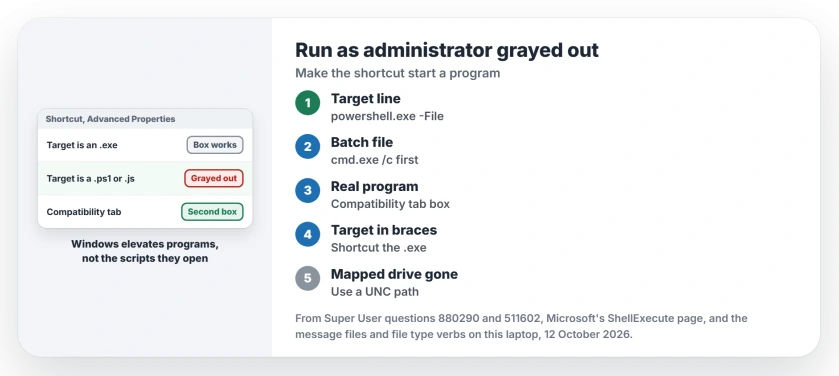
I would look at the Target line first. Windows offers that box when the shortcut starts a program. Shortcuts to many scripts, to documents or to special Start menu entries do not get it.
Asked on Super User in February 2015, the question has 91,320 views. A 2012 copy about a batch file adds 8,764 more.
Two boxes, and what grays them out
Windows has two places to ask for administrator rights. The Shortcut tab's Advanced button opens Advanced Properties, where the line under the box says it "allows you to run this shortcut as an administrator".
The Compatibility tab has a second box, Run this program as an administrator. It belongs to the program file, so it can work when the shortcut's own box is gray.
Elevation is something Windows does to a program as it starts. Microsoft documents the runas verb as one that "Launches an application as Administrator".
Your right-click menu shows Run as administrator for a file type only when its registry entry carries that verb.
Status: Microsoft's ShellExecute page, the Windows message files and file type verbs on this laptop, and Super User owners going back to 2012, checked 12 October 2026.
Ours: on this laptop, .exe, .bat, .cmd and .msc files carry a runas verb. Right-click one and you get Run as administrator. Files ending .vbs, .js, .py and .reg carry none.
1. Put the program in front of the script
This is the fix for a shortcut to a script. Open the shortcut's Properties. Add the program that runs the script to the front of Target, then press Advanced again.
powershell.exe -File "C:\Scripts\MyScript.ps1"
wscript.exe C:\Scripts\helloworld.js
cmd.exe /c "C:\Scripts\restart-spooler.bat"
"C:\Program Files\Python313\python.exe" "C:\Scripts\test.py"
Use your own paths. Python's folder may differ too. Once Target starts with a program, the Run as administrator box can be ticked like any other.
An owner had gray boxes on shortcuts to a batch file and a PowerShell script. In their words, "Changing the shortcut target to cmd.exe /c" and powershell.exe -File worked.
The highest voted answer gives the same fix for JavaScript and Python files, and owners report the same result for batch and PowerShell files.
If you shorten that line to plain python.exe and Windows answers that Python was not found, the shortcut is fine and Python is the problem. Python was not found on Windows sorts that part out.
2. For a program, use the Compatibility tab
Your shortcut may point at a real program and still show a gray Advanced box, as the asker's did. The accepted answer sent them to the Compatibility tab instead, which belongs to the program rather than the shortcut.
Right-click your shortcut, choose Properties, open Compatibility and tick Run this program as an administrator. The asker replied "Wow i didn't expect this to work but it did".
3. Make a new shortcut from the program file
Your shortcut may not point at a file at all. One answer shows the sign. Target holds a long code in curly brackets instead of a folder path, which you can see on the Shortcut tab.
Open the folder that holds the real .exe, right-click it and choose Show more options, then Send to, then Desktop (create shortcut).
One owner did exactly that for WINWORD.EXE, the Word 2016 program file, and found the option was no longer gray.
Another owner fixed a quick launch icon that had been copied from somewhere else in much the same way. They opened the original's file location from the Start menu and copied that shortcut. The copy could run as administrator.
A catch once it runs elevated
A program you start as administrator does not see the drive letters you mapped in your normal session. One answer warns to "use absolute UNC paths rather than mapped drives" for exactly that reason.
Our page on a mapped drive missing as administrator explains the two sessions and the registry value that joins them.
On a standard account, ticking the box does not give you rights you lack. Windows asks for an administrator's user name and password each time you start it instead.
I think that is the right trade. The prompt is what stops a program taking admin rights without you knowing.
The Short Version
- Script shortcut? Put powershell.exe, cmd.exe /c or python.exe first.
- Program shortcut? Use the Compatibility tab box.
- Odd Target in braces? Shortcut the .exe itself.
- Elevated programs miss mapped drives: use UNC paths.
- Standard account: expect a password prompt.
Where to Next
Which kind of file was your shortcut starting? Share the Target line that finally worked for you, because step 1 grows with every new example I get.

Isaac Smith is the founder and editor of PC Glance, a website that covers computers, laptops, and technology. He is a tech enthusiast and a computer geek who loves to share his insights and help his readers make smart choices when buying tech gadgets or laptops. He is always curious and updated about the latest tech trends.