
You right-click a file, pick Open with, browse to the program and select it. Windows closes the box. The program still is not in the list, or your file opens in something else.
I have seen this come from one stale line in the registry far more often than from anything broken. Updating or moving an app can leave that line pointing at the old place.
On Super User the question dates from November 2014 and has 57,185 views. A Microsoft Q&A question on adding apps to that list holds 60+ under Same question.
Why Windows ignores the program you chose
Windows keeps a small record for programs it can offer, under HKEY_CLASSES_ROOT\Applications. Many of them store the command that opens your file with that program.
Microsoft's troubleshooting article on the fault was written for Windows 7. It blames registration: "This may occur if the program you are attempting to associate with is not registered correctly."
Its fix is to make sure that command points "to the actual location of the executable". The owners in the threads all hit the same thing.
An editor moved to a new major version, and a 64-bit app was swapped for the 32-bit one. An Office upgrade left Excel's record pointing at the old Office folder. Each left a dead path behind.
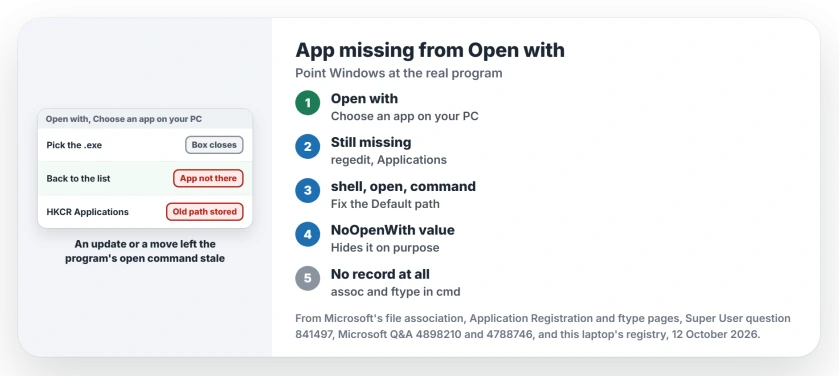
Status: checked 12 October 2026 against this laptop's registry and Windows 11's own Open with wording, beside Microsoft's association pages and owners.
Ours: this laptop holds 87 of those records. Only 11 carry an open command, and all 11 point at files that exist. Any record on your PC whose path is gone is a suspect.
1. Browse to the program once
Start with the plain route. Right-click your file and choose Open with, then Choose another app.
At the bottom, pick Choose an app on your PC, which Windows 10 calls Look for another app on this PC.
Go to the program's folder and select its .exe file. Then click Always if you want it as your default, or Just once.
Confirmed by an owner. A Microsoft Q&A asker whose Excel was missing browsed to the Office16 folder and wrote back: "I did find Excel in the Program files." Their file opened fine after that.
Does the program flash past and never appear in the list? Then the stored command is the problem. Go to step 2.
2. Fix the path under Applications
Press Windows+R, type regedit and press Enter. Open HKEY_CLASSES_ROOT\Applications, then the key named after your program's .exe, then shell, open and command.
Read the Default value. It should hold the program's full path in quotes, then %1, also in quotes, and that path must exist.
You can read it without opening the editor:
reg query "HKCR\Applications\notepad++.exe\shell\open\command"Swap in your program's file name, and if the path is old, double-click Default and correct it. Restart your PC so File Explorer picks it up.
I would export that key before you edit it. Right-click it and choose Export, and you have a one-click way back.
Reported working by owners. One Super User owner put it this way: "The path was not valid after an update to the app." Editing it by hand fixed it.
Another fixed theirs after replacing the 64-bit Notepad++ with the 32-bit one, and a Microsoft Q&A owner changed Office12 to Office14 in Excel's command.
3. Check for a NoOpenWith value
In the same Applications key, look for a value called NoOpenWith. Microsoft's page on keeping apps out of Open with gives this as the first step: "Add a NoOpenWith entry to the application's subkey."
Windows uses it on purpose. Ours: 64 of the 87 records here carry it, cmd.exe and explorer.exe among them, since Windows never wants those offered for your files.
Delete it only on a program you meant to use. Export the key first.
4. Register it with ftype from Command Prompt
The Super User asker's own fix works from the command line, and it helps when your program has no record at all.
Open Command Prompt as administrator. Microsoft says ftype "is not available from PowerShell", so use the old prompt, not a PowerShell tab in Windows Terminal.
Find the type name for the extension, then point it at the program:
assoc .md
ftype markdownfile="C:\Program Files\MyEditor\editor.exe" "%1"
If assoc reports no association, create one first with assoc .md=markdownfile. Use your own extension, type name and path. Then try Open with again.
Reported by owners. The asker's program showed in the list straight after. One commenter needed an administrator prompt for it to stick, and another restarted the PC before .c and .tgz files used the new app.
What about Store apps?
Store apps have no .exe path to fix, so steps 2 and 4 do not apply to them. Settings, Apps, Default apps still lets you pick one per file type, and our default apps page shows that route.
Not every case has a fix yet. A Microsoft Q&A owner whose PowerDirector lost its video types after 2025 updates found the app gone from both lists. Their thread ended without an answer.
Your right-click menu reads this same part of the registry, which is also why Print can disappear from a PDF's menu.
The Short Version
- Browse to the program's .exe once with Choose an app on your PC.
- If it never appears, fix its open command under HKCR\Applications.
- A NoOpenWith value hides a program on purpose.
- ftype and assoc register a program, in Command Prompt only.
- Export any key before editing it.
Where to Next
Which program stayed out of your list, and what had changed on the PC? Post its name in the comments. I collect the repeat offenders here.

Isaac Smith is the founder and editor of PC Glance, a website that covers computers, laptops, and technology. He is a tech enthusiast and a computer geek who loves to share his insights and help his readers make smart choices when buying tech gadgets or laptops. He is always curious and updated about the latest tech trends.