
You tick Remember my credentials, and the mapped drive works all day. After a restart it shows a red X or asks for the password again. Typing it in fixes things until the next restart.
Before you blame the NAS or the network, I would open what Windows saved. In the threads I read, most fixes came down to one stale or mismatched entry in Credential Manager.
Super User has had this question since September 2015, and it shows 129,809 views, while a related one about connecting with a different username has 650,543.
Why Windows keeps using the wrong password
The password for a share lives in Credential Manager, filed under the server's name. Microsoft's Credential Manager page is where you view and delete those saved entries.
Old entries do not step aside. A Super User answer with 43 votes warns that "Windows stores this account in the Windows credentials".
Change the username without removing the old entry, and "you can connect, but will get an error on reconnect as it still uses the old credentials when reconnecting". So the old password wins.
Names count as well. Commenters under that answer found Windows treats your NAS by name and by IP address as two servers. A password saved for the first does not reach the second.
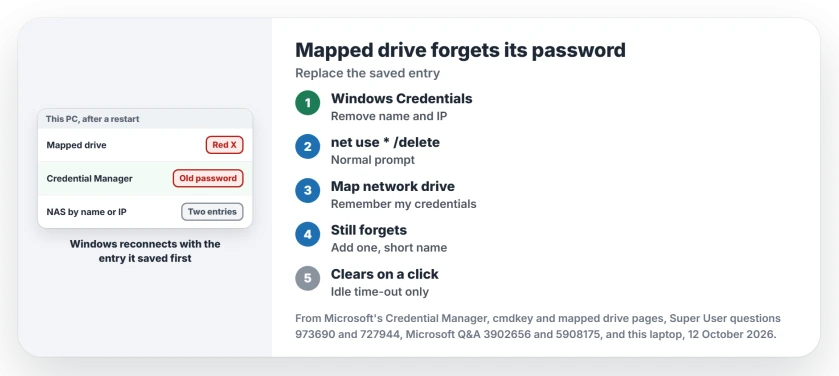
Status: Microsoft's Credential Manager, cmdkey and mapped drive pages, read 12 October 2026 next to owner fixes and this laptop's saved credential counts.
Ours: this laptop holds 32 saved entries in Credential Manager, but none is a share password and no drives are mapped. The policy that blocks storing network passwords is off, the normal state on a home PC.
1. Clear the old entries, then map once more
Search for Credential Manager on the taskbar and open Windows Credentials. Remove every entry for your NAS or the other PC. Check its name and its IP address.
Then disconnect the drive. Right-click it in This PC and choose Disconnect, or remove every mapping at once from a normal Command Prompt:
net use * /deleteNow map it again from This PC. Tick Reconnect at sign-in and Connect using different credentials, then enter the share's username and password and tick Remember my credentials.
Reported working by owners. An owner on Super User deleted the share, removed its Windows Credentials entry and remapped with both boxes ticked. That fixed an Azure share that kept forgetting.
Another owner's answer blamed leftover homegroup entries after the 1809 update. Removing them before connecting again fixed it.
Clearing every connection with net use helped a third owner too, who wrote that "deleting them all actually allowed me to map another one".
2. Save the password yourself, under the exact name
Still not sticking? I would add the entry by hand next. In Windows Credentials, click Add a Windows credential, then type the server name exactly as your drive uses it, with the username and password.
Confirmed by owners. That answer drew this comment: "Still relevant with Windows 10". A domain user needed domain\username in the username box, and a QNAP owner fixed theirs by editing the stored entry after a NAS password change.
Keep the name short. One owner with a Samba server traced it to the full domain name, writing "Do NOT use a fully qualified servername", since the long form never got saved.
cmdkey does the same job from Command Prompt. Microsoft's cmdkey page says that if the password "isn't supplied, it will be requested", which keeps it out of your typed command:
cmdkey /add:NAS /user:NAS\yourname /passReplace NAS with your server's name and yourname with your account on it. cmdkey /list then shows the entry. The password stays hidden.
3. Map it from a normal prompt, not an admin one
Credential Manager keeps a separate store for each Windows account. A Super User commenter explained why a plain prompt works best: "the credential manager is per user".
Open Command Prompt without Run as administrator and type:
net use Z: \\NAS\share /persistent:yesReported by an owner. The one who posted it turned to it when their NAS maker's mapping tool would not keep the drive. Their warning was blunt: "Don't use an administrator command prompt".
Microsoft says the same in its fix for drives that would not reconnect on Windows 10 1809. Its scripts run "at the same privilege as Windows Explorer", since an elevated run keeps the drive away from your normal session.
That split is also why a drive can vanish inside admin tools, which our page on mapped drives missing as administrator covers.
A red X that clears on a click is different
Does the drive open the moment you click it? Then your password is fine. Microsoft says the server drops idle sessions after a time-out "(by default, 15 minutes)", and your click reconnects.
Security software can delay mapped drives at sign-in too. A Microsoft Q&A owner on Windows 11 lost their drives after most restarts until they switched off Acronis's Protection module. Five days later the drives were still showing.
For what Windows keeps in each half of Credential Manager, our saved passwords page goes through both.
The Short Version
- Remove every Windows Credentials entry for the server, by name and IP.
- Map again with Remember my credentials and Reconnect at sign-in.
- Save the entry yourself under the short server name.
- Use net use from a normal prompt, not an admin one.
- A red X that opens on a click is an idle time-out, not a password.
Where to Next
Which NAS or server does your drive point at? Tell me its make in the comments. I note which name form each one wants.

Isaac Smith is the founder and editor of PC Glance, a website that covers computers, laptops, and technology. He is a tech enthusiast and a computer geek who loves to share his insights and help his readers make smart choices when buying tech gadgets or laptops. He is always curious and updated about the latest tech trends.