
You line up your desktop icons, turn the PC off, and next morning they are back in a heap or scattered at random. I would first find out whether a plain Restart puts them back. That one answer splits the causes in two.
The Super User question about saving icon positions has 241,178 views since August 2012. On Microsoft Q&A the same complaint goes back to 2010 at 40+, and new threads kept arriving in 2026.
Cold start or every start?
Windows keeps your layout in one registry key and writes it when Explorer saves the desktop. If it misses that save, or reads the layout back at the wrong moment, your icons land somewhere else.
Ours: on this laptop the key holds a 4,764-byte layout for 35 desktop items, last written on 9 October. Fast startup is on here, and the Desktop folder sits inside OneDrive. Those are the two causes owners fixed in 2026.
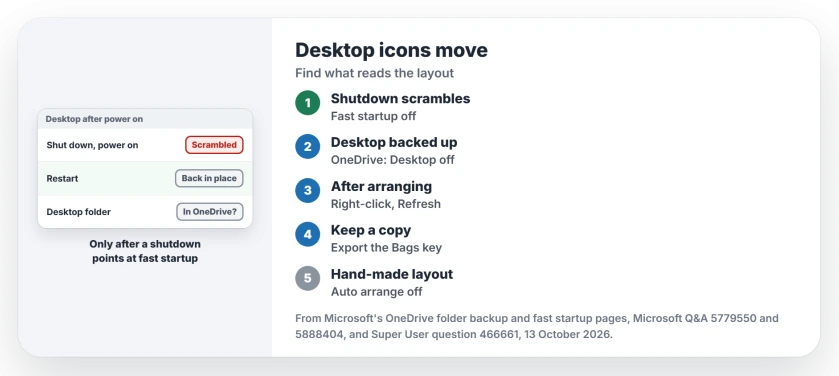
Status: Windows 11 25H2, compared 13 October 2026. Shut down scrambles, Restart does not: fast startup. Desktop in OneDrive backup: stop that backup. Refresh saves the layout.
1. Scrambled after a shutdown? Turn off fast startup
A February 2026 owner described the clue exactly: "Every time i start my computer after its been off for a while I have to do a restart to have my icons set up the way I left them".
An adviser replied "If restarting the PC resolves the issue, please try disabling Fast Startup in Windows". Days later the owner wrote "This appears to have worked", with the icons "were they are supposed to be".
Microsoft's driver documentation explains the difference. Fast startup reads back a saved hibernation file, Hiberfil.sys, instead of starting cold. Restart skips that file, which is why it puts your layout back.
To turn it off, go to Power Options under Control Panel, then to the power button settings. Unlock the locked options, clear the fast startup box and save your change.
To test first, the adviser gave a one-off route: "you can temporarily disable Fast Startup by holding the Shift key on your keyboard while selecting Shut down".
Restart and Shut down differ in more ways than this, and a full shutdown clears other oddities too.
2. Is OneDrive backing up your Desktop?
Confirmed by an owner in May 2026, after more than 20 suggestions failed: "I removed my Desktop from OneDrive and the problem has now disappeared". A couple of weeks on, they still had "no problems with the icons rearranging".
Microsoft's OneDrive folder backup page says "When you back up your Desktop folder, the items on your desktop roam with you to your other desktops where you're running OneDrive".
So two PCs backing up to one account share one Desktop folder. If you own a second PC, suspect this first.
Click the OneDrive cloud in the taskbar, open Settings, then Sync and backup, then Manage backup. Microsoft says "To stop backing up a folder, select the toggle for the folder to turn it off".
OneDrive then asks where the files go. You can leave them in OneDrive alone, or bring them back to the PC. Pick the PC option to keep them on your desktop. If icons vanished rather than moved, OneDrive is a suspect there too.
3. Save the layout by hand before you restart
Arrange your icons, then right-click an empty spot on the desktop and choose Refresh. Super User's accepted answer needs five words: "This saves the icon positions".
Comments confirmed it for years. One wrote "Great on Windows 10 too", another "it works, why must I have suffered these many years?". A 2018 owner on Windows 10 1709 disagreed: "Didn't work at all for me".
Back up the key as a file. Open Registry Editor, go to the path in the next block, right-click Desktop and choose Export:
HKEY_CURRENT_USER\Software\Microsoft\Windows\Shell\Bags\1\DesktopA 2024 owner described the restore, "Tested on Windows 10": "When you want to restore it just run the .reg file and restart explorer.exe (or Windows Explorer)".
Prefer an app? One owner reported "DesktopOK 9.11 working great on Windows 11". It saves and restores your layouts, and a commenter noted it runs without installing.
The two View options, and what they change
Right-click your desktop and open View. Windows lists Auto arrange icons and Align icons to grid there.
Auto arrange packs icons into left-hand columns. Microsoft's description of that flag reads "Automatically arrange the elements in the view". Leave it off for a hand-made layout.
Align icons to grid only snaps each icon to the nearest slot. Ours: the stored flags here show auto arrange off and grid on, the mix for a hand-made layout.
Using several screens? That adds one more trigger. When a monitor sleeps or changes resolution, Windows can repack icons for the screens left. Open windows piling onto one screen after sleep is the same mechanism at work.
When nothing saves at all, a Microsoft MVP's 2010 answer renamed that Desktop key so Windows builds a new one at the next sign-in. A 2017 owner wrote "I couldn't do all the steps but so far it seems to have worked".
The Short Version
- Shut down scrambles, Restart does not: turn off fast startup.
- Desktop backed up by OneDrive: Manage backup, Desktop off.
- After arranging: right-click the desktop, Refresh.
- Export the Bags\1\Desktop key as a layout backup.
- Leave Auto arrange icons off if you place icons by hand.
Where to Next
Was it fast startup, OneDrive or another cause? Say which in the comments, with the number of monitors you run.

Isaac Smith is the founder and editor of PC Glance, a website that covers computers, laptops, and technology. He is a tech enthusiast and a computer geek who loves to share his insights and help his readers make smart choices when buying tech gadgets or laptops. He is always curious and updated about the latest tech trends.