
You used your stick for a Windows installer, a recovery drive or a Linux image. Now your 128 GB drive says 32 GB, or your 8 GB stick says 200 MB, and a fresh format does not bring the space back.
I would open Disk Management before buying another one. The missing space is still on the stick.
A Microsoft Q&A question about an 8 GB SanDisk reading 200 MB is marked 600+. Its Super User twin, from January 2012, has 597,727 views.
Where the space went
Making a bootable stick rewrites its partitions. A format only rewrites the one partition Windows shows you. The rest of your stick stays out of sight as unallocated space.
An MVP on a Q&A thread marked 80+ explained the Windows case: "When Media Creation Tool formatted the stick it only used the first 32gb to create the bootable media."
A Linux image can leave you far less. One Super User owner saw "about 20 mb" after making a bootable Linux drive.
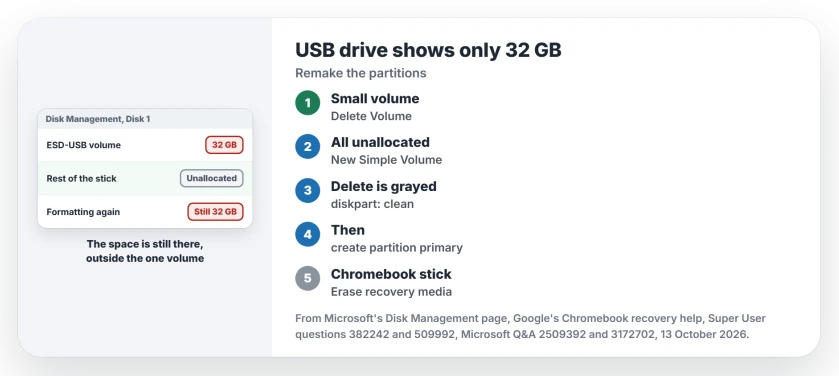
Status: for a stick shrunk by an installer or a Linux image. Windows 11 25H2 steps, 13 October 2026: delete the small volume in Disk Management, or clean the disk in diskpart.
Everything on this page erases your stick. Copy off any file you still want to another drive before you start.
Disk Management first
Right-click Start and choose Disk Management. Find your stick by its size. You should see a small volume, then a long black bar marked Unallocated.
Right-click the small volume and choose Delete Volume. Your whole stick turns into unallocated space. Right-click that and choose New Simple Volume.
Microsoft's steps for Disk Management say to "accept the maximum default size" in the wizard. Keep the drive letter it offers, or the stick will not show in File Explorer.
I would pick exFAT if you move files between computers. Our guide to FAT32, exFAT or NTFS on a USB drive covers that choice.
Confirmed by an owner whose 1 TB drive read 31.9 GB after Media Creation Tool, on a 100+ thread: "Thank you Dave, it worked". An Independent Advisor had told them to delete the 32 GB volume and make one new simple volume.
Delete Volume grayed out? Clean the disk in diskpart
On some sticks Delete Volume is missing or grayed out. Two commenters under the Super User question hit exactly that on their own sticks. Diskpart clears the whole partition table instead.
Right-click Start and open Terminal (Admin), or Windows PowerShell (Admin) on Windows 10. Enter each line in turn, changing 3 to your stick's number from list disk.
diskpart
list disk
select disk 3
clean
create partition primary
format fs=exfat quick
assign
exit
I would compare the sizes in list disk twice before typing clean. Disk 0 is almost always the drive Windows runs from, and clean wipes whatever disk you selected.
Ours: diskpart's own help text on this laptop explains the step. "If the ALL parameter is not used, the first 1MB and the last 1MB of the disk are zeroed". So it clears the old layout fast.
Reported by owners under the 597,727-view question. Comments on the diskpart answer include "Worked perfectly on Windows 7 64-bit" and "Other than that, thanks, it worked!"
On the 600+ Q&A thread, one reply to the same steps reads "Absolutely perfect instructions, thanks!" If clean answers Access Denied, run it again. One 2016 commenter had to "try few times" on Windows 10.
A Chromebook recovery stick: let Google erase it
A stick that held a Chromebook recovery image can refuse every Windows tool. On that Super User question, with 345,583 views, formatting fails with an error ending in cannot find the file specified.
The answer the asker accepted used Google's own utility, the Chromebook Recovery Utility in Chrome. Google's steps to recover a Chromebook end with erasing your stick.
Open Chrome, click Extensions and open the Chromebook Recovery Utility. Go to Settings, then Erase recovery media. Pick the stick, click Continue, then Erase now.
Google says "The tool will erase everything on your USB drive". Then it tells you to "Use a tool provided by your operating system to format the storage device."
Confirmed by two commenters. One wrote "Amazing. The Chrome App fixed it immediately". Another had tried everything, "including extensive use of DISKPART", before the Recovery utility cleared the stick.
Diskpart clean fixed the same error for others on that question. One commenter on the top answer wrote "clean did the trick!"
Is any of the old data still there?
Not through Windows. An Independent Advisor on Q&A put it plainly in 2025: "There is no native method in Windows to recover data from a formatted drive."
If your drive held files you still need, stop here and leave the stick as it is. Try a recovery tool before you delete or clean anything.
Does your stick read No Media and 0 bytes instead? That fault sits deeper. We covered what No Media on a USB drive means separately.
The Short Version
- Disk Management: delete the small volume, then New Simple Volume on the unallocated space.
- Delete Volume grayed out: diskpart, select the stick, clean, create partition primary, format, assign.
- A Chromebook recovery stick: Chromebook Recovery Utility, Settings, Erase recovery media.
- Check the disk number twice. Clean wipes whatever disk is selected.
Where to Next
What was on your stick before it shrank: an installer, a recovery drive or a Linux image? Say which in a comment, and whether Disk Management alone was enough for you.

Isaac Smith is the founder and editor of PC Glance, a website that covers computers, laptops, and technology. He is a tech enthusiast and a computer geek who loves to share his insights and help his readers make smart choices when buying tech gadgets or laptops. He is always curious and updated about the latest tech trends.