

Your worksheet suddenly has thin dashed lines running down and across it. You did not draw them, Clear Print Area does nothing, and they stay when you go back to work.
I would call them page breaks first: Excel draws them once it has worked out where your printed pages end, and it leaves them on until you switch them off.
A September 2011 Super User question on these lines has 385,310 views. Its accepted answer still gets comments from people who could not find the switch.
What turned the lines on
Excel only draws these lines after it has split your sheet into pages. Opening Print Preview does that, which is why the lines so often appear right after you print.
One commenter on the 2011 question wrote: "They actually turn on after you have went to print once."
Printing is not the only trigger. In our test, four other things switched them on without any printing at all.
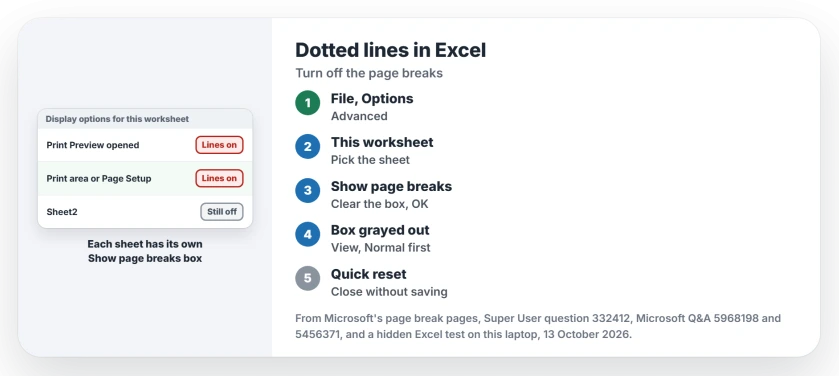
Status: switch Show page breaks off for each sheet that has the lines. Excel 16.0 build 20430 turned them on for a print area or a Page Setup change in our 13 October 2026 test.
Ours: I filled a test sheet with 150 rows in a hidden Excel, and its lines were off. Simply asking Excel how many page breaks your sheet has turns them on. Excel has to work out the pages to answer.
Changing the page to landscape did it too. So did a print area, a manual page break, and a trip to Page Break Preview and back. Each time, only that one sheet changed. The second sheet in the workbook stayed clean.
Switch them off for this sheet
Click File, then Options, then Advanced. Scroll to Display options for this worksheet. Clear the box marked Show page breaks and click OK.
Note the words this worksheet in that heading. Your setting covers one sheet at a time, picked in the list beside the heading. If a second sheet has lines too, choose it there and clear its box as well.
Confirmed by an owner, the asker on Super User: "Aha page breaks! I thought it was something to do with printing. Worked a treat". Later comments confirm the same box in Excel 2010 and 2016.
Microsoft states it on its page about inserting and deleting page breaks: "clear the Show page breaks check box".
The box is grayed out
You are not in Normal view. In August 2026 an owner on Microsoft Q&A found the box grayed out. The answer they accepted said this "can happen when the worksheet is currently displayed in Page Layout or Page Break Preview".
Click View, then Normal, in the Workbook Views group. Or click the left of the three small view buttons at the bottom right of your window. Then go back to Options, and your box works.
Close without saving, the quick reset
If you only opened Page Break Preview to check your pages, there is a faster way. Microsoft notes that afterwards "you may still see the page breaks in Normal view because page breaks have been turned on automatically."
Its fix is to close and reopen your workbook without saving it.
Microsoft's page also warns that saving first keeps the lines. Our test did not see that. Lines saved with a print area or a manual break never came back on reopening, as xlsx or old xls.
I would still trust the Options box, because it works whether or not the file remembers anything.
Lines that are not page breaks
A moving dashed border round your cells
That is the copy marker. Excel shows it while your copied cells wait on the clipboard. Press Esc and it goes.
Big gray Page 1 marks over the sheet
You are in Page Break Preview. On a Q&A thread about large page numbers in the middle of a sheet, an MVP said they "won't be printed". Normal view takes them away.
Lines that print
An MVP on Q&A wrote that page break lines in Normal view cannot be dragged "nor do they print". If yours show up on paper, they are cell borders or gridlines.
Select the cells and choose No Border. Or clear Print under Gridlines on the Page Layout tab.
If the trouble is rows that will not resize to fit your text, our page on AutoFit not working goes through the cells that block it. And when Excel asks to save a file you only looked at, a volatile formula is often behind it.
The Short Version
- The lines are page breaks, drawn after Print Preview, Page Setup, a print area or a manual break.
- File, Options, Advanced, Display options for this worksheet: clear Show page breaks.
- Grayed out: switch to Normal view first.
- Quick reset: close the workbook without saving.
- A moving dashed border is the copy marker. Press Esc.
Where to Next
Lines after printing, or after a Page Setup change? Post your trigger in the comments. The odd ones go into my own test notes for the next update.

Isaac Smith is the founder and editor of PC Glance, a website that covers computers, laptops, and technology. He is a tech enthusiast and a computer geek who loves to share his insights and help his readers make smart choices when buying tech gadgets or laptops. He is always curious and updated about the latest tech trends.