

You press Tab on a bullet, expecting a sub-bullet, and Word just pushes the text along with a gap. The bullet stays where it was. Backspace may stop moving it back out, too.
I would check one AutoCorrect box first. It decides whether Tab touches your list level.
Nick Josevski's Super User question from May 2010 has 223,738 views, and one Microsoft Q&A thread on it counts 300+ same-question votes.
Tab has two jobs in Word
Tab can type a tab character, or it can change your paragraph's indent. One setting picks between them.
Microsoft documents it as true when "the TAB and BACKSPACE keys can be used to increase and decrease, respectively, the left indent of paragraphs". You will find it under AutoCorrect.
In a list, that indent change is what moves an item down a level. Microsoft MVP Bob Jones explained it on Microsoft Q&A: "In an existing list, Tab/Backspace demote/promote the item one level at a time".
Turn the setting off and Tab goes back to typing gaps. That matches each report I read.
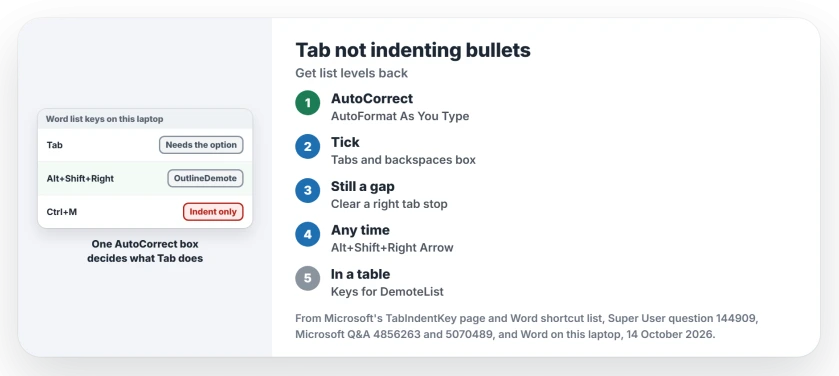
Status: on 14 October 2026, Word 16.0.20430 on this laptop still keeps the option under AutoFormat As You Type, with Alt+Shift+Right Arrow bound to demote.
Ours: this laptop's Word had it on. Word's key table also binds Alt+Shift+Right Arrow to a command called OutlineDemote.
1. Tick the tabs and backspaces box
- Go to File, Options, Proofing, then AutoCorrect Options.
- Open the AutoFormat As You Type tab.
- Tick Set left- and first-indent with tabs and backspaces, then select OK.
Nick Josevski, who asked on Super User, replied "Thanks that did it" to the answer pointing at this box. Owners report the same fix on Microsoft Q&A, where a Word MVP gave it and that asker accepted it.
On a Mac, the box sits in Word, Preferences, AutoCorrect, AutoFormat As You Type, under the name Tabs and backspace set left indent.
Click just in front of the item's first word before you press Tab. In the middle of a line, Tab types a gap whatever the setting.
2. A right tab stop can block it
The box is ticked and Tab still types a gap? Look at the ruler for that line. An owner on the 300+ thread found the cause there: "If you have a right tab set and you try to use tab to indent your bullet point it won't budge".
Removing the tab stop brought Tab back, and the asker accepted that answer. A right tab stop is easy to miss. Drag the marker down off the ruler, or open Paragraph, Tabs and select Clear All. Then try Tab again.
3. Use the list keys instead
Word has keys for list levels that ignore the AutoCorrect box. Press Alt+Shift+Right Arrow to move an item down and Alt+Shift+Left Arrow to bring it back. Microsoft's shortcut list calls them "Demote a paragraph" and "Promote a paragraph".
On Windows, one Super User commenter rated it the best option, because the bullet style changes with the level. Ctrl+M also indents, but another commenter found it left the same bullet in place.
On a Mac, one answer gives Control+Shift+Right Arrow, though a commenter found it failed in Word 2011.
Bullets inside a table?
There Tab moves you to the next cell, or adds a row at the end. It cannot demote anything. One Mac owner on Microsoft Q&A had Tab making new table cells instead of sub-bullets.
Bob Jones suggested assigning your own shortcut to the DemoteList and PromoteList commands, which work inside table cells.
Ours: Word on this laptop has no keys bound to either command out of the box. So you add them yourself. Go to File, Options, Customize Ribbon, then Keyboard shortcuts.
Tables in Word have other Tab and Enter quirks as well, such as the missing line in front of a table at the top.
The level changes, but the bullets look wrong?
Then the list itself carries odd formatting, sometimes brought in from another document. The list's own template stores fonts and positions for each level. We untangled a similar fault in list numbers that print as solid black blocks.
The Short Version
- Tab changes a list level only when Set left- and first-indent with tabs and backspaces is ticked.
- Find it in File, Options, Proofing, AutoCorrect Options, AutoFormat As You Type.
- A right tab stop on the line can block Tab; clear it.
- Alt+Shift+Right Arrow demotes and Alt+Shift+Left Arrow promotes, whatever the setting.
- In a table cell, assign keys to DemoteList and PromoteList.
Where to Next
PowerPoint and Outlook handle Tab in lists their own way, and I have not covered them here. Which one fails you? Tell me, and that app goes on my list next.

Isaac Smith is the founder and editor of PC Glance, a website that covers computers, laptops, and technology. He is a tech enthusiast and a computer geek who loves to share his insights and help his readers make smart choices when buying tech gadgets or laptops. He is always curious and updated about the latest tech trends.