
Your app is open and its icon sits in the Dock, but the window hangs off the edge of your screen. Or it waits on a display you unplugged, and you cannot reach the title bar to drag it back.
I would try the Window menu first. On macOS Sequoia and later, Apple puts a Center command there that pulls the active window into the middle of the desktop.
Super User's question about it, asked in October 2009, has 654,977 views, and an Ask Different copy adds another 247,019.
Where the window went
A window remembers its place on a display. Unplug that monitor or change the arrangement, and the spot it returns to can lie outside what you can see.
The 2009 asker saw it "especially when I disconnect an external monitor from my MacBook", and that is still the classic trigger.
Some apps make it worse. Apps that draw their own windows are the stubborn ones, and FileZilla, Photoshop and Parallels keep turning up in owners' replies.
Ours: we did not test this on a Mac. The steps come from Apple's own pages and from owners' replies.
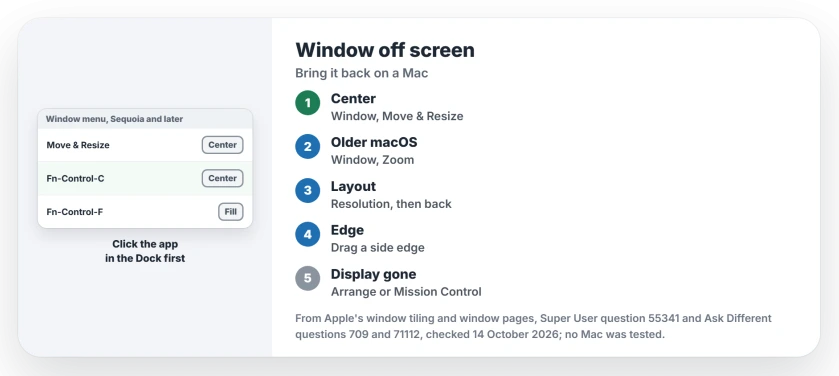
Status: compared with Apple's window tiling guide for macOS 27, Tahoe and Sequoia on 14 October 2026. Center still sits under Window, Move & Resize, on Fn-Control-C.
1. Window, Move & Resize, Center
Click the app in the Dock first. Its menus then show along the top of your display.
Choose Window, Move & Resize, Center, or press Fn-Control-C.
Apple says Center will "Center the active window on the desktop." Its guide adds that "Window tiling is available in macOS Sequoia 15 or later."
Apple's tiling page lists every shortcut. Want the window full size instead? Fill, on Fn-Control-F, will "Expand the active window to fill the desktop."
Some apps build their own Window menu, so Move & Resize may be missing there. Try the keyboard shortcut anyway, and if nothing moves, go to step 2.
2. No Center command? Use Zoom
On macOS before Sequoia, the answer accepted on Super User in 2009 still applies: "click on the Window menu, then click Zoom".
It brought windows back for owner after owner. One commenter said it "Worked for iTunes".
Another found "Now the window is just bigger, but still not where I can reach it." Zoom changes the size, and sometimes that is not enough.
If yours did not budge, step 3 forces a fresh layout.
3. Change the resolution, then change it back
Open System Settings, then Displays. Pick a different resolution or size, then return to your usual one straight after.
An owner explained why this works: "This will force your computer to render the display again and reposition all open windows." Several commenters confirmed it.
One wrote "Rotating 90 degrees and reverting worked for me." That is the same trick, done with rotation.
Shrink the window first if any part of it is in reach. A FileZilla owner advised: "Make the window as small as possible, then change the resolution."
4. Drag it by a side edge
Can you see any edge of the window? Point at a side until the horizontal resize arrow shows.
On Ask Different, an owner found that with that arrow showing, "dragging vertically will allow moving the window instead of resizing". It works from the bottom edge too, dragged sideways.
Owners report a second edge trick: hold Option while you drag a visible border.
A commenter on that answer added, "I had to hold Shift-Option for this to work". So try both.
Window on a display you unplugged?
Plug the display back in if you can. Drag the window across, then unplug it again. That is the cleanest route.
Still lost with both connected? Open System Settings, Displays, then Arrange.
On Super User, an owner dragged the external display's box on top of the built-in one. A commenter replied, "This worked for me, unlike all the other suggestions."
No way to reconnect it? Mission Control can help. An owner in June 2024 dragged the app into its own Space there, and it opened centered and resizable.
If your app switcher also opens on the wrong display, the Dock decides where it appears. On a Windows PC, a vanished window has different fixes.
The Short Version
- Click the app in the Dock, then Window, Move & Resize, Center, or press Fn-Control-C.
- Before macOS Sequoia: Window, Zoom.
- Switch to another resolution and back to make macOS lay windows out again.
- Drag a visible side edge up or down to move the window.
- Window on a missing display: reconnect it, nudge the arrangement, or use Mission Control.
Where to Next
Name the app that lost its window, and say whether it hung off the top, a side, or a display you removed. I read those comments, and I will say which step I would try first for that app.

Isaac Smith is the founder and editor of PC Glance, a website that covers computers, laptops, and technology. He is a tech enthusiast and a computer geek who loves to share his insights and help his readers make smart choices when buying tech gadgets or laptops. He is always curious and updated about the latest tech trends.