
You let chkdsk run at restart and watched it work through its stages, then Windows started and the report was gone before you could read it.
Your results were kept, just not in a file on the desktop. I would go straight to Event Viewer, because a check at restart files its report under Wininit and a check inside Windows files it under Chkdsk.
Super User's question on where the results go, asked in November 2010, has 73,651 views.
Which source holds your run
Your run sits in the Application log, where Microsoft tells you to "select Chkdsk and Wininit" as the event sources. Owners narrow it further.
A check at restart shows up as Wininit, event 1001, and that covers your chkdsk /f or /r on drive C.
Why at restart? Windows cannot lock its own drive while it runs, and Microsoft says chkdsk then offers to check at your next restart instead.
A check you run while Windows is up logs under Chkdsk. One commenter found their run as event 26214, and noted that "sometimes ID=26212 is used as well".
Ours: Windows' own message file for the Chkdsk source names each mode, which tells you what kind of run you are looking at.
Event 26214 reads "Chkdsk was executed in read/write mode." Event 26226 reads "Chkdsk was executed in scan mode on a volume snapshot."
Wininit's 1001 is different. Its template is empty, so the whole chkdsk report goes in as the event's text, stage by stage.
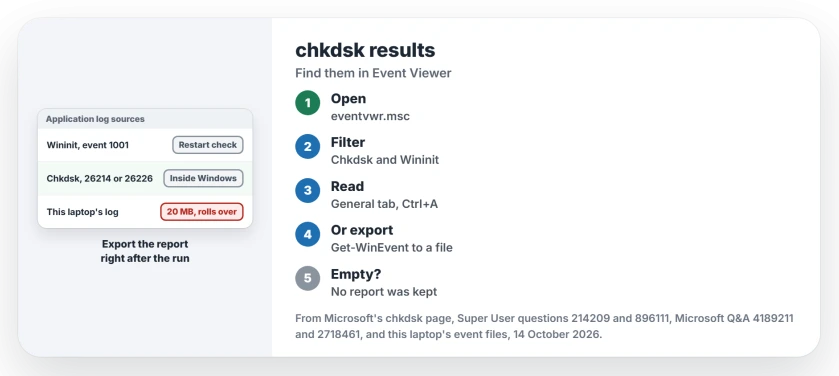
Status: checked against Microsoft's chkdsk page and Windows 11 25H2's own event files on 14 October 2026. Restart checks still log as Wininit, and checks inside Windows as Chkdsk.
1. Filter the Application log for both sources
Press Win+R, type eventvwr.msc and press Enter, then open Windows Logs, right-click Application and choose Filter Current Log.
In Event sources, tick Chkdsk and Wininit. Click OK. Microsoft's chkdsk page gives the same steps under Viewing chkdsk logs.
Open the newest entry. Its General tab scrolls, and it holds the full report.
Hard to read in that small box? Super User's accepted answer suggests you "click anywhere on the results text, type CTRL+A to select all, then CTRL+C to copy it all to the clipboard". Paste it into Notepad.
2. Or save your report to a file with PowerShell
Microsoft gives one PowerShell line per source. This one writes the restart report to your desktop.
get-winevent -FilterHashTable @{logname="Application"} | ?{$_.providername -match "wininit"} | fl timecreated, message | out-file "$env:userprofile\Desktop\Wininit_Log.txt"No admin rights needed. Change wininit to chkdsk for a check you ran inside Windows. An empty file means your log holds no run from that source.
That catches people out. On Microsoft Q&A, an asker whose question 10+ others shared ran chkdsk c: /r, then filtered on event 26226 and found nothing.
Their /r on drive C ran at restart, so its report belonged under Wininit 1001. That export came back empty too, and the reply they got read it as a clean drive.
I would not. An empty file only means no report was kept, so try both sources before you decide anything about the disk.
3. Nothing under either source? Your log may have rolled over
Ours: this laptop's Application log is capped at 20 MB, and it overwrites its oldest events. Its oldest entry is from 9 September 2026, about five weeks back, so an older chkdsk report here would already be gone. Five weeks is not long.
Both PowerShell lines come back empty on this laptop, too.
Owners report the same gap. A technician who looks after about 150 PCs found no Wininit report after runs on two machines in one day.
One owner on Super User also found chkdsk log files inside the drive's System Volume Information folder, but reading them meant taking ownership of that protected folder first.
I would leave that folder alone on a PC you use every day. Changing the owner of a system folder is a big risk for one log file.
4. Next time, export it straight after the run
Run the PowerShell line from step 2 as soon as Windows starts after the check, and the text file stays on your desktop even after the log rolls over. Do it before anything else.
Does Windows run a check at every start-up without asking? Clear the flag that keeps scheduling it. That loop is a separate fault.
Does Information mean the drive is fine?
Not always. An owner warned that chkdsk can find "a lot of severe errors" and still show a plain Information icon.
So read the report itself, not the level beside it, and look near the end for bad sectors or files it moved.
Did chkdsk save fragments of lost files? They end up in a FOUND.000 folder that chkdsk hides on that drive.
The Short Version
- A check at restart: Application log, source Wininit, event 1001.
- A check inside Windows: source Chkdsk, events such as 26214 or 26226.
- Filter Event Viewer for both sources, or export them with Microsoft's PowerShell line.
- Export straight after the run, since the log overwrites old events.
- Read the report text, not the Information icon.
Where to Next
Paste the last few lines of your chkdsk report into the comments. From those lines I can tell you whether that drive needs replacing soon or just watching.

Isaac Smith is the founder and editor of PC Glance, a website that covers computers, laptops, and technology. He is a tech enthusiast and a computer geek who loves to share his insights and help his readers make smart choices when buying tech gadgets or laptops. He is always curious and updated about the latest tech trends.