

You type 5-6 into a cell and Excel shows 6-May, or you paste a list of sizes and half of it turns into dates.
I would set the cells to Text before anything goes in, because once Excel has made a date, the text you typed is gone. A paste from a web page needs one more step, and I tested why.
Super User's main question about it, from November 2012, has 228,381 views. A 2023 Microsoft Q&A post asking how to stop it for good shows 50+ under Same question.
Why 5-6 becomes 6-May
Microsoft says Excel is set up "to make it easier to enter dates". Its own example is 12/2 turning into 2-Dec. The same page admits Excel offers "no way to turn this off".
Your Windows date settings decide what counts. A volunteer moderator on that Q&A post put it this way: "If the numbers look dates according to your local settings, it will turn them into dates".
Newer Excel, in the Microsoft 365 and 2024 versions, gained an Automatic Data Conversions panel.
Microsoft describes its date switch as covering "a continuous string of letters and numbers", such as MARCH1. Your 5-6 and 12/2 are a different shape.
Ours: in a hidden Excel on this laptop, set to US dates, 12/2, 5-6, 1/2 and 2-1 all became dates as typed. So did MARCH1, JAN1 and SEPT2, so that panel's date option was on here. Only 13/45 stayed text, since no month 13 exists.
Then we set a converted cell to Text. It did not bring 5-6 back. It showed 46148, the number Excel keeps for 6 May 2026, and retyping the cell kept 46148 as well.
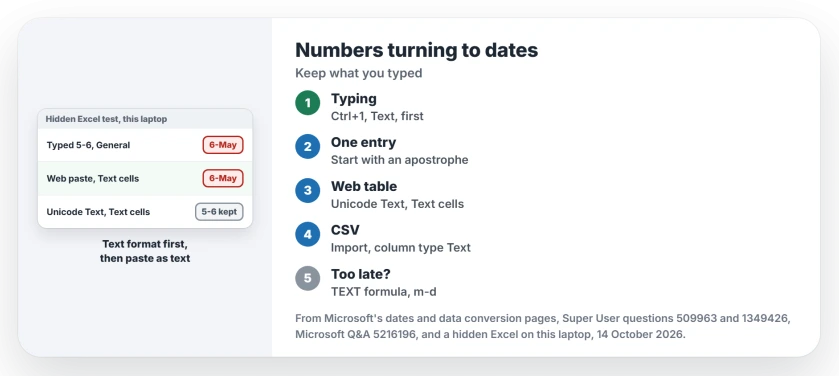
Status: a hidden Excel for Microsoft 365 on this laptop, 14 October 2026, tried with typing, three kinds of paste and a CSV. Text first held every time but one: a web paste.
1. Typing? Set the cells to Text first
Select the column before you type a thing. Press Ctrl+1, choose Text and click OK.
Microsoft's page on stopping the conversion lists that first. In our test it held, and 12/2, 5-6, 1/2 and MARCH1 all stayed exactly as typed.
For a few entries, start with an apostrophe, as in '5-6. Excel hides the apostrophe and keeps your text. A space in front works too, but the space stays in the cell.
Microsoft prefers the apostrophe "if you plan on using lookup functions against the data". That suits order codes you will search for later.
Fractions get their own trick. Type a zero and a space first, as in 0 1/2. Excel then stores one half and shows 1/2, exactly as our test showed.
One commenter noted the cost. An apostrophe entry is plain text, so it cannot join a sum. For sizes, part numbers and scores, that costs you nothing at all.
2. Pasting from a web page? Paste it as text
Owners split at this step. Formatting your cells as Text first worked for some and failed for others, and our test showed why.
A web page puts two copies on your clipboard: plain text and a formatted HTML table that carries its own cell formats. Ctrl+V takes the HTML version. Its formatting replaced our Text format, and 5-6 arrived as 6-May anyway.
So paste the plain copy. Right-click the first cell and choose Match Destination Formatting, or open Paste Special and pick Unicode Text.
Ours: Unicode Text into cells set to Text kept all four entries as typed. The same paste into General cells made dates again. You need the format and the paste together.
Owners found that pair the long way, and their fix matches what you just read.
One owner's answer on the 2012 question set the column to Text and pasted with Match Destination Formatting. A later commenter found it worked with Text, not with General.
The Notepad trick in that thread helps you for the same reason, since Notepad drops the HTML and only plain text reaches Excel.
One commenter tried Word as the go-between: "Does not work from Word". Word copies formatting along with your text.
3. Opening a CSV? Import the column as Text
Double-clicking your CSV gives Excel no chance to ask you anything about columns. Ours: a CSV holding 5-6, 12/2, MARCH1 and 1/2 opened with all four as dates.
Import the file instead of opening it. Go to Data, then From Text/CSV, and choose Transform Data. Set each code column's type to Text, then pick Close & Load. Microsoft documents that route for long numbers too.
Ours: Excel's older text import, with both columns set to Text, kept all four entries. Left on General, all four turned into dates.
That same import guards your account numbers, and our page on long numbers turning into E+ covers it.
Already turned into dates?
Your cell now holds a date and nothing else. The asker of an 87,647-view question put it bluntly: "there is no way to restore the original content of the string".
A formula can rebuild simple patterns. If every entry you had looked like 5-6, put this next to the first one and fill it down:
=TEXT(A1,"m-d")Ours: it turned 6-May back into 5-6. With m/d in place of m-d, it turned 2-Dec back into 12/2.
The limit is real, though. Excel stores 05-06 and 5-6 as the same date, so the formula cannot know which one you typed. Use mm-dd if every code had two digits.
For anything messier, I would go back to your source and import it again as Text. Getting text that should be dates is the reverse fault, and Text to Columns sorts that one out.
The Short Version
- Excel turns 5-6, 12/2 and 1/2 into dates as you type, and Microsoft says you cannot switch that off.
- Set the cells to Text first, or start a single entry with an apostrophe.
- A web paste overrides the Text format; paste with Match Destination Formatting or Unicode Text.
- Import a CSV with each code column set to Text instead of double-clicking it.
- A converted cell keeps only a date, and a TEXT formula rebuilds simple patterns.
Where to Next
Tell me in the comments where your data comes from, a web page, Word or a CSV, and which entry still flips. I will reply with the paste that keeps it.

Isaac Smith is the founder and editor of PC Glance, a website that covers computers, laptops, and technology. He is a tech enthusiast and a computer geek who loves to share his insights and help his readers make smart choices when buying tech gadgets or laptops. He is always curious and updated about the latest tech trends.