

You select a few cells, press Ctrl+C, and the whole Excel window goes pale while its title bar says it is not responding. Sometimes it comes back after half a minute. Sometimes you end up closing it.
I would check the printer first, odd as that sounds. Owners keep finding the freeze there.
One Microsoft Q&A thread about this has 19 answers and 100+ on its Same question button.
Why a copy can wait on a printer
Microsoft's Excel hang page covers printers too. Microsoft states that when you start Excel, it "examines the default printer and video drivers that will display your Excel workbooks". It adds: "Excel is printer-intensive".
A copy carries more than the text, too. Ours: one copy of 800 cells here put over 20 formats on the clipboard, three of them pictures.
With OneNote as this laptop's default printer, each copy took 6 to 17 milliseconds. A printer that never answers is another matter.
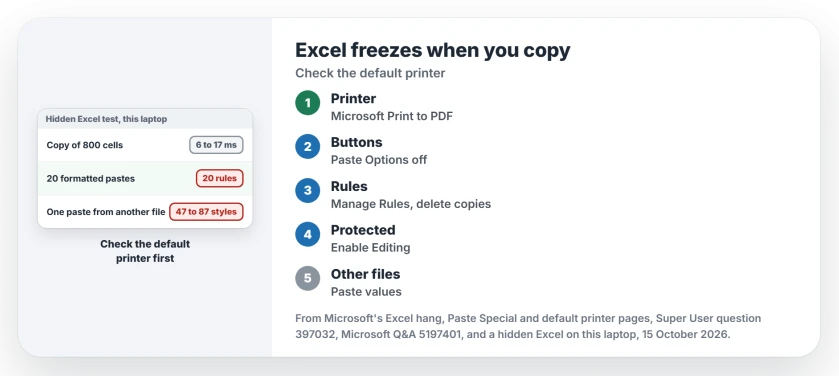
Status: copy times, clipboard formats, rule counts and styles were measured on 15 October 2026 with Excel 16.0.20430 running hidden on this laptop.
1. Make a local printer the default
The top Super User answer had Excel stalling on every Ctrl+C, even with a tiny sheet. The cause, in their words: "My default was a network printer that was offline".
Two readers confirmed it. One wrote "Seems this worked for me also", and another set the "default printer to local pdf generator and poof problem solved".
A 2024 Q&A owner found the same: "every time I copy-paste Excel tries to access the default printer". After switching to Microsoft Print to PDF, "Excel stopped freezing". More than 10 people marked it helpful.
Open Bluetooth & devices, then Printers & scanners. Switch off the option that lets Windows choose your default, then open a local printer and select Set as default. If your default keeps moving, that switch is why.
2. Turn off the Paste Options button
Some owners still froze with a working printer. You will find their fix in File, Options, Advanced, under Cut, copy and paste.
Microsoft's own Paste Special page names the first box there: "Show Paste Options button when content is pasted". Untick it, and untick Show Insert Options buttons while you are there.
One reader said it fixed their freezes, and another said it "worked for my Office 365 on win10 x64". A third said it did not help, which is why I would try the printer before this.
3. Clear conditional formatting rules that pasting multiplied
One owner's sheet had no macros, and the freeze "turned out to be conditional formatting". Removing every rule on that sheet fixed it, and they then added the rules back.
Another reader cleared "tens or maybe more than a hundred" rules, and pasting was fast again. A third owner deleted theirs one at a time, a couple of seconds each.
Ours: pasting one formatted block 20 times onto a plain sheet here left 20 separate rules, each covering its own strip of cells. Copies inside its range kept one rule.
To check yours, open Home, Conditional Formatting, Manage Rules, choose This Worksheet, then delete the duplicates or clear them all and add one rule back.
4. Enable editing on files left in Protected View
Owners report a quieter trigger. One had another workbook open in Protected View, and "this make freezes every time I copy some column". Clicking Enable Editing on that file ended it.
A 2019 owner on Office 365 saw the same until they enabled editing everywhere. Another reader traced theirs to an open TeamViewer session, a program that can use the clipboard, and wrote "This solved it".
Pasting between workbooks brings their styles along
Microsoft lists "Excessive styles caused by frequent copying and pasting between workbook" among the things that slow a file down, and a normal paste brings the source file's cell styles with it.
Ours: one paste of 40 styled cells from another workbook took the target from 47 styles to 87. Paste Special, Values, brought the same numbers and left it at 47.
Need only the numbers? Paste values. I would do that with any data you pull from someone else's file. A different copy fault, quote marks around pasted text, has its own page.
The Short Version
- Make a local printer, such as Microsoft Print to PDF, your default.
- Turn off Show Paste Options button and Show Insert Options buttons.
- Delete duplicated conditional formatting rules in Manage Rules.
- Enable editing on any file in Protected View, and close clipboard tools.
- Paste values when you copy between workbooks.
Where to Next
Printer, rules, or a stranger cause on your machine? Post your Excel version and what fixed it as a comment, and I will fold any new trigger into step 4.

Isaac Smith is the founder and editor of PC Glance, a website that covers computers, laptops, and technology. He is a tech enthusiast and a computer geek who loves to share his insights and help his readers make smart choices when buying tech gadgets or laptops. He is always curious and updated about the latest tech trends.