
You press Ctrl+V in Word and nothing pastes. Ctrl+C, Ctrl+Z and Ctrl+A may be dead too, while the same keys still work in Chrome and Excel.
I would hover over Paste first. The shortcut its tip shows tells you which of three causes you have.
Since 2016, 100+ people have pressed Same question under one Word question on Microsoft Q&A.
Which key still works?
Word gives each editing command two keys. Ours: Word 16.0.20430 here shows the pairs. Paste answers to Ctrl+V and Shift+Insert, Copy to Ctrl+C and Ctrl+Insert, and Undo to Ctrl+Z and Alt+Backspace.
When this fault hits, the Ctrl+letter key goes and the other one stays. The 2016 asker found that "Ctrl+V no longer works", while Shift+Insert still pasted and Bold, Italic and Underline were untouched.
A Word 2007 owner saw it on screen too, since the change "appears on the screen tip attached to the Copy/Paste icons".
Microsoft states a related limit in its Word shortcut list: "The shortcuts in this topic refer to the US keyboard layout". The layout decides more than you might think, as with a number pad that types a comma.
Paste tip shows only Shift+Insert? Start with step 1. If yours still shows Ctrl+V and nothing happens, go to step 3.
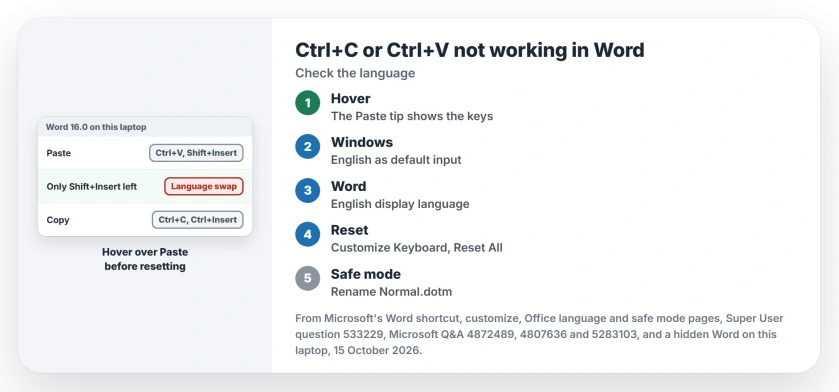
Status: Word's key assignments were read in a hidden Word 16.0.20430 on 15 October 2026, next to Microsoft's shortcut, customize and Office language pages. Normal.dotm was left as it was.
1. Make English the default input method, then restart Word
The accepted answer blames a non-English default keyboard. Word then starts with "a lot of shortcuts" switched to the IBM Common User Access set, where "Ctrl+V will change to Shift+Ins".
The asker's reply was "That's amazing". They later added that their fix was about "the currently selected input language when Word was launched", so the layout active at startup matters.
In Windows 11, open Settings, Time & language, Typing, then Advanced keyboard settings. Set Override for default input method to your English layout, then close Word fully and open it again.
An owner on Microsoft Q&A with an Armenian keyboard went further: "I removed Armenian and restarted the PC, and now things are working". If a layout you removed keeps coming back, that page covers it.
Ours: this laptop has one keyboard, English (US), and no override set, so the fault could not show up here.
2. Or set Word's display language to English
A 2016 answer fixed it inside Word. Its writer, with 30+ helpful marks, set English as the display language under File, Options, Language.
In their words: "All keyboard shortcuts will be restored to the default English ones after you restart". Microsoft's steps for this use Set as Preferred under Office display Language.
Another answer, marked helpful 8 times, did the same from Windows by moving English to the top of the language list.
3. Ctrl+V still listed? Reset the shortcuts
Microsoft's route starts at File, Options, Customize Ribbon, then Customize next to keyboard shortcuts. Pick All Commands, then EditPaste, and read the Current keys box.
Reset All grayed out? The accepted answer from a Word MVP: assign any new key to any command first, and the button "will then become enabled".
You can also fix a single command. A 2011 owner's accepted fix was to pick EditCopy, check that Ctrl+C sits in Current keys, and assign it again if it is missing.
10+ people marked it helpful. I would reassign the one key you lost before resetting everything.
Reset only reaches Normal.dotm. A volunteer moderator warns that "keyboard shortcuts can be saved in other templates and in Add-Ins", which Reset All leaves alone.
4. Test safe mode, then rename Normal.dotm
Microsoft's safe mode page says to "Press and hold the CTRL key and double-click the application shortcut". If your keys work in safe mode, an add-in or your template is the cause.
A 2017 owner found exactly that. "All the keyboard shortcuts were fine" in safe mode, and their diagnosis was blunt: "The Word Normal.dotm template was corrupt".
Close Word, open the folder %AppData%\Microsoft\Templates, and rename Normal.dotm to Normal.old. Word builds a fresh one on its next start.
I would keep the old file rather than delete it. It holds your styles and any macros you made. Ours: Normal.dotm on this laptop carries 0 custom key assignments, which is what a clean one shows.
Ctrl+O opens Outline view instead?
That points to the Alt key. A February 2026 asker found that Ctrl+O "gave me the outline tab", and a reply suggested Ctrl+Alt+O was being pressed.
Ours: Ctrl+Alt+O is Word's key for Outline view here. A restart put things right for the asker.
The Short Version
- Hover over Paste. A tip showing only Shift+Insert means the language swap.
- Set Override for default input method to English, then restart Word.
- Or set Word's display language to English in File, Options, Language.
- Ctrl+V still listed? Reset the shortcuts, or reassign the one you lost.
- Keys fine in safe mode? Rename Normal.dotm and check your add-ins.
Where to Next
Which language sat beside English when your shortcuts broke? Put its name in the comments; a list of layouts that trigger this would help the next reader.

Isaac Smith is the founder and editor of PC Glance, a website that covers computers, laptops, and technology. He is a tech enthusiast and a computer geek who loves to share his insights and help his readers make smart choices when buying tech gadgets or laptops. He is always curious and updated about the latest tech trends.