
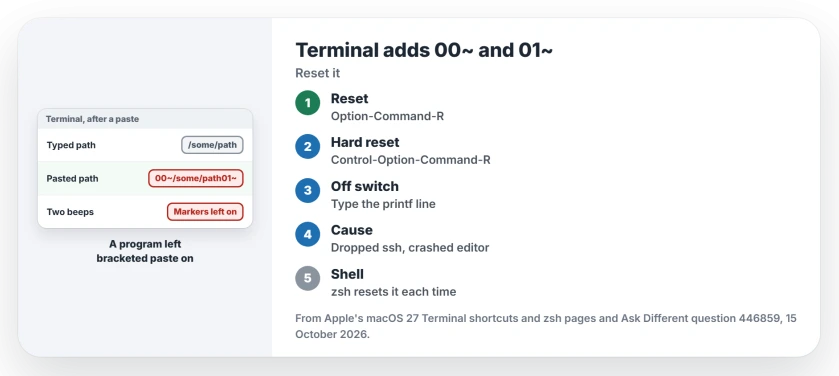
You paste a path into Terminal on your Mac and it lands as 00~/some/path01~, often with two beeps. Restarting Terminal clears it for a while. Then it comes back.
I would reset the terminal first. One shortcut does it, and Terminal stays open.
Then comes the useful part: finding what keeps switching the paste markers on. Asked on Ask Different in September 2022, the question has 45,343 views now, and the answer that solved it carries 102 votes.
What 00~ and 01~ actually are
They are paste markers. Bracketed paste, in the words of Gordon Davisson's accepted answer, "lets the terminal notify the various programs running in the terminal when data is being pasted".
A program that wants the markers switches the mode on, and it should switch it off again when it quits. When it crashes or loses its link first, the mode stays on.
Your shell then gets text it cannot read. You "get these sequences being sent to a program that has no idea what they are, and just interprets them as gibberish".
The markers are ESC [200~ before your text and ESC [201~ after it, and an older shell swallows the first part of each one. What survives on your screen is 00~ and 01~.
Ours: on this Windows laptop, Git Bash 5.2.26 reports set enable-bracketed-paste on, and its settings file has no line asking for it. So a newer bash, like the one on your Linux server, switches the mode on by itself.
Status: from Apple's macOS 27 Terminal guide and its zsh article, the 2022 Ask Different fix and its comments, and a bash check on this laptop. Gathered 15 October 2026; no Mac was used.
1. Reset the terminal
Apple's Terminal keyboard shortcuts page for macOS 27 lists "Soft reset terminal emulator state" on Option-Command-R. Click your broken window and press it. Then paste again.
The asker wanted the Shell menu's Reset added to the answer, since it fixed the fault for them too. Gordon Davisson adds that your reset "also resets a number of other weird modes it might get into, which can be handy".
Markers still there? Apple lists a stronger key for that, "Hard reset terminal emulator state", on Control-Option-Command-R. One later answer simply typed reset and pressed Return. You get the same result.
2. Or type the off switch
The short answer on the question is a printf command that "sends an escape sequence to the terminal that tells it to stop sending bracketed paste sequences".
printf '\e[?2004l'Type it rather than paste it. A reader who pasted it got the markers wrapped around the fix. The reply was blunt: "you'll have to type it instead".
3. Find what keeps turning it on
Do the markers keep returning? Then something switches the mode on and leaves it on. Gordon Davisson's advice was to work out "what keeps enabling it and failing to disable it when it's done".
For one reader the culprit was ssh. In their words, "I had ssh'ed to a Linux server running a version of bash that enables it. If I logout cleanly it disables it, but if I get disconnected it never cleans up".
iTerm2's own FAQ, quoted in another answer, blames the times "when you lose your ssh connection or when the editor crashes". So think back to your last session that dropped. Or the last editor that crashed.
That reader connected through a script, so they added the off switch to the script. A server that also greets you with a host key warning needs the SSH host identification fix first.
4. Let your shell reset it for you
Apple says zsh has been the default shell on new Mac accounts since macOS 10.15. That matters here. zsh and bash 5.1 or later switch the mode off before each command and on again afterwards.
The mode is then "constantly getting reset to the right state", as the accepted answer puts it. A stuck mode cannot outlive one command.
An account carried over from an older Mac may still run bash. Gordon Davisson noted in 2022 that "macOS only includes bash v3.2.57 by default", and that version lets the mode stick. Moving to zsh fixes it:
chsh -s /bin/zshStaying on bash, as the asker preferred? A 2024 answer puts the off switch in your prompt. Every new prompt then resets the mode:
PS1='\e[?2004l\h:\W \u\$ 'A reader reported that the prompt line worked in Windows Terminal over ssh too. Windows Terminal also has a warning before every paste, a separate setting and not this fault.
I would change shells only if the markers keep coming back. For a one-off, the reset is enough.
Seeing it in iTerm2 too?
The fix is the same idea there. Gordon Davisson gives Command-R, or Reset in the Session menu, as iTerm2's reset.
iTerm2 can also stop bracketing for one key mapping, through Edit Session, Keys and Key Mappings, as another answer describes. You lose safe multi-line pastes that way. I would only do that in a profile you use for old servers.
The Short Version
- 00~ and 01~ are paste markers that a program switched on and never switched off.
- Press Option-Command-R in Terminal; Control-Option-Command-R is the hard reset.
- Or type the printf off switch by hand, since pasting it adds the markers again.
- A dropped ssh session to a server with a newer bash is a frequent cause.
- zsh, the default since macOS 10.15, resets the mode before every command.
Where to Next
Which program ran just before the markers appeared on your screen? Drop its name in a comment. Each report helps me map the programs that forget to switch the mode off.

Isaac Smith is the founder and editor of PC Glance, a website that covers computers, laptops, and technology. He is a tech enthusiast and a computer geek who loves to share his insights and help his readers make smart choices when buying tech gadgets or laptops. He is always curious and updated about the latest tech trends.