
Your laptop has one screen, maybe two, yet Display settings draws three, four or even six. The extra boxes sit there grayed out. Now and then a window opens on one of them and vanishes.
I would start with your graphics driver. Owners who got rid of ghost monitors for good mostly did it there, while the settings tricks only tidied the list.
Super User's question about it has 97,905 views since November 2016, and a Microsoft Q&A copy from 2023 shows 10+ people with the same question.
Where the extra screens come from
The 2016 asker described what you may be seeing: "there are four extra displays shown, all grayed out and disabled", and their real HDMI screen was sometimes not recognized at all.
The accepted answer blamed the graphics driver: "It seems to be an issue in the Intel HD Graphics driver". Intel's own article goes further. It ties ghost monitors to Hyper-V and says graphics driver 15.40.37.4835 or newer fixes it.
Intel and NVIDIA together? The 2023 Windows 11 owner had that mix in an ASUS laptop, and Settings showed "it just says 'Display 1 isn't active'" for their ghost.
Ours: my test laptop pairs AMD and NVIDIA graphics on Windows 11 Home 25H2. Device Manager keeps four monitors, and one of them, a Dell screen, is not connected.
Windows reports 38 possible outputs, with 2 in use. Its settings files still hold a Display isn't active line.
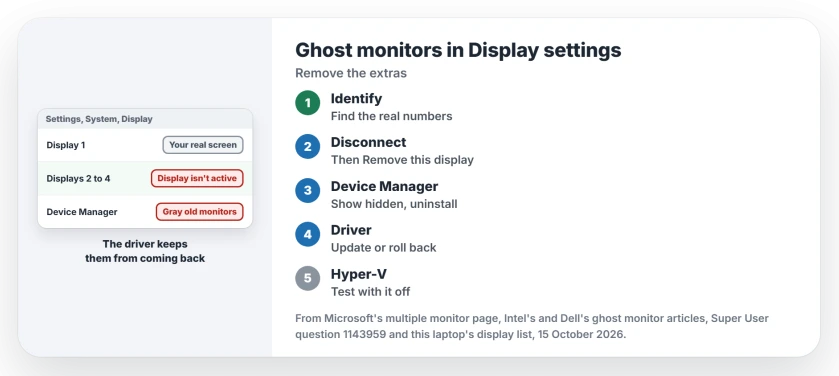
Status: Super User owners from 2011 to 2023, Microsoft Q&A, Microsoft's multiple monitor page and Intel's and Dell's ghost monitor articles, plus read-only checks on this laptop, 15 October 2026.
1. Find your real screens with Identify
Open Settings, then System, then Display, and select Identify. Microsoft's multiple monitor page explains that each screen then shows its own number.
Note which numbers appear on your screens, because any box whose number never shows up is a ghost.
2. Disconnect the ghost, then remove it
Select the ghost in the diagram. Open the drop-down beside Identify and choose Disconnect this display; if the list then offers Remove this display, choose that too.
It helped one owner: "This worked for me". The ghost stayed in their diagram, but grayed and unused. Two others got nothing. One wrote, "It never gives any prompt to accept the change".
An older fix from the 2011 question sets your real screen first. Choose Show only on 1 and select Apply. Then pick the ghost and remove it. One reader called it a fix that "worked flawlessly for me".
Both labels still sit in Windows 11 25H2's settings files here. I would do this step anyway, but expect a tidier list, not a cure. The 2016 owners saw their ghosts return until the driver changed.
3. Clear remembered monitors in Device Manager
Dell's ghost monitor article starts here. In Device Manager, uninstall the extra Generic PnP Monitor entries under Monitors. Then update your video driver and restart.
Turn on Show hidden devices from the View menu first. Gray entries are screens that are not plugged in now, and this laptop still lists a Dell monitor that way.
An owner from 2011 went further: "In device manager uninstall all the monitors in there and uninstall the video card, reboot the machine". Windows normally reinstalls your graphics driver on the next start.
The page on windows moving after sleep uses the same cleanup for another fault.
4. Update the graphics driver, or roll it back
The lasting fixes sit here. The 2016 asker installed an older Intel driver and wrote "This solved it", while in 2020 another reader found that "updating drivers seems to work".
A third fixed it with a clean install of the Intel driver and reported "Ghost monitors disappeared, refresh rate back to normal". In 2022, a reader confirmed that "rolling back the driver still solves it".
Intel's article asks you to try your laptop maker's driver before Intel's generic one. Dell says the same for its own machines.
To go back a version, open your display adapter in Device Manager, where the Driver tab offers Roll Back Driver when an older version is stored.
5. Hyper-V on? Test without it
Two owners found Hyper-V behind it. One wrote "when I removed Hyper-V from the system the problem was immediately fixed", and another said turning it off "removed all ghost monitors".
It is not always the cause. A third reader had ghosts on "a laptop which doesn't have Hyper-V enabled". WSL 2 and Windows Sandbox rely on the same virtualization, so I would treat the change as an experiment and undo it if your ghosts stay.
Not sure a hypervisor runs on your PC? Type systeminfo in Command Prompt. This Home laptop answers "A hypervisor has been detected" and also lists virtualization-based security as running. Home has no Hyper-V app at all.
A dock with a cable to nothing
One owner's ghost came from a USB dock with a VGA cable still attached. In their words, "Removing the VGA, which was plugged in but not connected to any monitor, made the ghost monitor disappear".
If you use a dock, unplug every cable that does not lead to a working screen. The dock monitor page covers the opposite problem, real screens that never show.
A window opened on a screen you cannot see
That was the 2016 MSI owner's real complaint: "Occasionally when I open a new window, it goes to one of the non-existent monitors".
Select the window on your taskbar. Then press Windows key plus Shift plus an arrow key. It jumps to a screen you can see.
The Short Version
- Select Identify to see which numbered displays are real.
- Choose Disconnect this display, then Remove this display, for each ghost.
- In Device Manager, show hidden devices, then uninstall each gray monitor.
- Update the graphics driver from your laptop maker, or roll it back.
- Test with Hyper-V off, and unplug dock cables that lead nowhere.
Where to Next
Intel, AMD or NVIDIA: which graphics chip were your ghosts riding on, and which driver cleared them? Drop both in the comments, because I log every driver version readers report.

Isaac Smith is the founder and editor of PC Glance, a website that covers computers, laptops, and technology. He is a tech enthusiast and a computer geek who loves to share his insights and help his readers make smart choices when buying tech gadgets or laptops. He is always curious and updated about the latest tech trends.