
You type your Apple Account password into Messages on your Mac, and it answers "An unknown error occurred". Sometimes the Sign Out button just spins.
I would run Apple's quick checks, then go straight to the restart routine owners keep coming back to. The error tells you almost nothing, but the fixes owners confirmed in 2019 and 2023 look much alike.
Two Ask Different questions carry that exact message, with 24,145 views since August 2023 and 19,278 since October 2019.
Why the message says so little
Apple's article describes the failure in general terms. Your Mac "might say that it couldn't sign in or couldn't contact the iMessage or FaceTime server".
Your password itself may be fine. The 2019 asker noticed that "Apple does see the login: I get an email saying so". The account accepted them and Messages still refused.
The 2023 asker had an M2 MacBook Air and could not even sign out. In their words, "I can click the button, but it stays stuck loading".
Ours: the only part tested here was Apple's activation link, which opens Apple's Get Support site. No Mac was involved.
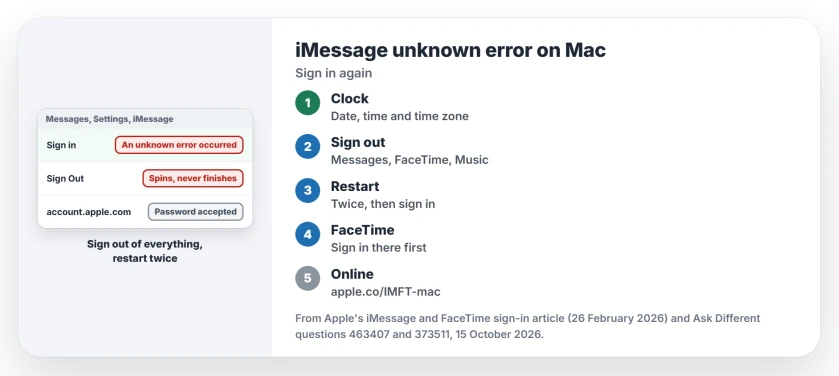
Status: Apple's iMessage and FaceTime sign-in article, published 26 February 2026, plus owner fixes from 2019 and 2023, checked 15 October 2026. Only the activation link was opened here.
1. Check the clock, then your account
Apple's sign-in article starts with your internet connection, Apple's System Status page and software updates. Then comes the clock.
Its heading for that step is "Check for the correct date, time, and time zone". If your Mac keeps the wrong zone, the Mac time zone page fixes that first.
Next, sign in at account.apple.com with the same Apple Account you use in Messages. Fix a forgotten password there first.
After sign-in succeeds, missing older conversations need the shared-history switches and Sync Now rather than another activation attempt.
2. Sign out of every Apple service, restart twice
Apple's version covers Messages and FaceTime. In Messages, choose Settings, then iMessage, and "If you're signed in to iMessage, click Sign Out". FaceTime has the same button under Settings, General.
Restart your Mac, then "Return to the same settings screen to turn on or sign in to iMessage or FaceTime", Apple says.
When Sign Out spins, owners go wider. The accepted answer on the 2023 question is to restart, then "Sign out of everything, Messages, Music, FaceTime, App Store", restart again and sign back in.
The asker came back with a verdict: "This has worked for me repeatedly". They added that they never found a pattern for when it strikes.
The 2019 asker's error also ended this way. They wrote that it "ended up getting cleaned up by a full reboot", with no other reset needed.
3. Sign in to FaceTime first
Two owners got Messages working through FaceTime, and you can try it in a minute. One opened the FaceTime app, and then "iMessage just started to work".
An owner confirmed it: "Logging in in FaceTime fixed this for me". If Messages keeps refusing, open FaceTime and sign in there. Then return to Messages.
4. Activate the account on Apple's website
Apple's article now gives you an online route. Open apple.co/IMFT-mac in a browser, then "Under Enable Apple Account, tap or click Get Started", and sign in.
Apple adds that "You will receive an email if your account is ready for iMessage or FaceTime use". I followed the link from here, and it lands on Apple's Get Support site.
5. A VPN or security app in the way
Apple names this cause directly: "If you installed such software, it could be blocking network ports used by iMessage and FaceTime".
Turn the VPN off, or join a different network such as a phone hotspot, and sign in again. If texts then send but your Mac shows Not Delivered on some of them, the Mac RCS page is the next stop.
Does an NVRAM reset help?
Only on an Intel Mac. The accepted answer in 2019 was an NVRAM reset at startup, and it worked for that answerer.
The 2023 asker pointed out the limit: "resetting the NVRAM only applies for an Intel-based Mac, NOT for Apple silicon". The PRAM reset page shows how to tell which Mac you have.
Is a waiting update to blame?
One reply claimed the error comes when "your mac is pending installing an update for too long". A reply underneath disagreed, saying "A reboot is usually the thing that fixes these bugs".
I would install the waiting update anyway. It restarts the Mac, which is half of the sign-out routine already.
The Short Version
- Check the Mac's date, time and time zone, and sign in at account.apple.com.
- Sign out of Messages, FaceTime, Music and the App Store, restart, and sign back in.
- If Messages keeps refusing, sign in to FaceTime first.
- Apple's online activation at apple.co/IMFT-mac sends an email once the account can be used.
- NVRAM resets only apply to Intel Macs.
Where to Next
Messages, FaceTime or both: which one finally let you in, and on which Mac? Your answer helps me sort Intel Macs from Apple silicon ones, so leave it in the comments.

Isaac Smith is the founder and editor of PC Glance, a website that covers computers, laptops, and technology. He is a tech enthusiast and a computer geek who loves to share his insights and help his readers make smart choices when buying tech gadgets or laptops. He is always curious and updated about the latest tech trends.