
You pick a drive in the macOS installer and it is grayed out, with one line under it: "You may not install to this volume because the computer is missing a firmware partition". The drive looks fine. It has room.
I would look at the Mac's internal drive first, even when you are installing to an external one. The installer wants to update your firmware, and it does that through the internal drive.
Three Ask Different questions carry this message: 59,691 views on one from March 2018, 26,548 on one from 2021 and 19,714 on one from 2019.
What the installer is looking for
All three askers had Intel Macs: two MacBook Pros from 2015 and an iMac. One owner explains the block plainly.
High Sierra 10.13.4 and later, and Mojave, refuse external drives "because it wants to update the EFI firmware partition on the internal drive".
Another owner was blunter: "You must have an EFI partition (aka firmware partition) on an internal drive for the installer to accept that."
So the fix depends on your internal drive. There are three cases.
Ours: none. No Intel Mac was at hand, so these steps rest on Apple's Disk Utility and reinstall pages, OWC's firmware note and the owners in those threads.
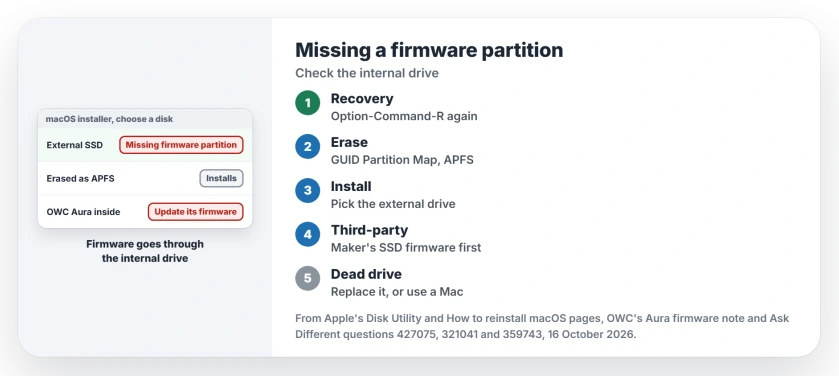
Status: Apple's Disk Utility and How to reinstall macOS pages checked 16 October 2026, with OWC's Aura firmware note; the APFS fix is two owners' result.
Installed an old macOS on an external drive? Erase it as APFS
The 2021 asker's internal SSD had died. Internet Recovery put El Capitan on an external SSD. Then the Big Sur installer refused that drive with the firmware line.
Their fix: restart into Internet Recovery a second time, which now offered Big Sur, and erase the external drive first. In their words, "make sure you reformat your external SSD as APFS in disk utility first". Big Sur then installed.
APFS is the format Apple gives for High Sierra and every macOS since, and Apple's Disk Utility formats page lists it first. El Capitan's Disk Utility had no APFS choice. That is why the asker needed the second trip into Recovery.
A second owner hit the message from a bootable installer. Their empty target partition was Mac OS Extended (Journaled). They erased it as APFS, and the line was gone.
Erase it the way Apple lays out
Erasing deletes everything on that drive, so copy off what you need. In Disk Utility, open the View menu and pick Show All Devices. Select the drive itself, not a volume.
Click Erase, set the Scheme to GUID Partition Map, and choose APFS as the format. A missing Scheme menu means you picked a volume. Then quit Disk Utility and run the installer again.
Which macOS will Recovery give you?
Apple says the keys matter on an Intel Mac. Option-Command-R may give you the newest macOS your Mac supports. Shift-Option-Command-R gives the version it shipped with, or the nearest one still offered.
One commenter explained why the asker's Big Sur install worked at all. The Mac had run Big Sur before its drive died, so "the Mac already had all the necessary firmware updates to install Big Sur on the external drive".
A third-party SSD inside the Mac
The 2018 asker had swapped the internal SSD for an OWC Aura. macOS still showed it as external, and High Sierra refused it.
OWC support told them to refit the original Apple SSD, upgrade it, then swap back. OWC later explained the reason on its own page: "previously, we required the 10.13 upgrade be installed via the Apple SSD as a first step".
Its firmware update for Aura drives "ensures your Mac will receive the appropriate EFI update as part of the system installation".
Owners back it up. One wrote that the update "worked for me all 3 times", and another said "OWC has finally made a software update available, and it works great."
Using another brand? Look for that maker's firmware update first.
Internal drive dead or missing?
This one is harder. An owner listed two ways out: replace the internal drive, or install macOS onto your external drive from another Mac with a working internal one.
A commenter added a catch. Installing from another Mac does not update the firmware on yours.
I would only use that route when your Mac has already run the macOS you want, as the 2021 asker's had. If the external drive will not show up on the other Mac, start with our page on a drive that will not mount.
Can I make a firmware partition on the external drive?
No. The 2019 asker asked exactly that, and both answers pointed back to the internal drive. If the installer app itself is refused as invalid before you reach the drive list, our page on that installer error fits better.
The Short Version
- The installer updates firmware through the Mac's internal drive.
- Old macOS on an external drive? Erase it as APFS from Internet Recovery.
- Use Option-Command-R for the newest macOS your Mac supports.
- OWC Aura inside? Install OWC's firmware update first.
- Dead internal drive? Replace it, or install from another Mac only if yours already ran that macOS.
Where to Next
Was your internal drive dead, replaced or fine? Write which in a comment. I am tallying the three cases.

Isaac Smith is the founder and editor of PC Glance, a website that covers computers, laptops, and technology. He is a tech enthusiast and a computer geek who loves to share his insights and help his readers make smart choices when buying tech gadgets or laptops. He is always curious and updated about the latest tech trends.