

Your Mac stops getting new photos from your iPhone, and the bottom of the Photos library says Restoring from iCloud. A day passes, then a week. The words stay put.
I read that line as iCloud checking your whole library against its own copy. Apple says that check follows a repair. On a large library, owners waited days. Your job is to check it moves.
The Ask Different question has drawn 46,137 views since December 2019, and one owner saw it return in 2026.
Why Photos is restoring
The asker had about 110,000 photos and videos, with Download Originals turned on. They opened the library from another Mac on their network and closed it. Photos then ran a repair.
After that, the status line switched to Restoring from iCloud. New photos stopped arriving. On day eight, a rebuild of the library took about nine hours and ended on the same words.
Apple's page on the Photos repair tool explains the link: "If you repair a library that's used with iCloud Photos, iCloud checks the library after the repair process completes to ensure everything is synced correctly".
Ours: none. I had no Mac library to repair, so this rests on Apple's two Photos pages and the people who waited it out.
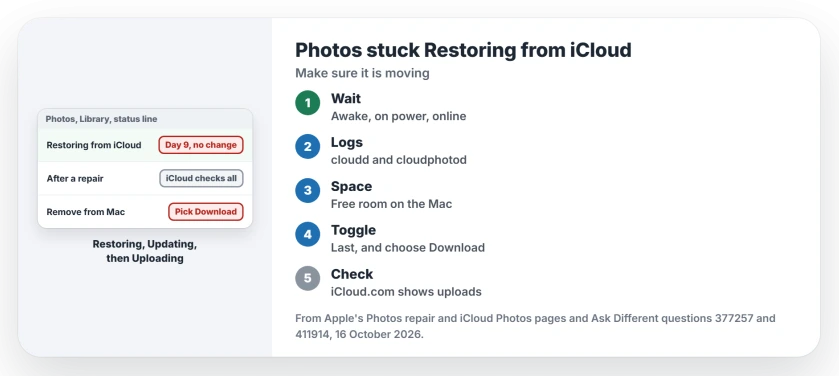
Status: confirmed against Apple's Photos repair and iCloud Photos pages on 16 October 2026; the wait and the log check come from owners.
Leave it running on a fast connection
Another owner hit the same message after a repair. In their words, "each photo is being verified against the iCloud library copy". Their 20,000 photos took about 80 hours.
Then the status changed to Updating for a few hours, then to Uploading with a count. Their slow upload crawled until they took the laptop to work, where a faster line finished it over a weekend.
Keep your Mac awake, on power and online. Our page on paused iCloud Photos syncing found that a Mac's sync stalls each time it sleeps.
Check that it is moving
Photos shows you nothing past that one line. The logs show more. This command came from an answer in the question; paste it into Terminal.
log stream --predicate 'process == "cloudd" or process == "cloudphotod"'One commenter found the cause there. "It was stuck on some networking errors (DNS)", they wrote, and a change to their network settings got it moving again.
A 2026 answer does the same in Console. Start streaming, search for cloudphotod and set the search to Process; lines that report uploaded records mean your check is still working.
Free up space on your Mac
In 2022 an owner found their Mac low on disk space. Once they made room, Photos "immediately started syncing iCloud photos and showing them in the app".
Another owner said space was not their cause. Still, rule it out first. Our page on Photos saying not enough local storage explains why Finder's free space can mislead you.
Turn iCloud Photos off and on, but last
The asker gave up after 12 days. They turned iCloud Photos off, restarted and turned it back on, and agreed when one screen said an item would be deleted.
Photos then counted down an upload of the whole library for about a week, and the missing photos arrived at the end. They also warned that a second switch-off started the full upload again, with no warning.
A 2024 owner thought that second pass mostly compares local copies with iCloud, and found it faster than the first upload.
If you do it, open Photos, Settings, iCloud and deselect iCloud Photos. Apple says you can "Click Download to download photos and videos from iCloud to your Mac, or click Remove from Mac". Pick Download.
Leave Turn Off and Delete from iCloud in System Settings alone. Apple warns that with iCloud Photos off on every device, your photos "will be deleted from iCloud in 30 days".
Will I lose photos?
Not from turning it off on one Mac. Apple says that afterwards "your photo library remains in iCloud and available to your other devices that use iCloud Photos".
Before you switch anything, open iCloud.com in a browser, which one commenter pointed out shows the photos and videos that made it up.
Restoring with a percentage after Time Machine?
That is a different screen. In 2021 an owner got their Mac back from a logic board repair and restored it from Time Machine. Photos then sat on a Restoring screen at 0 percent for hours.
Their fix was a copy of the library from a clone made the same day, set as the main library, with iCloud Photos turned on and a night of waiting.
Is your library on an external drive, stuck on Updating Library instead? Our Updating Library page covers that stall.
The Short Version
- Restoring from iCloud usually follows a repair; iCloud checks every item.
- Leave the Mac awake, on power and on a fast connection for days.
- Watch cloudd and cloudphotod in Terminal or Console to see it move.
- Free disk space; one owner's sync started at once.
- Toggle iCloud Photos last, choose Download, never Remove from Mac.
Where to Next
How many photos are in your library, and how long did Restoring last? Leave me both figures in a comment. I am building a rough guide to how long this takes.

Isaac Smith is the founder and editor of PC Glance, a website that covers computers, laptops, and technology. He is a tech enthusiast and a computer geek who loves to share his insights and help his readers make smart choices when buying tech gadgets or laptops. He is always curious and updated about the latest tech trends.