
You empty the Trash. One folder refuses to go. Your Mac says it can't be deleted because its pathname is too long, and inside sits the same folder, again and again.
That is a folder nested so deep that its full path passes the limit macOS allows. I would stop fighting it in Finder. One Terminal command removes it, as long as you aim that command at the right folder.
That error drew 22,680 views to one Ask Different question from February 2021, and 1,100 to another about a .sass-cache folder.
Why Finder gives up
In their words, the folder "seems to reference itself infinitely". Each time they opened it, another folder with the same name and date waited inside.
Apple's own source code caps a path at 1024 bytes, with the comment "max bytes in pathname". It counts every folder name in the chain. Even short names pass it, nested deep enough.
How does a folder end up like that? One owner had built theirs by accident, with a script that "recursively moves/creates directories within itself".
Ours: none. This page has no test of its own behind it; the steps come from Apple's Finder and Terminal guides and the owners who cleared it.
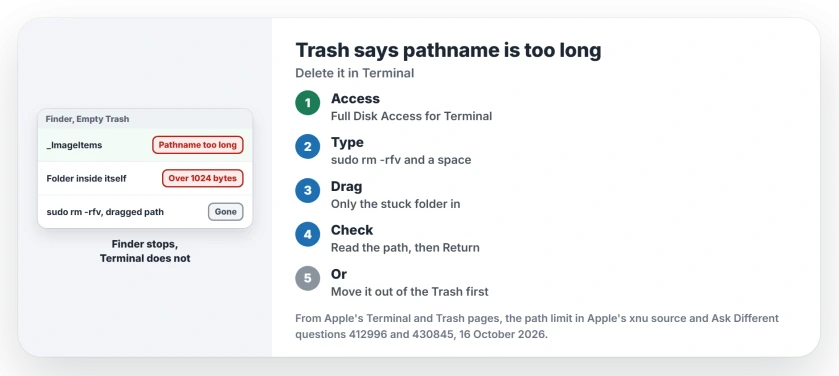
Status: Path limit from Apple's source code, plus Apple's Trash and Terminal guides, checked 16 October 2026; both Terminal fixes have owner confirmations.
Give Terminal Full Disk Access first
Terminal cannot look inside your Trash without it. The asker's listing hit Operation not permitted. A second owner's command stopped at zsh: no matches found.
One owner's fix worked only "after giving full hard disc access to Terminal". Our page on Terminal saying Operation not permitted shows where that switch lives in Privacy & Security.
Drag the stuck folder into a Terminal command
The top answer, with 26 votes, works like this. Open Terminal and type the command with one space after it. Do not press Return yet.
sudo rm -rfv Open the Trash and drag the stuck folder onto the Terminal window. Apple's Terminal guide says that when you drag a file or folder in, "The item's absolute path appears on the command line".
Press Return and type your password. One owner wrote, "I wish i could vote this answer 100 times". Another typed rm -R instead of rm -rfv and it worked for them too.
rm deletes at once and skips the Trash. I would read the line twice: the path should end with the stuck folder's name, with nothing else after it.
Or move it out of the Trash first
A shorter answer: "Just move the folder out of trash and then use rm -rf on the folder". The commenter whose script had built a runaway path replied that it was the only fix that worked.
Drag the folder to your Desktop. In Terminal, type rm -rf and a space, drag the folder in from the Desktop, check the path and press Return.
It came back after you emptied it?
The asker's folder kept coming back, and Get Info placed it inside iCloud Drive. Folders from iCloud Drive follow their own rule.
Apple says items moved to the Trash from iCloud Drive "are automatically emptied from the Trash after 30 days, regardless of Finder settings". If Terminal cannot clear one of those, waiting out the 30 days is Apple's own route.
Why not hold Option and empty it?
Apple lists that shortcut under stopping the Trash warning: "Press the Option key when you click Empty or choose Empty Trash". It skips the question, and I would not expect it to help, since Finder still does the deleting.
Windows has a path limit of its own. Our Destination Path Too Long page gets around it there with robocopy.
The Short Version
- The folder sits inside itself until its path passes 1024 bytes.
- Give Terminal Full Disk Access in Privacy & Security first.
- Type sudo rm -rfv and a space, drag the stuck folder in, check the path.
- Or move the folder to the Desktop and remove it from there.
- An iCloud Drive item empties itself after 30 days, Apple says.
Where to Next
What was the stuck folder called on your Mac, and did a script or an app make it? Tell me in a comment. I am collecting the apps that build these loops.

Isaac Smith is the founder and editor of PC Glance, a website that covers computers, laptops, and technology. He is a tech enthusiast and a computer geek who loves to share his insights and help his readers make smart choices when buying tech gadgets or laptops. He is always curious and updated about the latest tech trends.