

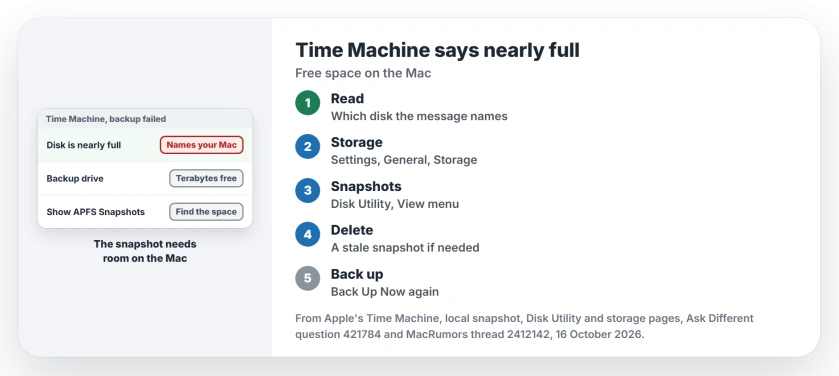
Time Machine stops and says the backup could not be completed because the disk is nearly full, yet your backup drive shows terabytes free. Read the disk's name in that message.
In the reports I traced, it named the Mac's own disk, not the backup drive. That changes the fix completely.
An Ask Different question about exactly this has 25,177 views since June 2021, and it holds the log that proves it.
The disk in the message is your Mac's
The accepted answer read the message closely: "The error does not complain about the backup disk being full, but rather, about the disk to be backed up". The asker's own log ended like this:
Backup failed (50: BACKUP_FAILED_NO_SPACE_FOR_LOCAL_SNAPSHOT)As the log shows, Time Machine makes a snapshot on your Mac as part of the backup. If the Mac's disk has no room for it, the backup stops.
Apple keeps the two messages apart for you: "If Time Machine can't create a snapshot, your internal disk may be almost full. Deleting some files can resolve this issue."
The disk is full message is the other one. Its advice, exclusions or a larger disk, is for your backup drive.
Ours: none. There is no Mac here for me to fill up, so I worked from Apple's Time Machine and Disk Utility pages and from owners who hit the message.
Status: owners hit it from Big Sur to Sonoma; Apple's backup failure, snapshot and Disk Utility pages for macOS 27 were checked on 16 October 2026.
Why the Finder says you have room
Apple says local snapshots "are stored on the same disk as the original files, and are separate from backups stored on your backup disk". So the space they need comes from your Mac.
The free space you see can mislead you. The asker's Finder showed 1.46 TB free on the Mac. A commenter put it this way: macOS "tries to pretend that the space used by snapshots is actually free, but the truth tends to leak out".
A Sonoma owner hit it in 2023. Writes failed with No space left on device while the Mac showed 131 GB free, and Time Machine failed too. After a restart it showed 157 GB.
Free real space on the Mac first
Start with Apple's own route. In macOS Ventura and later, open System Settings, click General, then Storage, and see what is taking the room.
Apple's Free up storage space on Mac page lists the usual targets: the Downloads folder, apps you no longer use, old iPhone backups, and big libraries you can move to another drive.
When there is room, start a backup by hand with Back Up Now in the Time Machine menu. If Finder's numbers and Apple's do not agree, our Photos storage page shows how Disk Utility gives the real free space.
See the snapshots in Disk Utility
Apple documents this in Disk Utility. Open its View menu, pick Show APFS Snapshots, and select your Mac's Data volume in the sidebar. Its snapshots then show up in a list along the foot of the window.
Turn on the Cumulative Size column to see how much space each one holds on your Mac. To remove one, select it and click the delete button Apple describes.
One owner whose Mac filled up during a backup fixed it there. In their words, "In the end I could solve the issue by deleting the Time Machine snapshot in Disk Utility, which was 60GB in size." They first had to mount the Data volume.
Prefer Terminal? You can list what is there, as the accepted answer suggested:
tmutil listlocalsnapshots /Will a bigger backup drive help?
No. The size of your backup drive is not the problem here. One owner on Big Sur asked why it should matter "that the disk I'm trying to backup is nearly full" when the backup drive had room. That is exactly how this message works.
Does Time Machine name files it could not read instead? That is a different message. The some files unavailable page covers it.
It fixed itself overnight?
That happens. The 2021 asker came back later: "I am happy to report this problem somehow cleared up by itself." Apple says snapshots go "when space is needed on the disk or when they are older than 24 hours", so a day can free the room.
I would still clear space. If your Mac runs this close to full, it will stop the next backup the same way.
The Short Version
- The nearly full message names your Mac's disk, not the backup drive.
- Time Machine needs room on the Mac for a snapshot before each backup.
- Free space in System Settings, General, Storage, then Back Up Now.
- Disk Utility, View, Show APFS Snapshots lists what holds the space.
- A larger backup drive does not fix this message.
Where to Next
How much free space did your Mac need before the backup ran again? Drop the number in a comment for me. Those figures help the next reader.

Isaac Smith is the founder and editor of PC Glance, a website that covers computers, laptops, and technology. He is a tech enthusiast and a computer geek who loves to share his insights and help his readers make smart choices when buying tech gadgets or laptops. He is always curious and updated about the latest tech trends.