

You wake your Mac to a notice. Time Machine did not finish backing up because some files were unavailable, and backups will resume when your Mac is unlocked. Your last good backup date stops moving.
I take this one at Apple's word first. Some files are locked while your Mac is locked, and a backup that runs then cannot read them. Often the next backup fixes it; when it does not, Terminal can name the files.
On Ask Different, the question about this exact message has 3,522 views, and an earlier one about backups stuck on Waiting to complete first backup has 7,729.
What unavailable means here
Apple's failed-backup page covers it directly. It says "Time Machine will automatically retry the backup later", and adds that you can retry while your Mac is unlocked, because some encrypted files cannot be read while it is locked.
So the timing matters. Backups that run overnight, or on a schedule while your screen is locked, are the ones that hit those files.
Ours: none. I could not reproduce this myself, so it rests on Apple's Time Machine pages, two Ask Different threads and one TidBITS thread.
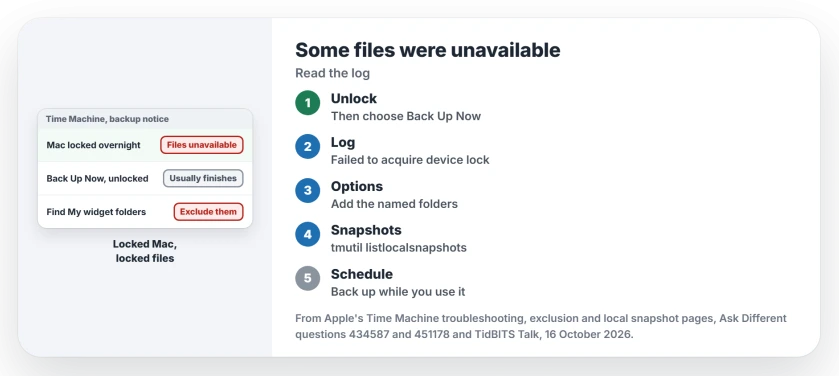
Status: Apple's Time Machine troubleshooting, exclusion and local snapshot pages for macOS 27, checked 16 October 2026, plus owner reports from Monterey to Sequoia.
Back up now, while you are signed in
Unlock your Mac, click the Time Machine icon in the menu bar, and choose Back Up Now. If the icon is missing, Apple puts it in Control Center settings, under Time Machine, as Show in Menu Bar.
For some owners this is the whole fix. One, on an M1 Pro MacBook Pro, saw it only after an overnight sleep, and backups went on once they dismissed it. In their words, "those messages just stopped appearing after maybe a week or two".
Another owner on two Apple silicon Macs had to start each backup by hand. If yours never resumes alone, go to the log.
Ask the log which files failed
The accepted answer in the Monterey thread found the culprits with one command. Open Terminal and run it:
log show --info --style compact --predicate '(subsystem == "com.apple.TimeMachine") && (eventMessage like[cd] "Failed * acquire device lock assertion*")' --last 24hEach line names a folder Time Machine could not lock. For that asker they were Find My widget folders in Library, Containers, plus Library, Metadata.
Exclude the folders it names
Open System Settings, General, Time Machine, Options. Add each folder the log named. Apple's exclusion page adds that excluded items still show up in local snapshots.
The answer also gave a Terminal form, handy because Library is a hidden folder:
sudo tmutil addexclusion -p ~/Library/Containers/com.apple.findmy.FindMyWidget*Two owners confirmed it. One wrote that excluding the Find My containers "resolved the issue", and another that it cleared this exact notice. I would exclude only what your log names, never your whole Library folder.
Still failing? Delete the local snapshots
A 2025 answer argued the files were not the problem; the hourly local snapshot was. That owner listed the snapshots and deleted the ones named in the log:
tmutil listlocalsnapshots /
sudo tmutil deletelocalsnapshots 2025-01-18-111742
Use your own date stamps in place of that example. Apple says these snapshots last up to 24 hours. In its words, "Time Machine automatically removes local snapshots" when space runs low. So deleting them costs only today's hourly copies.
Results were mixed. One owner on macOS 15.4 saw the notice return the next day, and another could not delete two snapshots at all.
A nearly full warning is a different case: it points at the Mac's own disk, and the page on that warning explains why.
Does a backup app on a schedule cause it?
It can. Two owners who run backups on their own schedule, one with TimeMachineEditor, reported it. One saw it only with the screen locked. If you schedule backups for the night, move them to hours you use the Mac, or start them by hand.
Why was the old Monterey backup stuck on Waiting to complete first backup?
Same lock errors, different wording. Backups to a WD My Cloud NAS kept stopping and the first backup never finished. The asker traced it to the locked Find My folders and later wrote that Apple appears to have fixed it in macOS 12.2. If your backups go to a network drive and fail in other ways, our NAS backup page covers those, and a share that drops after sleep has its own page.
The Short Version
- The notice means some encrypted files were locked while the Mac was locked.
- Unlock your Mac and choose Back Up Now; often that is enough.
- Never resumes? Run the log command to see which folders failed to lock.
- Exclude those folders, such as Find My widget containers, in Time Machine options.
- Local snapshot cleanup helped one owner and not others.
Where to Next
When you ran the log command, which folders did it name? Post them in a comment; I am collecting the list for the next reader.

Isaac Smith is the founder and editor of PC Glance, a website that covers computers, laptops, and technology. He is a tech enthusiast and a computer geek who loves to share his insights and help his readers make smart choices when buying tech gadgets or laptops. He is always curious and updated about the latest tech trends.