

Your network drive mounts perfectly every morning and disappears the moment the Mac sleeps, and nothing you put in Login Items brings it back.
The reason is not what anybody expects, and I would rather explain it than have you keep re-adding the entry.
Login Items has one job and it runs once, at login. It has never been aware of sleep, on any version of macOS, and Tahoe did not change that.
That is why it will not reconnect after sleep. The entry that mounted it does not fire again until you log in tomorrow.
What Tahoe did break, from 26.0 through 26.3, was the manual rescue in the Finder sidebar. That one is fixed in 26.4.
Three different failures get called the same thing
Sorting yours first saves a lot of wasted effort, because these have different answers.
- It never mounts at all, or you get Access Denied and a credential loop. That is an SMB negotiation problem, and it lives with the Time Machine and NAS guide rather than here.
- It mounts, then vanishes after sleep or lid-close and does not return. That is this article.
- It is gone and clicking its Finder sidebar entry throws "the original item can't be found." That was a genuine Tahoe bug in 26.0 through 26.3. Update from System Settings, General, Software Update, and clicking the favorite remounts it again, the way it always used to.
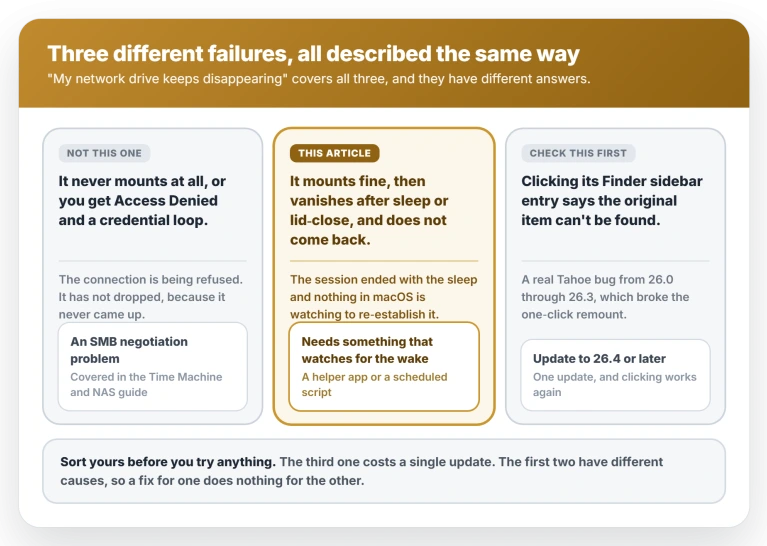
Check that third one first. A single update settles it.
For the second one, there is nothing for Apple to fix. macOS was never re-establishing the session on wake, so there is no regression to file against, which is why no release note has ever mentioned it.
Status: no macOS 26 release note addresses a share failing to reconnect after sleep. Apple fixed the sidebar remount in 26.4 and an SMB crash on mounting in 26.5, but wake behavior is unchanged.
Which fixes survive sleep, and which do not
Mounting a share and remounting it after sleep are two separate jobs. Almost everything that gets recommended only does the first.
- Login Items. Mounts at login. Does not survive sleep, and never has. It also opens a Finder window for every share, every boot.
- Finder sidebar or Favorites. Not persistence at all. On 26.4 and later it gives you a one-click remount, which is genuinely useful, but something still has to click it.
- Connect to Server with credentials saved in Keychain. Removes the password prompt. Nothing about it re-establishes the mount.
- The alias-of-an-alias trick. Survives a reboot, which is the reason it spread. It does not survive sleep, because nothing is watching for the drop. It is a faster manual remount, and it mattered most while the sidebar was broken.
- A helper app or a scheduled script. These are the only things that reconnect on wake, because they are the only things still running after the drop.
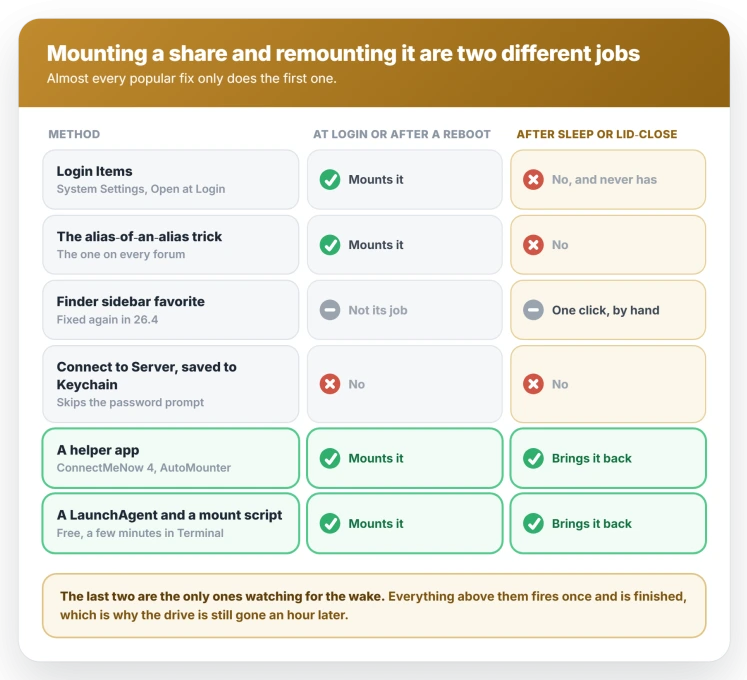
What actually reconnects after wake
- ConnectMeNow 4. Free, from the developer's own site rather than the App Store. It handles SMB and AFP, sits in the menu bar, and can retry a connection periodically, which covers a mid-session drop that a wake-only tool misses. Start here, but take the beta build: the main download button still serves version 4.0.18 from April 2024, and the Tahoe work is in 4.0.25 from June 2026.
- AutoMounter. $9.99 on the App Store, with a $3.99 in-app pack if you need mounts in a custom location. It mounts at login, on wake, and on network change, and it can be told to only mount on your home Wi-Fi. Version 1.13.0 from April 2026 lists macOS 26 support, so it is the one recommendation here that is verified current.
- Jettison. $6.95, with a 15-day trial, and a different shape of answer. Rather than remounting after the damage, it delays sleep long enough to unmount cleanly, then remounts on wake. That also stops the "disk not ejected properly" warnings. One thing to expect before you click through: its sales page is written entirely around physical disks and never mentions network shares. The network-volume support is real, but you have to read the release notes to find it.
The free route, if you are comfortable in Terminal
A LaunchAgent is a small job macOS runs on a schedule.
This one checks every minute whether the share is still mounted and remounts it if not, so it recovers from any cause of a drop rather than only from sleep.
It polls rather than listening for wake, which in practice means the share is back within a minute of the lid opening.
Connect once with Connect to Server and tick Remember this password first. Without the password saved in Keychain, the remount throws a connection dialog that a script cannot dismiss.
Save this as com.local.mountshare.plist in the LaunchAgents folder inside your home Library folder.
Replace SHARE with your share name, and NAS.local with your server name, or better, with its IP address, which sidesteps a local network permission question and a slow name lookup right after wake.
<?xml version="1.0" encoding="UTF-8"?>
<!DOCTYPE plist PUBLIC "-//Apple//DTD PLIST 1.0//EN" "http://www.apple.com/DTDs/PropertyList-1.0.dtd">
<plist version="1.0">
<dict>
  <key>Label</key><string>com.local.mountshare</string>
  <key>ProgramArguments</key>
  <array>
    <string>/bin/sh</string>
    <string>-c</string>
    <string>/usr/bin/nc -z -w 3 NAS.local 445 || exit 0; /sbin/mount | /usr/bin/grep -q "/SHARE on /Volumes/" || /usr/bin/osascript -e 'mount volume "smb://NAS.local/SHARE"'</string>
  </array>
  <key>StartInterval</key><integer>60</integer>
  <key>RunAtLoad</key><true/>
</dict>
</plist>
Start it in Terminal:
launchctl bootstrap gui/$UID ~/Library/LaunchAgents/com.local.mountshare.plistTo take it back out again:
launchctl bootout gui/$UID/com.local.mountshareThree parts of that command are doing specific work. The nc line quits quietly when the server is unreachable, so a laptop away from home does not throw a connection dialog every sixty seconds.
The grep matches the share name rather than the mount point, because macOS sometimes mounts at /Volumes/SHARE-1 instead, and matching the mount point would leave the agent remounting forever.
And it mounts into /Volumes, which sidesteps the restriction Apple added in 26.4 on mounting anywhere else.
Two things to expect. The agent appears in System Settings, General, Login Items and Extensions under Allow in the Background, so deleting it there switches the fix off.
And it cannot tell a live mount from a stale one, where the server has gone but the entry lingers.
Catching that needs a liveness check on a file inside the share, which is more machinery than most people want.
Why Login Items opens a Finder window every boot
macOS opens a window for each share it mounts at login, and there is no setting to suppress it. The old Hide checkbox is gone and Apple documents no replacement.
The way out is to stop using Login Items for the mount at all. Anything that mounts outside Finder's launch path does it silently, which is what the script and helper-app routes do as a side effect.
Apple's page for the setting is Login Items and Extensions, under System Settings, General, where the list macOS labels Open at Login lives.
Should you use autofs to mount a network share?
Search long enough and you will find people editing the auto_master file in /etc so shares mount automatically. It does work. It also carries five risks that deserve stating.
- Your NAS username and password sit in a plain text file readable by every account on the Mac, unless you remember to lock the file down yourself. macOS autofs cannot read the Keychain, so there is no way to avoid writing them down.
- A macOS upgrade reverts the whole configuration. The fix quietly dies at the next major version, which is a poor property for anything holding a backup.
- Mount points placed inside your home folder can duplicate over time, and the reported end state is automountd climbing to full CPU until the Mac stops responding.
- autofs mounts SMB as root, which is where the folders you cannot write to come from.
- On a laptop it will try to reach your home NAS from a coffee shop.
This article gives no autofs recipe, deliberately. The LaunchAgent does the same job, costs nothing, and does not touch a system file that the next macOS upgrade will revert.
What does not help
- Putting hard disks to sleep, or not. That setting spins down physically attached mechanical drives. A network share is a session, not a disk, and the setting has no bearing on it.
- Power Nap. It is aimed at background fetching while asleep, not at holding a mount open, and on Apple silicon the setting does not exist at all.
- Wake for network access. That is about other machines reaching your Mac while it sleeps. It does nothing for your outbound mounts.
- Preventing sleep entirely. This one is at least mechanically sound, since no sleep means no drop, but you are trading the battery to avoid an event rather than fixing anything.
This is not your NAS
Owners report it against Synology, TrueNAS, a Raspberry Pi running Samba, and plain Windows shares.
It shows up on SMB, and one reader report has it on AFP too, which is academic in the long run since Tahoe 26 is the last macOS to include the AFP client at all.
Two things make it worse:
- Laptops. Closing the lid is the most common trigger, so a MacBook meets it far more often than a desktop does.
- USB or Thunderbolt Ethernet adapters. They add their own power state transitions on sleep, which is why a desktop on built-in Ethernet tends to be the least affected setup of all.
If Safari stops working at the same moment the share vanishes, this is not an SMB problem at all. Chase the Wi-Fi connection instead.
Time Machine has its own after-sleep complaint, about files it could not read while the Mac was locked; the locked files page covers it.
Related problems that look the same
- Time Machine fails while the share itself is fine. Backups dying just after Preparing backup is its own problem, with a different cause.
- A USB or Thunderbolt drive not mounting. Local storage has a separate set of causes.
- Connections that broke specifically on 26.4. There was an SMB regression in that release which 26.5 fixed, so updating is the answer.
- Repeated Keychain prompts. That is a credentials problem rather than a persistence one.
- Every shared folder showing on a Synology. After a move from AFP to SMB, the Synology page hides the folders a user cannot open.
Why does my Mac lose the network drive after sleep?
The network session ends when the Mac sleeps, and macOS has no logic to re-establish it on wake. The mount is gone rather than idle, so nothing brings it back until something asks.
Does adding a share to Login Items keep it mounted?
Only until the Mac sleeps. It mounts the share once at login and then plays no further part, and it opens a Finder window for each share while it does so.
Why does clicking the share in the Finder sidebar say the original item cannot be found?
That was a Tahoe bug present from 26.0 through 26.3. Apple's enterprise release notes for 26.4 list a fix for favorites failing to reconnect, and users confirm the old one-click remount works again from that release.
Is there a free way to reconnect automatically?
Yes. ConnectMeNow 4 is free, and the LaunchAgent costs nothing but a few minutes in Terminal. Both work because something stays running after the drop, rather than firing once at login.
The Short Version
- Login Items mounts at login and has never survived sleep. That is not a Tahoe change, it is what the feature is.
- Only a helper app or a scheduled script reconnects on wake, because only they are still running when the drop happens.
- ConnectMeNow 4 is free and is where to start. AutoMounter is $9.99 and is the one verified current on Tahoe.
- If clicking the sidebar entry errors, that was the 26.0 to 26.3 bug. Update to 26.4 or later.
- The alias trick survives a reboot, not sleep. It is a quicker manual remount, nothing more.
- Skip autofs. Plain text passwords, and a macOS upgrade reverts the configuration.
Where to Next
Sleep causes more than dropped drives on Tahoe. A Mac that restarts after sleeping points at a different cause with a different fix.
- Backups failing while the share still mounts: Time Machine won't back up to a NAS
- Local drives that will not appear: external drive won't mount on Mac
- The connection itself dropping: MacBook Wi-Fi dropping on Tahoe
- An older Mac's shares will not open from macOS 27: macOS 27 file sharing with older Macs

Isaac Smith is the founder and editor of PC Glance, a website that covers computers, laptops, and technology. He is a tech enthusiast and a computer geek who loves to share his insights and help his readers make smart choices when buying tech gadgets or laptops. He is always curious and updated about the latest tech trends.