
You updated one Mac to macOS 27, and now it cannot open the shared drives on an older Mac on your network. The older Mac shows up, its drives are listed, and every one fails to open.
I went through two forum threads with this same pattern, plus Apple's own macOS 27 sharing pages. No switch brings the old behavior back, but three routes still work, and one owner's copy went badly wrong.
What owners describe
The clearest report came from a Mac mini M4 owner: "SMB file sharing just up and stopped working completely after updating to Golden Gate". Your setup may look much the same.
The drives are visible, which makes it confusing. "The shares show up fine in the window on Golden Gate when selecting the other computer", but opening one gives an error.
Their other line matters too: "Screen sharing does work fine, file sharing doesn't work at all". Keep that in mind, because you can use it.
The age of your other Mac seems to decide it. "The other Mac is running Sierra", they wrote. In a second thread, a MacBook Air on macOS 27 could not reach a 2015 iMac on OS X El Capitan.
Yet the first owner found that "connecting from the Mac running Golden Gate to one running Catalina works just fine".
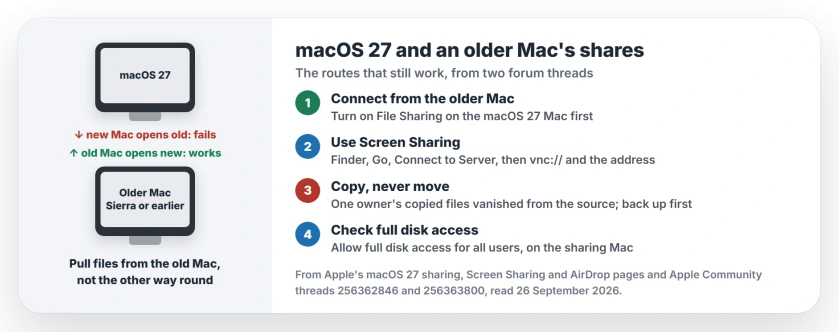
Status: macOS 27 connecting to older Macs, checked 26 September 2026. Owners could not open shares on Macs running El Capitan or Sierra; one on Catalina worked. No Apple setting changes it.
What Apple Support said
The owner called Apple, and a senior adviser gave this answer: "Golden gate is not going to be compatible with older versions of SMB on other machines".
The owner later doubted the details, since the Catalina Mac still works. In their words, "Apple support was wrong to say categorically that SMB on Golden Gate isn't compatible with Intel chipped machines".
A Level 9 volunteer's reading is about the network language your old Mac speaks: "Older Macs may only support old outdated SMB protocols which are known to be huge security issues".
"Those older SMB protocols are no longer allowed", they added. Apple has not published that. Take it as an informed guess.
1. Connect from the older Mac instead
The same owner found the other direction still works: "Note, I CAN connect TO the Mac Mini from the older Mac and it works fine".
So turn on File Sharing on your macOS 27 Mac and pull the files from the old one. Apple's macOS 27 guide puts it in System Settings, General, Sharing, then File Sharing.
It is clumsier, since you work from the old Mac. But it moves your files today.
2. Use Screen Sharing to reach the old Mac
D.E. Emery found a second way: "VNC still works between Golden Gate and older Macs, so I can drag-and-drop from the new Mac to the old Mac".
Apple's guide says the Screen Sharing app lets you "view and control the screen of another Mac on your network". The other Mac needs Screen Sharing turned on in its Sharing settings first.
A Level 9 volunteer added that "macOS already has built-in VNC support". In Finder, choose Go, then Connect to Server, and type vnc:// followed by the old Mac's address.
3. Copy, never move, and keep a backup
Read this before you copy anything big. The first owner copied about 25 GB from the new Mac to the old one, and "As I watched, each file VANISHED from the Mac Mini side after it finished copying".
They were lucky: "Of course I had backups of the files copied". The volunteer had heard of this with moves: "I have heard of data loss when moving files (copy & delete in a single operation)".
Our advice: back up first, copy rather than move, and check the copies on the other Mac before you delete a single original.
4. Check full disk access on the sharing Mac
A Level 10 volunteer suggested one setting: "In the file sharing settings, make sure you've allowed SMB users full disk access".
Apple's macOS 27 guide names the switch "Allow full disk access for all users", for when you want everyone "to have full access to the disk on your Mac". It sits in the File Sharing settings of the Mac you connect to.
In our reading, it helps when the sharing Mac runs a recent macOS. An old Mac on Sierra may not have this switch at all.
Terminal on either Mac saying Operation not permitted is a separate block, and the Terminal permission page clears it without switching off SIP.
5. AirDrop for a handful of files
The Level 9 volunteer's last idea was simple: "Have you tried using Air Drop to transfer files?"
Apple says AirDrop can "wirelessly send photos, videos, documents, and more to a nearby iPhone, iPad, or Mac". Both Macs need Wi-Fi and Bluetooth on. Nobody in the thread reported trying it with a Mac this old. Try it as a test only.
More macOS 27 trouble on the same Mac
If your printer stopped working after the same update, the macOS 27 printer page starts with Rosetta. If a network drive drops after sleep on Tahoe, the reconnect page covers that.
If the older Mac never offered macOS 27 in the first place, the macOS 27 availability page shows how to check for Apple silicon.
And if transfers between the Macs crawl in one direction since macOS 27, the slow upload page covers the ECN setting owners switched off.
If Home Sharing between your Macs broke as well, the Home Sharing page starts with the five-computer authorization limit.
If a Synology now lists every shared folder for every user since you moved from AFP to SMB, the Synology page has the setting that hides them.
If Terminal warns about a post-quantum key exchange when you reach the older Mac over SSH, that warning can be silenced for one server.
Why can't macOS 27 open shared drives on an older Mac?
Apple has not explained it. Apple Support told one owner that macOS 27 is not compatible with older versions of SMB, and owners saw it with Macs on El Capitan and Sierra, not Catalina.
Can an older Mac still connect to a Mac on macOS 27?
Yes, in the owner reports. Your older Mac can likely open shares on the macOS 27 Mac, even though the other direction failed.
Is there a way to copy files without File Sharing?
Screen Sharing worked for one owner, who dragged files between the Macs. AirDrop is another option, though nobody confirmed it with a Mac that old.
Can file sharing on macOS 27 lose my files?
One owner watched copied files vanish from the source Mac, about 25 GB. They had backups. Copy, do not move, and keep a backup until you have checked the copies.
The Short Version
- macOS 27 may not open shares on very old Macs.
- Owners saw it with El Capitan and Sierra.
- Connect from the older Mac instead.
- Or use Screen Sharing and drag files across.
- Copy, never move, and back up first.
- AirDrop may move a few files; test it.
Where to Next
Try the reverse connection from the older Mac first. It worked the same day for the owner who reported this.
Which macOS does your older Mac run, and did it work? Tell me in the comments. Every version you report narrows down where the line falls.
Still on Tahoe and not offered 26.7 at all? The missing update page covers what to try.

Isaac Smith is the founder and editor of PC Glance, a website that covers computers, laptops, and technology. He is a tech enthusiast and a computer geek who loves to share his insights and help his readers make smart choices when buying tech gadgets or laptops. He is always curious and updated about the latest tech trends.