
Your Mac wants a software update to accept the startup disk, yet Update fails or sends you around again. It's frustrating when the installer is sitting right there on your USB drive.
Let's work through it together. I found several different reasons behind that same message. Start with the network connection in Recovery, then the USB connection, before doing anything that erases your Mac.
Check whether this is the T2 startup warning
Apple describes this exact alert in its Startup Security instructions for Intel Macs with the T2 chip. It can appear when the system on your chosen disk doesn't pass verification.
The original Ask Different report came from a 2019 13-inch MacBook Pro, with later replies covering Big Sur installations and a 2024 upgrade attempt, rather than one confirmed fault affecting every Mac.
Status: Apple's T2 startup and installation guidance checked 17 October 2026; the owner thread has 36,448 views. Reported fixes differ between machines.
Apple silicon uses different startup controls. Holding power opens startup options; the Option and Command-R keys in this guide are for Intel Macs.
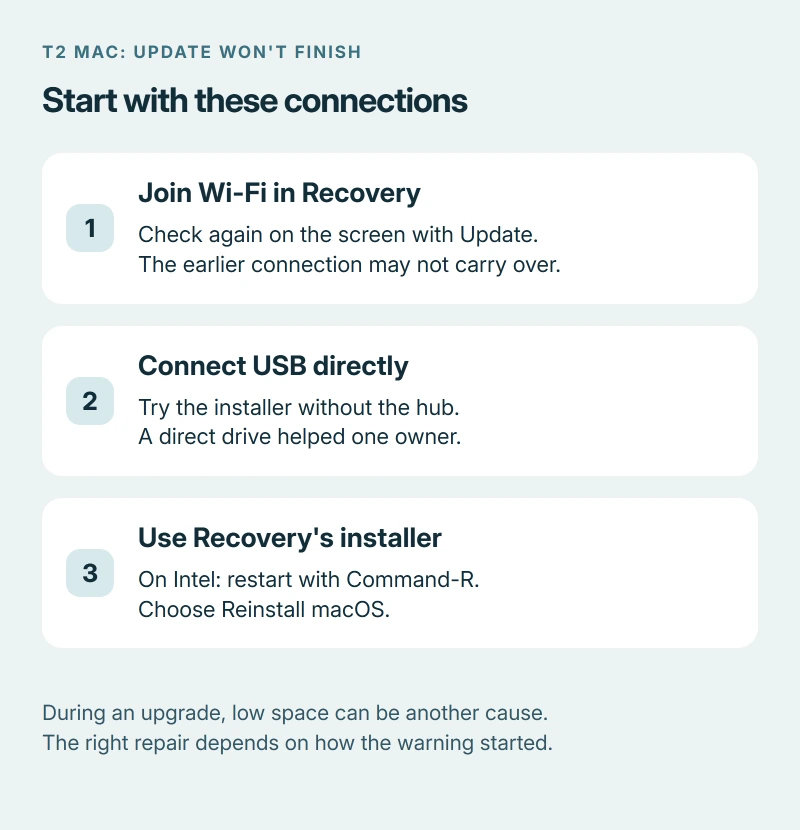
1. Join Wi-Fi on the screen asking for the update
Check Wi-Fi before you press Update. Select your network and enter its password.
One owner, installing Big Sur from Catalina, got past the loop after joining Wi-Fi at the startup disk chooser, the screen you get by holding Option. Another owner had to reconnect again when Recovery Assistant appeared.
That second connection matters. They confirmed the update completed after joining Wi-Fi there, because the earlier connection hadn't carried through.
Apple says even a bootable USB installer needs internet access to obtain firmware and information for your Mac model. Having the installation files on USB doesn't remove that requirement.
2. Plug the installer straight into the Mac
Try connecting your USB installer without the hub. In the accepted answer, the asker replaced their hub-connected USB-A drive with a USB-C flash drive and successfully continued.
Their hub-driver explanation was a guess, but the successful change was the direct USB-C drive, and Apple's current installer instructions also call for connecting the installer directly.
Try a spare drive before buying one. This didn't solve every report, so I wouldn't buy hardware expecting a guaranteed repair.
A different message about the installer itself being invalid needs the installer-validity checks. That error happens before the startup verification covered here.
3. Follow the Update or Startup Disk choice
In Apple's T2 security guidance, Update opens the macOS installer so you can reinstall onto the selected startup disk. Startup Disk lets you choose another system to start instead.
Make a backup if your Mac still starts. Apple says reinstalling macOS normally keeps your apps and personal data, but recommends a backup before proceeding.
Don't switch off security for this warning. The asker had already tried Medium Security and No Security without fixing their USB problem.
External startup has its own permission. If that warning appears on a T2 Mac, Apple's installer instructions say to allow external or removable startup media in Startup Security Utility.
4. During an upgrade, check the Mac's free space
Does your existing macOS still start? One owner posting in November 2024 found that insufficient disk space caused this message during an upgrade's restart stage.
Freeing space let their upgrade finish, though they didn't name a macOS version or publish a required amount, so there isn't a reliable space target from that report.
On Ventura or later, review Storage under System Settings, General. Apple's storage guide explains which files you can move or remove.
5. Try the built-in Recovery installer
Still stuck with USB? Try Recovery instead. It was reported working by an owner upgrading to Big Sur 11.5.2, with no data lost.
Restart your Intel Mac while holding Command-R. Choose Reinstall macOS, click Continue, and follow its prompts with an internet connection available.
Apple documents that route for reinstalling the most recently installed macOS version. It won't necessarily give you the particular release on your USB drive.
Leave the lid open throughout installation. If it starts progressing but looks frozen, the macOS update progress guide explains what those pauses can mean.
If none of those gets the installer running
You're not the only one. One owner reported that Wi-Fi, Ethernet, a direct USB-C drive, wiping the disk, and SMC or PRAM resets all failed.
Their eventual repair involved restoring T2 firmware with another Mac, followed by additional installer work. I would contact Apple at that point instead of copying their whole disk-erasing sequence.
Apple now provides firmware revive instructions using another Mac running macOS Sonoma 14 or later. Revive is the first choice because it doesn't erase the affected Mac; Restore does.
Follow Apple's instructions for your specific model. The required port and key timing differ, and the older forum procedure uses a different app.
The Short Version
- The T2 alert concerns the system on your selected startup disk.
- A USB installer still depends on a working internet connection.
- Match the repair to your situation: USB connection, upgrade storage, or Recovery installation.
- Firmware recovery is an escalation after the ordinary installation routes fail.
Where to Next
Which Mac and macOS version brought you to this message? Tell me whether it appeared while starting a USB installer or during a normal upgrade, because those reports led to different repairs.

Isaac Smith is the founder and editor of PC Glance, a website that covers computers, laptops, and technology. He is a tech enthusiast and a computer geek who loves to share his insights and help his readers make smart choices when buying tech gadgets or laptops. He is always curious and updated about the latest tech trends.