
If you're wondering how to open Bluetooth on a Chromebook, start with the clock in your screen's bottom-right corner. The setting is easy to miss when you're used to another laptop.
I'll take you from that menu to a connected pair of headphones, mouse or keyboard. You can also reconnect something you've used before, without setting it up from scratch.
Open Bluetooth from the clock
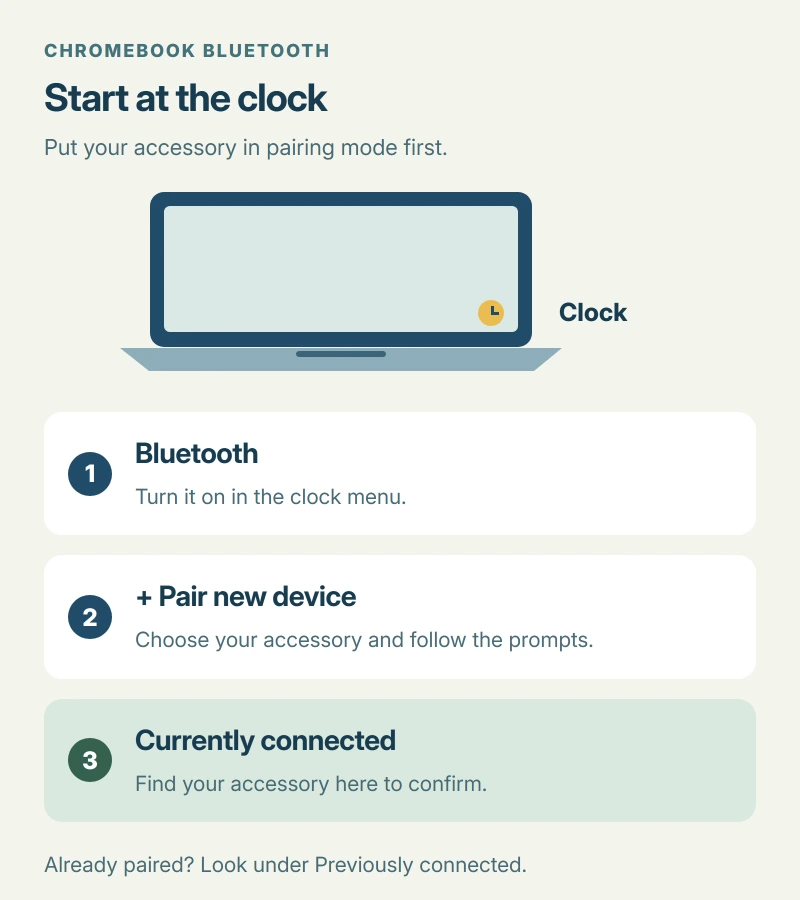
Click the time, then choose Bluetooth and turn it on. That opens the controls you need. Google's Chromebook Bluetooth instructions use this route for both enabling Bluetooth and starting a new pairing.
Keep your accessory nearby for setup. Only choose devices you recognize, because Google says paired accessories remain saved even when someone else uses your Chromebook.
Status: Google's Chromebook pairing instructions checked 17 October 2026. The missing-button example comes from an older ChromeOS 103 owner report. No Chromebook was tested here.
Put your accessory into pairing mode
Switch on your headphones, keyboard or mouse and follow its maker's instructions for pairing mode. Turning it on may not be enough. The Chromebook needs the accessory to be discoverable before it can appear in the list.
Google adds a specific example for Pixel Buds: open the case and hold its back button until the light pulses. Other accessories can use a different button, so check the instructions for your exact model.
I would do that before searching repeatedly. A device that isn't ready to pair gives you very little to work with on the Chromebook side.
Choose the device and finish connecting
With Bluetooth on, select + Pair new device, choose your accessory's name, and complete any instructions that appear. Don't choose a similar-looking name just because it is the first result.
Now return to the Bluetooth panel. Your accessory should appear under Currently connected, which is Google's check that the connection has finished. Try typing, moving the mouse or playing some sound, depending on what you connected.
Already see a Fast Pair notification for your accessory? Select Connect to use it. If that fails, Google directs you to Settings > Bluetooth > Pair new device for manual pairing.
Reconnect something your Chromebook remembers
You don't need a fresh pairing every time. Open the Bluetooth panel and look under Previously connected, then select your device's name to reconnect it.
Google says a previously paired Bluetooth keyboard or mouse normally connects automatically when switched on near your Chromebook. For a saved accessory you no longer use, open Settings > Bluetooth, select its name and choose Forget.
Once you're connected, a dropout in another room needs a different check from a device that never appears. Our guide to Bluetooth range explains how the two devices and the walls between them affect reach.
Trying to connect an Android phone?
Use the phone connection settings. Google states that a phone cannot pair through the ordinary Bluetooth accessory list on your Chromebook.
Open Settings > Connected devices. Beside Android phone, select Set up, then follow the password and confirmation prompts. Use matching Google Accounts on the two devices; a work or school Chromebook may restrict this feature.
Those steps come from Google's Android phone connection guide. After setup, you can choose which phone features to enable under Connected devices.
If the Bluetooth control has disappeared
Save your work and turn the Chromebook off, then back on. Google includes this in its Bluetooth troubleshooting, and one owner said restarting restored their missing control in July 2024.
Their Chromebook ran ChromeOS 103.0.5060.132. They also said the problem kept returning, with each reboot restoring Bluetooth again, so that report supports temporary access rather than a lasting repair.
I would check for an offered update next. Google's update page puts this under Settings > About ChromeOS > Check for updates. Install anything available and finish with the requested restart.
Is your Chromebook too old to receive updates? Our Chromebook update-date guide shows where to check its support schedule before spending time looking for a newer version it cannot receive.
If the control still stays missing, contact your Chromebook manufacturer with the model and ChromeOS version. That is also Google's next support route when its Bluetooth troubleshooting hasn't helped.
The Short Version
Open the clock menu to find Bluetooth. Put your accessory into pairing mode, choose it from the new-device list, and check that it finishes connecting. Android phones use Connected devices instead.
Where to Next
Which accessory are you connecting, and does it appear in the list? Tell me its model and whether the Bluetooth control itself is missing, so I can distinguish a pairing problem from a vanished setting.

Isaac Smith is the founder and editor of PC Glance, a website that covers computers, laptops, and technology. He is a tech enthusiast and a computer geek who loves to share his insights and help his readers make smart choices when buying tech gadgets or laptops. He is always curious and updated about the latest tech trends.