
You want to duplicate a page in Word, keeping the finished version while making a second copy you can edit. Rebuilding the same invitation, form or handout would be a waste of your afternoon.
I'll show you how to copy its contents onto a fresh page in desktop Word for Windows. The selection matters, especially in longer documents. A picture-heavy template needs a little more care than plain text.
Choose the content you actually want twice
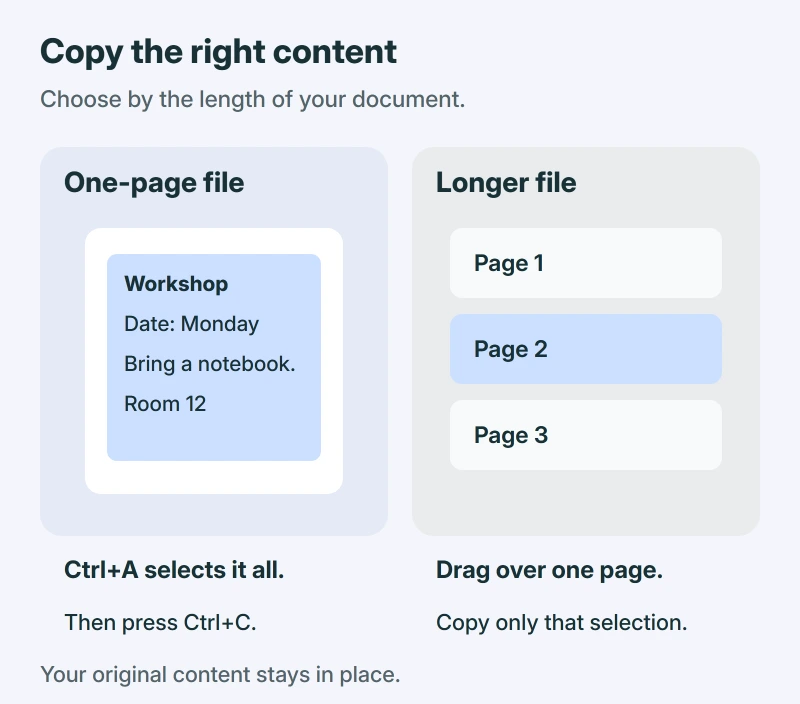
Microsoft's page-copying instructions make a useful distinction: selecting everything suits a one-page document, while a page inside a longer file needs its own selection.
That saves you from copying the whole report when you only wanted its final form. Your original content can stay put. Choose Copy, rather than Cut.
Status: Microsoft's desktop Word copying and paste instructions checked 17 October 2026. A template owner's later layout problem is included; no document was tested here.
Copy it, make room, then paste
For a document that fits on one page, click in its text and press Ctrl+A, then Ctrl+C. For a longer file, drag from the start to the end of the page's content, then copy that selection.
Now choose where the extra page belongs. To add it at the end, click after the document's final content. To place it between existing pages, use the end of the content that should come before the copy.
- Choose Insert > Blank Page at that position.
- Click where your new copy should begin.
- Press Ctrl+V to paste, then look through the result before editing it.
Microsoft documents Ctrl+Enter as a page break. That ends the current page and starts the next one, so use it instead of inserting a blank page when that is what your layout needs.
I would check the first and last lines of the new copy now. It's easy to miss the final paragraph while dragging, and you can catch that before changing names or dates.
If those keyboard commands do nothing, the Word copy-and-paste shortcut guide covers that separate problem. A failed shortcut isn't proof that your page cannot be copied.
Keep the formatting you meant to keep
Find Paste Options beside the pasted content. Choose Keep Source Formatting when you want its text formatting carried across. Microsoft's paste-formatting guide explains the choices.
Microsoft states that Merge Formatting makes the copied text fit its destination more closely, while retaining some emphasis.
Keep Text Only removes formatting and graphical content, and turns tables into paragraphs. That doesn't preserve the design of your handout.
Can't see Paste Options? In File > Options > Advanced, find the Cut, copy, and paste section and enable its Paste Options button setting. Microsoft says the button may also be absent when you're pasting plain text.
Why a template may still look different
A Word template question illustrates the limit. One owner tried the suggested page-break procedure and found that only the picture moved, leaving the text behind.
They later reported success by cutting the content and pasting at the start of each new page. But their next reply described a scaling problem when trying to reuse the background image.
So that wasn't a clean, complete template-copy success. Keep Source Formatting preserves copied text formatting; it doesn't promise an identical copy of every page element. Compare pictures, layout and words before continuing.
I would keep a separate saved copy of an elaborate template before experimenting with its layout. That gives you an untouched version to return to if the copied page needs more than a small adjustment.
If all you need is several identical paper copies, use File > Print and increase Copies instead. You don't need extra document pages for that, and Microsoft's printing guide shows the setting.
An empty extra page needs a different fix. Our stubborn blank-page guide explains the paragraph marks and breaks that can keep it there.
The Short Version
Select the content, copy it, create its destination page and paste. Select All copies everything in the document. Check Paste Options for text formatting and compare any pictures before treating the duplicate as finished.
Where to Next
What are you trying to repeat: a text page, a table or a designed template? Tell me what changes in the copy, especially whether it's the words, a picture or the spacing that goes wrong.

Isaac Smith is the founder and editor of PC Glance, a website that covers computers, laptops, and technology. He is a tech enthusiast and a computer geek who loves to share his insights and help his readers make smart choices when buying tech gadgets or laptops. He is always curious and updated about the latest tech trends.