
You want to download Zoom for your PC, but the choices include different installers and products with similar names. That's confusing just before a meeting.
I'll help you choose and install the Windows download, then recognize when your computer needs another route; a meeting-room product isn't needed for an ordinary call.
Start with Zoom Workplace for Windows
Open Zoom's Download Center and find Zoom Workplace for Windows. This is the desktop meeting app. Choose that section before looking at the separate tools for conference rooms or browser extensions.
The download procedure is documented by the vendor. Its current Windows instructions offer 64-bit and ARM64 downloads, so check your PC before choosing between them.
Status: Zoom's Windows download and compatibility pages checked 18 October 2026. The current download instructions list 64-bit and ARM64. This guide involved no installation on the laptop.
I would use the Download Center directly. Our guide to getting laptop apps safely explains the download-source checks if a search result has sent you somewhere unfamiliar.
Match the installer to System type
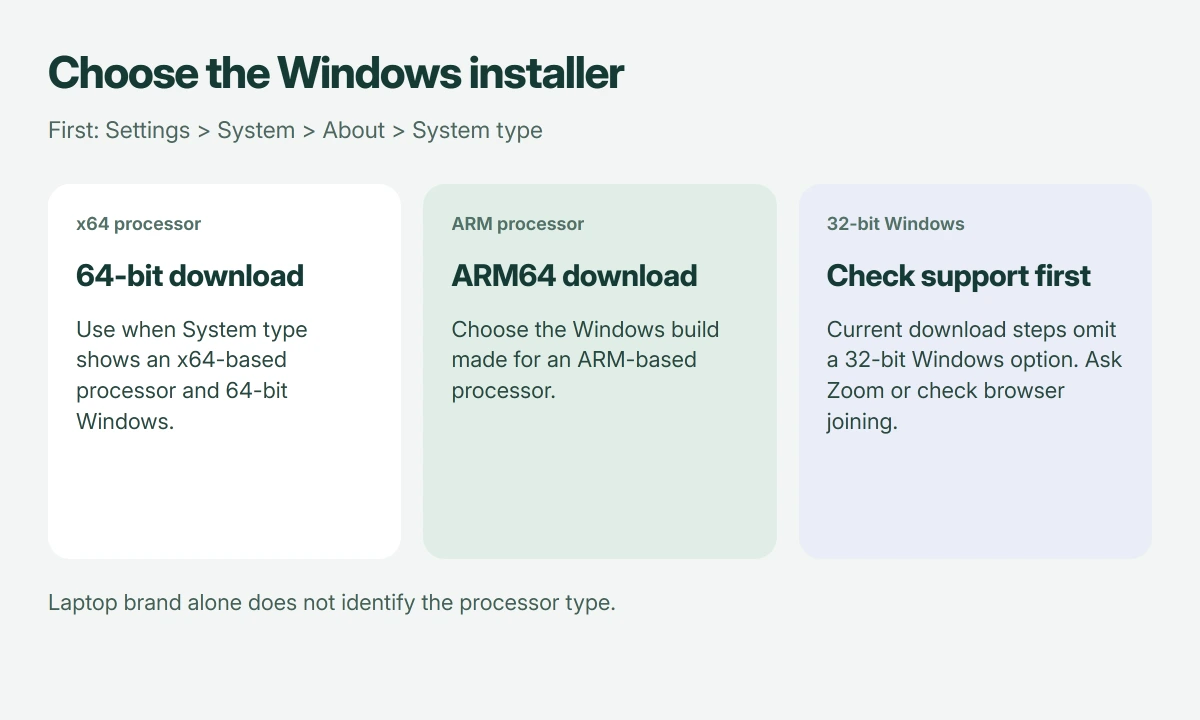
Open Settings > System > About, then look in Device specifications for System type. Microsoft documents this About page as the place to check your device and Windows details.
An x64-based processor with 64-bit Windows takes the 64-bit download. An ARM-based processor takes ARM64. Both can run 64-bit Windows, so the words naming the processor are the useful distinction here.
Don't choose by the laptop's brand. Different models from the same maker can use different processor families, even when their cases look similar.
If your system says 32-bit operating system, check Zoom's requirements before proceeding. The requirements table still mentions 32-bit, but the download article no longer offers that Windows choice.
Those two pages don't fully agree. I wouldn't send you to an old installer mirror to fill that gap; use Zoom Support or the browser option described later.
Open the saved installer and finish setup
Once downloading completes, open the installer through your browser's list of saved downloads. Zoom names the Windows installer ZoomInstaller.exe. Follow the prompts until installation completes.
Can't locate the saved file? Our Downloads folder walkthrough separates the browser's download record from the folder where the file actually landed.
After installation, open Zoom Workplace from Start or its desktop shortcut. Downloading alone doesn't install the app; you should now be able to reach Zoom's sign-in or meeting controls from its own window.
If your work computer asks for administrator approval, use your organization's software process. Repeatedly downloading the same installer won't provide the missing permission.
Check compatibility when setup refuses to run
Zoom's requirements include Windows 10 and Windows 11. It excludes S mode. An installation refusal on that setup isn't fixed by swapping the x64 and ARM64 downloads.
Microsoft says Windows specifications identifies your edition and version; compare those details and System type with Zoom's requirements before making changes to the computer.
For an urgent meeting, you may have another option. Open the invitation link and look for Join from your browser if you cannot install the app.
Zoom's meeting-joining instructions explain that browser joining depends on the host's settings, so ask the organizer about enabling it if the link is absent, or use another supported device.
The Short Version
Get Zoom Workplace from Zoom's own Download Center, match the installer to the processor shown in About, then run the saved file. If installation is blocked, check compatibility and work-PC permissions before downloading again.
Where to Next
What does System type say on your PC, and at what point does installation stop? Tell me those details and the exact error text. Please leave meeting links, passcodes and account information out of your comment.

Isaac Smith is the founder and editor of PC Glance, a website that covers computers, laptops, and technology. He is a tech enthusiast and a computer geek who loves to share his insights and help his readers make smart choices when buying tech gadgets or laptops. He is always curious and updated about the latest tech trends.