
You want an iCloud backup of your iPhone, but the progress bar never seems to finish saving anything. It's unsettling when your messages are involved.
I'll help you start and verify a backup, enable the automatic routine, and check its space requirements without confusing cloud storage with space inside your phone.
Make a backup now, then check the completed date
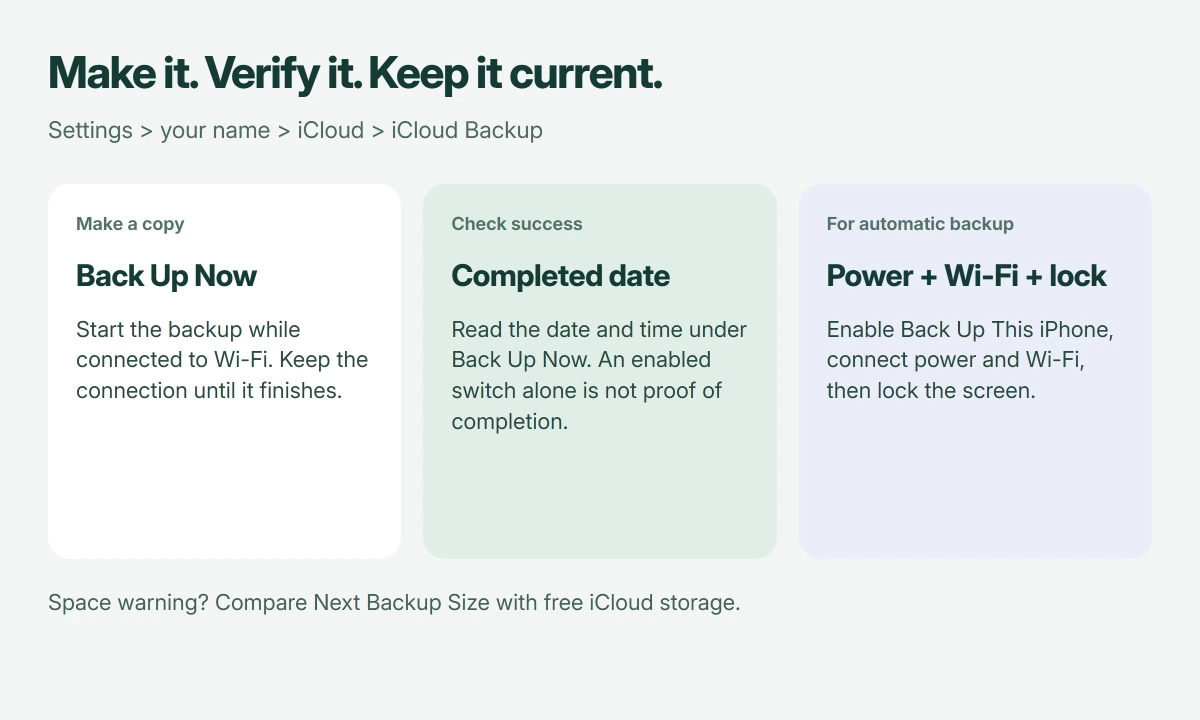
Connect your iPhone to Wi-Fi. Open Settings, tap your name, then choose iCloud > iCloud Backup. Tap Back Up Now, keeping Wi-Fi connected throughout the upload.
Apple documents this sequence in its iCloud backup instructions. Once it finishes, inspect the timestamp beneath Back Up Now. It should show the completed attempt.
Status: iCloud backup setup, storage checks and slow-upload guidance verified 18 October 2026. Apple's manual-backup page was updated in September. No handset backup was made here.
I would verify that before a trade-in. An enabled backup switch tells you the setting; it doesn't prove that today's information has finished uploading.
Missing a backup during new-phone setup instead? Our empty restore-list guide addresses that screen, where a previous copy isn't appearing.
Leave automatic backup ready for the next day
Now enable Back Up This iPhone. For the automatic backup conditions Apple lists, connect the phone to power and Wi-Fi, then lock its screen.
You can leave the phone charging overnight while you sleep. Apple's iPhone backup guide describes daily automatic backups when those conditions are met, with enough available iCloud storage.
Apple says some models and carriers support Back Up Over Cellular. If that switch appears, decide whether you want it enabled based on your mobile plan; Wi-Fi remains the straightforward route for this walkthrough.
You don't have to keep Settings visible. Locking the screen is part of the automatic routine, so watching the page all night isn't necessary.
Compare Next Backup Size with free iCloud space
If a storage alert appears, return to Settings > your name > iCloud. Check the available cloud space, then open Storage or Manage Account Storage, choose Backups, and select this iPhone.
Look for Next Backup Size. Apple says calculating it can take several minutes. Compare that estimate with the free space in your iCloud account, rather than with your phone's total storage capacity.
A smaller backup isn't automatically incomplete. Apple states that backup covers information which isn't already syncing separately to iCloud, so the backup estimate doesn't need to equal everything stored on your iPhone.
Our phone-storage and iCloud-storage explanation separates the meters. Buying cloud capacity won't expand the physical storage inside the handset.
Reduce backup contents or buy more capacity. Review exclusions carefully: Apple's guide says disabling an app's backup also removes that app's existing backup data from iCloud.
I would keep an app included if its local information matters and you have no other copy. Removing it simply to make the progress bar finish changes what you can recover later.
A backup that keeps running needs time and upload capacity
For a backup taking longer than expected, Apple's backup troubleshooting page says to check Wi-Fi and upload speed, then keep the iPhone charging with Wi-Fi connected for 24 hours.
That is a troubleshooting allowance, not a promised completion time. A large first upload can behave very differently from later backups, so don't compare it with someone else's small daily backup.
If it remains unfinished after that period, Apple advises archiving important information and trying again. Keep the phone intact until backup succeeds.
For another destination, our computer-backup procedure covers Finder and Apple Devices, including the content and encryption choices you should check before relying on the local copy.
Know which information syncs separately
Apple's backup-content guide distinguishes the device backup from iCloud Photos and other synced information. With iCloud Photos enabled, the photo library isn't duplicated inside the daily backup.
For pictures, check Photos' sync status too. A successful device backup isn't proof that every photo has finished syncing, and the backup isn't a separate archive of the same cloud library.
The Short Version
Make a manual backup and verify its date. For automatic copies, enable backup and leave the phone locked, charging and using Wi-Fi. Compare Next Backup Size with free iCloud space before removing app data from the backup.
Where to Next
Does your backup show a storage alert, an old completed date, or an upload still running? Tell me the message and how long you've been waiting. Don't post your Apple Account address or any backup contents.

Isaac Smith is the founder and editor of PC Glance, a website that covers computers, laptops, and technology. He is a tech enthusiast and a computer geek who loves to share his insights and help his readers make smart choices when buying tech gadgets or laptops. He is always curious and updated about the latest tech trends.