
No Signal is all your Acer monitor shows while the computer's lights are on, and without a desktop there is nothing to click.
I'll start with the monitor's input and the socket on your PC. Then we'll separate a missing connection from a computer that never finished starting.
1. Match the input to the connected socket
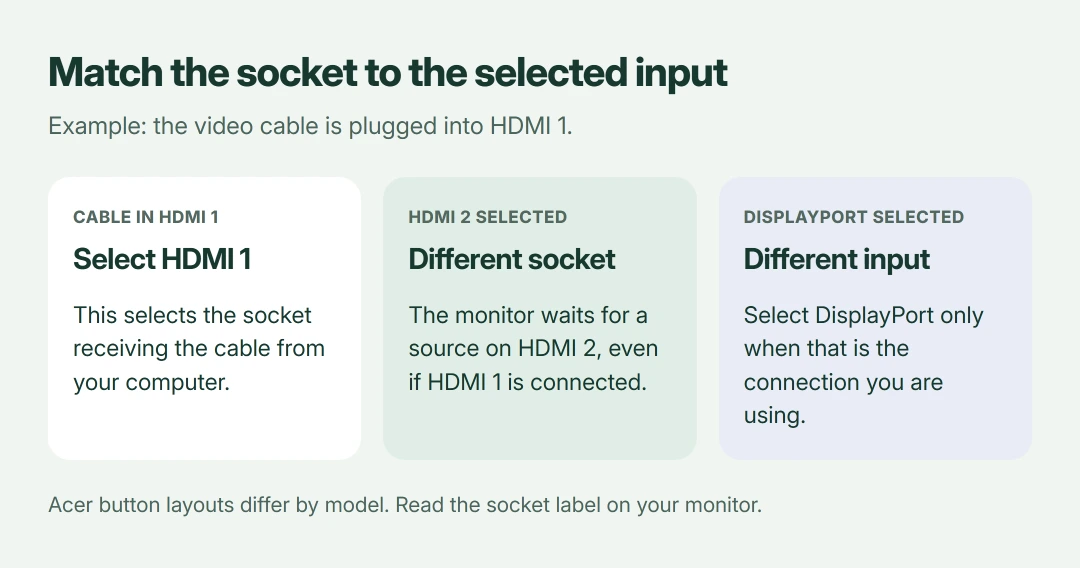
Start with the monitor's physical controls. Use its buttons or joystick to select the input printed beside your connected video socket, such as HDMI 1 or DisplayPort.
Acer's desktop display guidance says automatic input selection can choose incorrectly. Button sequences vary, so check the manual for the exact model printed on your monitor.
Status: Acer's connection guidance and Microsoft's Windows display checks reviewed 18 October 2026. Menu layouts vary by Acer model. No monitor was repaired for this article.
The No Signal box means the monitor has enough power to display its own message. Acer defines it as missing valid video input, so the next checks concern the source and connection.
I would read the socket label first. Choosing HDMI 2 for a cable in HDMI 1 leaves the monitor listening in the wrong place.
2. Reseat the cable and simplify the connection
Switch both devices off first. Then reconnect the video cable firmly at both ends, checking for visible damage and trying a known working replacement if you have one.
The cable checks are documented by the vendor. Its No Signal article also recommends trying a different available output socket on the computer, using a compatible cable for that connection.
If a dock or converter sits between them, try a direct compatible connection. Microsoft's external-monitor troubleshooting includes disconnecting adapters and other accessories.
Change one connection at a time. If a replacement cable brings the picture back, you have a useful answer without replacing the monitor.
3. Use the graphics card's output on a desktop
A desktop can have two groups of video sockets: motherboard connections and a separate graphics card. Acer directs owners with a dedicated card to connect their screen to that card's output.
Look for the card's ports in the expansion-slot area, separate from the motherboard's USB and network connections. Case layouts differ, so use your PC manual if the groups aren't clear.
That motherboard socket may be inactive. Your processor and configuration determine whether it works, so moving between inactive motherboard ports won't make the graphics card's picture appear.
For a laptop, check whether the port supports video output, particularly when using USB-C. Our HDMI connection and display guide explains where Windows exposes the display settings once you have a picture.
4. Compare the monitor with another video source
Acer recommends testing the monitor on another computer. Use a compatible cable and select the matching input for that test, keeping the original arrangement noted.
If it works there, return to the original PC's output and startup behavior. If it fails with a known working source and cable, the monitor needs closer attention.
You can reverse the comparison. Connect a working spare display to your original PC and check whether it produces video through the same output socket.
I wouldn't buy a panel from this symptom alone. Fans and case lights show power, but don't establish that the PC completed its startup checks.
5. Use Windows checks only when Windows is running
When another screen or the laptop display works, Microsoft says to press Windows + P and select Extend for an additional display. You can then check the Acer without guessing at invisible menus.
For your previously working setup, Microsoft documents a driver reset using Windows + Ctrl + Shift + B. This is a Windows action; it cannot repair a PC that fails before Windows starts.
Did your picture vanish after an update? If so, Microsoft's rollback route is Device Manager > Display adapters. Open the affected adapter's Properties > Driver, then use Roll Back Driver if available.
Only loses signal after waking? Our monitor wake-up guide covers that separate pattern, including dock power behavior.
6. Stop at a useful hardware diagnosis
Watch your PC during startup. Note repeating beep codes or diagnostic lights when none of your displays receives a picture. Acer lists these as startup fault indicators that its support team can interpret for the specific model.
Give support your monitor model, PC model, cable type and results of the two-source test. An orange light alone says much less.
If the monitor rejects a known working source and cable on the correct input, contact Acer about service. If the monitor works elsewhere, ask the PC maker to check startup and graphics output instead.
The Short Version
Select the input that matches your cable, reseat the connection, and use the desktop graphics card's ports. Test another source before buying parts. Windows display controls help only after the computer has started successfully.
Where to Next
Does your Acer show a picture from another computer, and which socket are you using on the original PC? Tell me those results and the monitor model. Mention any startup logo you see too.

Isaac Smith is the founder and editor of PC Glance, a website that covers computers, laptops, and technology. He is a tech enthusiast and a computer geek who loves to share his insights and help his readers make smart choices when buying tech gadgets or laptops. He is always curious and updated about the latest tech trends.