
The certificate you just installed seems to be missing when you open certlm.msc in Windows 10 or 11. Did the import fail?
I'll help you check the computer and user stores before changing anything. Windows keeps those locations separate, and opening the wrong one can make a perfectly ordinary certificate look lost.
Open the computer store with certlm.msc
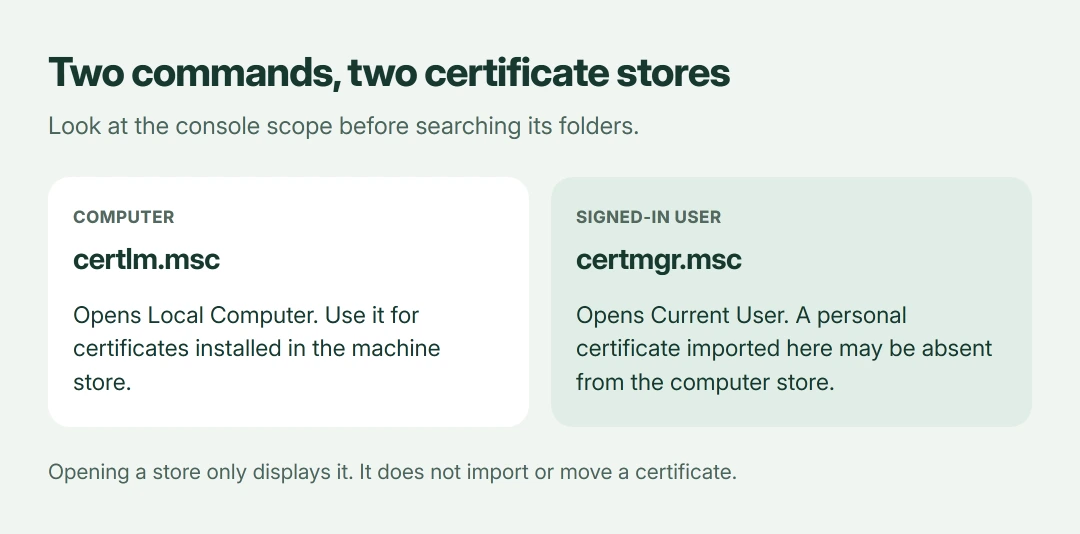
Start with the computer console. Press Windows + R, enter certlm.msc, then press Enter and confirm that the window identifies Local Computer before examining its folders.
Microsoft documents this shortcut in its certificate viewing instructions. It opens the device's certificate stores, rather than the stores belonging only to your signed-in account.
Status: Microsoft's certificate-store documentation checked 18 October 2026. These instructions inspect store locations; they do not import, remove or change trusted certificates.
Expand the folder relevant to your task, then select its Certificates child if present. For a certificate issued to the computer, the expected location is often Personal > Certificates, but follow the application's instructions.
Those folders aren't interchangeable. A personal certificate doesn't belong in Trusted Root Certification Authorities simply because an application cannot find it in the location it expects.
Missing there? Check your user account's store
Now compare your own account. Enter certmgr.msc in Run to open Current User, then check that scope in the console before comparing its certificate list with Local Computer.
Microsoft says a user store belongs to that particular account. Its store-location documentation distinguishes that from the computer store, which applies across users.
I would make this comparison first. If the import targeted Current User, looking only in Local Computer will not show that personal certificate.
Check the importing account. Another Windows sign-in shows a different user's personal certificates, so use the same account that performed the original import when you compare the stores.
Some trusted certificates appear through both views. Microsoft states that user stores inherit computer-store contents, with Personal as the exception; duplicate appearances aren't automatically duplicate installations to remove.
Use MMC when you need to choose the scope
If you need an explicitly selected console, Microsoft's documented alternative starts with mmc in Run. Choose File > Add/Remove Snap-in, select Certificates, then click Add.
For computer certificates, choose Computer account, then Next. Keep Local computer selected, finish the wizard, and confirm with OK.
For yourself, choose My user account instead. The wizard also offers a service-account scope when the task specifically concerns a Windows service.
Permissions matter here. Microsoft's instructions say nonadministrators can manage only their own user certificates, so ask your administrator when the needed computer or service scope is unavailable to you.
You've selected a view. The certificate remains in its original location, because adding an MMC snap-in doesn't move it from your account into the computer's store.
Read the certificate details before asking for a change
Open the certificate by double-clicking it. Compare its issuer, validity dates and purpose with the application or organization's instructions, rather than relying only on a familiar-looking name.
Microsoft's certificate inspection guidance uses the Details tab for identifying fields, including the thumbprint. Certification Path shows the chain and its reported trust status.
I'd record the thumbprint and store together. That lets your administrator distinguish two certificates with similar display names without exporting a private key.
That inspection guidance targets Windows Server administrators. Its store and certificate fields explain what you're reading here; server enrollment and deployment procedures aren't required for this desktop check.
When the certificate is present but the app still fails
Finding it doesn't complete the repair. The application may expect a different account, a different store, an unexpired certificate or access to its associated private key.
Ask the application's administrator which location and certificate it needs. Avoid deleting unrelated entries or importing an unknown certificate into a trusted-root folder to silence the error.
For a browser privacy error, our Chrome certificate-warning guide starts with the displayed error code and the affected site.
If Windows instead asks you to back up a file-encryption key, use the EFS backup warning guide. An ordinary public certificate export isn't a backup of its private key.
The Short Version
Use certlm.msc for the computer and certmgr.msc for your account. Compare the store, account and certificate details before requesting a correction. A console showing the certificate doesn't establish that an application can use it.
Where to Next
Which console contains your certificate, and which application says it is missing? Tell me the store name and error wording, leaving private keys and account identifiers out. That helps explain whether you're looking in the wrong place.

Isaac Smith is the founder and editor of PC Glance, a website that covers computers, laptops, and technology. He is a tech enthusiast and a computer geek who loves to share his insights and help his readers make smart choices when buying tech gadgets or laptops. He is always curious and updated about the latest tech trends.