
Bookmark Manager, not Settings, holds Chrome's bookmark export. Open the three-dot menu, choose Bookmarks and lists, then Bookmark Manager, and use Export bookmarks from that page's own menu. One HTML file holds every bookmark.
Any browser can import that file, on Windows, a Mac or a Chromebook. Signing in to Chrome on the new computer is the other route, and the only one for bookmarks saved on a phone.
Export the bookmarks file on Windows or Mac
Chrome for Windows and Chrome for Mac share one route:
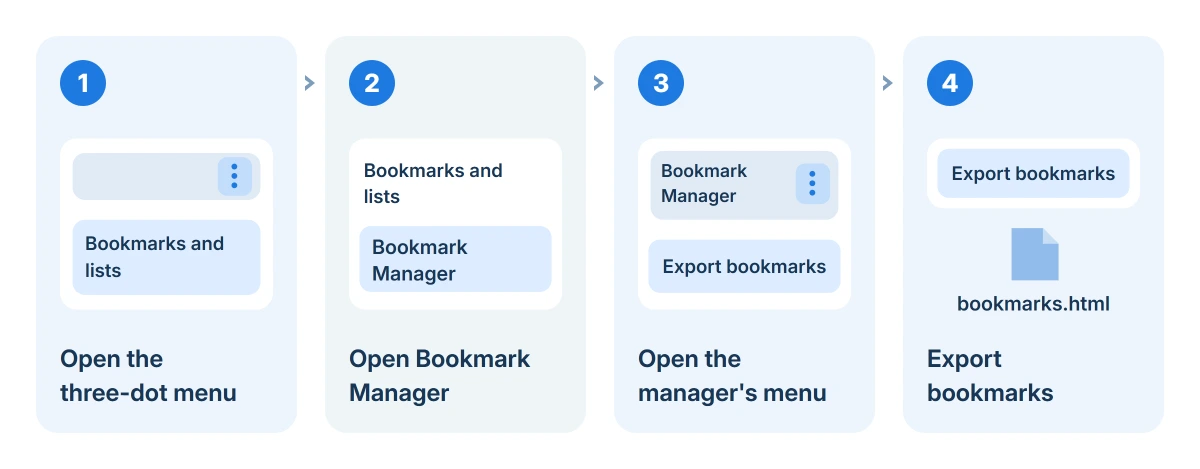
- Click More (the three dots, top right).
- Choose Bookmarks and lists > Bookmark Manager.
- Click the More menu in Bookmark Manager's own top bar.
- Choose Export bookmarks, pick a folder, click Save.
Status: Google's import, export, bookmark and sign-in help reviewed 18 October 2026, desktop and Android. Menu names follow Google; we could not export a real profile here.
The shortcut to Bookmark Manager is Ctrl+Shift+O on Windows and Option-Command-B on a Mac. Typing chrome://bookmarks into the address bar opens the same page.
Where the exported file is saved
Chrome asks where to save it, so the file goes wherever that box points. Out of the box that is the Downloads folder, and the name starts with bookmarks followed by the date, such as bookmarks_10_18_26.html.
Pick a place that is easy to reach, such as the desktop, or straight onto a USB stick when the bookmarks are moving to another computer.
Double-click the file and it opens in a browser as a plain list of links, folder by folder, so you can check the export before you wipe or hand over the old computer.
Import the file into Chrome on another computer
On the new computer, open Chrome and go to More > Bookmarks and lists > Import bookmarks and settings. Choose Bookmarks HTML File in the list, click Choose file, pick the export and click Done.
Google's import and export help explains where they land. A Chrome with no bookmarks puts them on the bookmarks bar; one that already has bookmarks puts the import in a folder at the end of the bar.
On a Chromebook the import sits in Bookmark Manager instead: click Organize at the top left and choose Import Bookmarks from HTML file.
Import it into Edge, Firefox or Safari
Edge, Firefox and Safari each read Chrome's HTML file, and each has its own import menu:
- Edge: Settings > Profiles > Import browser data, then pick Favorites or bookmarks HTML file.
- Firefox: Bookmarks > Manage bookmarks, then Import and Backup > Import Bookmarks from HTML.
- Safari on a Mac: File > Import From > Bookmarks HTML File.
On a Mac with Chrome still installed, Safari can skip the file entirely. Apple's Safari guide lists File > Import From Browser > Google Chrome, which copies bookmarks, history and passwords in one go.
Apple says imported bookmarks appear after the ones Safari already has, so check the end of the list.
Sync with your Google Account instead
Signing in to Chrome with a Google Account carries bookmarks to every computer and phone where you sign in, with no file at all. Google's sign-in page lists bookmarks and passwords among the things that follow your account.
On the old computer, click the profile icon beside the address bar and confirm that sync is on. On the new one, sign in with that account and give the bookmarks bar a few minutes to fill.
I would still export a file before resetting a computer. Sync copies deletions as well, so a bookmark removed on one device disappears everywhere, and a file is the copy that stays put.
Why Chrome on a phone cannot export
Chrome for Android and iPhone has no export option. Google's Android bookmark page lists adding, editing, moving, sorting and deleting bookmarks, and nothing that writes them to a file.
To get phone bookmarks into a file, turn on sync in Chrome on the phone, sign in to Chrome on a computer using that Google Account, and export from Bookmark Manager there. The phone's bookmarks sit in a folder called Mobile bookmarks.
What the export does not include
The HTML file holds bookmarks and their folders only. Saved passwords, history, open tabs and extensions stay behind, and passwords have their own export in Google Password Manager.
If passwords are what went missing after a move, the Chrome saved passwords guide covers where they live and how to get them back.
The export also takes everything at once. Chrome has no option to export a single folder; the workaround is to import the whole file and delete the folders you do not want.
Copy the Bookmarks file directly
Chrome stores the live bookmarks in a file named Bookmarks, with no extension, inside the profile folder.
One owner on Super User restored bookmarks and history by copying the whole Default profile folder from a backup into the same place on their current install. That user-reported result had one gap: their saved logins did not come across.
On Windows the folder is:
C:\Users\USERNAME\AppData\Local\Google\Chrome\User Data\DefaultOn a Mac it is:
~/Library/Application Support/Google/Chrome/DefaultClose Chrome before copying anything in or out. Extra profiles live in folders named Profile 1, Profile 2 and so on. Passwords are encrypted for the original computer, so expect to sign in to sites again.
For a lost session rather than bookmarks, the Chrome lost tabs guide explains which profile files to copy first.
The Short Version
Open Bookmark Manager from the three-dot menu, then use its own three-dot menu to export bookmarks as an HTML file. Import that file in any browser, or sign in to Chrome to sync instead. Phones cannot export; sync them to a computer first.
Where to Next
Moving bookmarks to a browser not named here, or did the import put them somewhere odd? Leave the browser and what you see in a comment, and I'll point you to the right menu.

Isaac Smith is the founder and editor of PC Glance, a website that covers computers, laptops, and technology. He is a tech enthusiast and a computer geek who loves to share his insights and help his readers make smart choices when buying tech gadgets or laptops. He is always curious and updated about the latest tech trends.