
PowerPoint builds a presentation out of slides, and each new slide starts from a layout with ready-made boxes for a title and content. Pick a theme, add slides from Home > New Slide, and type straight into those boxes.
After that come pictures, a layout idea from Designer, a few speaker notes and Slide Show > From Beginning. With Microsoft 365, save the file to OneDrive before you start and AutoSave keeps every change from then on.
Start from a theme or a blank presentation
Open PowerPoint and choose New on the start screen, or File > New once a presentation is open. Blank Presentation starts from scratch; a theme sets matching colors, fonts and effects for the whole deck.
Click a theme and PowerPoint previews it with four color variations on the right. Pick one and click Create. Nothing is locked in, because the Design tab swaps the theme later and your words stay as they are.
Status: Microsoft's PowerPoint help as of 19 October 2026, covering Microsoft 365, PowerPoint 2024 and 2021, and the web. No deck was built or presented for this guide.
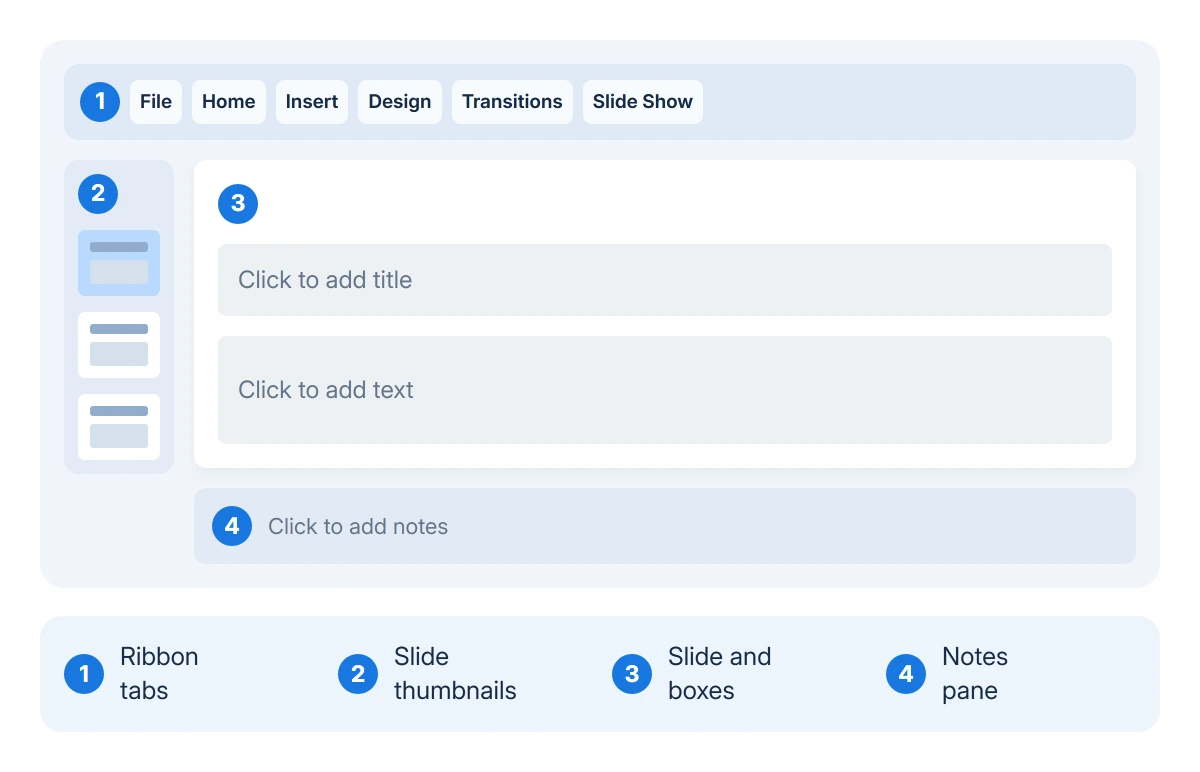
In Normal view the window has three working areas: slide thumbnails on the left, the current slide in the middle and the Notes pane underneath. The ribbon tabs along the top, such as Home, Insert, Design and View, hold everything else.
Add slides with the right layout
Select the slide the new one should follow, click the lower half of Home > New Slide and pick a layout from the gallery. The new slide lands straight after the one you selected.
The standard Office theme covers most decks with a handful of layouts. Title and Content suits a heading with bullets or a picture, Two Content a side-by-side, Section Header the start of a new part, and Title Only or Blank one large image.
Picked the wrong one? Select the slide and choose another from Home > Layout.
To copy a slide, right-click its thumbnail and choose Duplicate Slide; Microsoft says the copy goes in immediately after the original. Drag thumbnails to reorder them, or right-click and choose Delete Slide.
View > Slide Sorter lays the whole deck out as small pictures, which is the easier place to reorder twenty slides.
Type into the layout's boxes, not new text boxes
Those dotted boxes are placeholders. Microsoft's layout page describes them as the containers that hold titles, body text, tables, charts, SmartArt, pictures and video. Click into the title box, type, then click the content box for bullets.
Press Enter for a new bullet, Tab to indent it one level and Shift+Tab to move it back out.
The placeholders matter for more than tidiness. Designer, PowerPoint's layout helper, works from them, and Microsoft states that it "isn't able to suggest design ideas when a slide has a shape or text box drawn on it."
Outline view (View > Outline View) leans on them too. Microsoft's Mac help describes it as an outline made up of the titles and main text from each slide, which is what the layout's boxes hold.
The built-in layouts also keep the reading order right for screen readers. A text box still earns its place as a short label on a picture; for anything the room must read, pick a layout with more boxes.
Keep that text large. Microsoft warns that text under 30 points "might be too difficult for the audience to see," and that some projectors crop the edges of a slide.
Add pictures, icons and charts
Insert > Pictures offers three sources: This Device for your own files, Stock Images for Microsoft 365 subscribers and Online Pictures for a web search. Drag a corner handle to resize a picture.
The same tab holds Shapes, Icons, SmartArt and Chart. An empty content box carries small buttons for a table, chart, SmartArt, pictures, icons and video, and an item inserted from there sits inside the layout.
A logo copied from a web page can paste in with black where the background should be clear. Save the image and insert the file instead; the transparent image guide explains why the copy loses it.
Let Designer suggest a layout
Select one slide and choose Design > Designer. Microsoft now calls the button Design Suggestions, and with Copilot it sits on the Home tab. Ideas appear in a pane on the right; click one to apply it, or press Ctrl+Z to go back.
Designer needs an internet connection and one of PowerPoint's built-in themes. In the desktop app it is a Microsoft 365 subscriber feature, while PowerPoint for the web offers it without a subscription.
A grayed-out Designer button means no connection or more than one slide selected, according to Microsoft. Two owners on Microsoft Q&A found a way round it in the file instead.
One had saved the deck as a .pptm, PowerPoint's macro format, instead of .pptx; that question has 200+ Same question votes. File > Save As with PowerPoint Presentation (.pptx) puts the deck back in the usual format.
The other got design ideas back by copying the slides into a new presentation. An adviser in the same thread suggests that Designer switches itself off on layouts that do not follow Microsoft's template rules.
Write your talking points in the Notes pane
Click Notes in the status bar under the slide, or choose View > Notes, then type into Click to add notes. Drag the top edge of the pane upward when you need more room.
Notes appear on your own screen in Presenter View and never on the audience's. They stay editable during the show, and File > Print with Notes Pages puts each slide on paper with its notes printed under it.
Add a transition, and keep it quiet
A transition is the effect between one slide and the next. Select a slide, open the Transitions tab and click an effect to preview it; Effect Options sets its direction.
I'd pick one quiet effect such as Fade and click Apply To All rather than mixing styles from slide to slide. Choosing None and then Apply To All removes them again.
Present the slide show
Press F5, or choose Slide Show > From Beginning, to start at slide one; Shift+F5 starts from the slide you are on. Move on with a click, the spacebar or the arrow keys, and press Esc to finish.
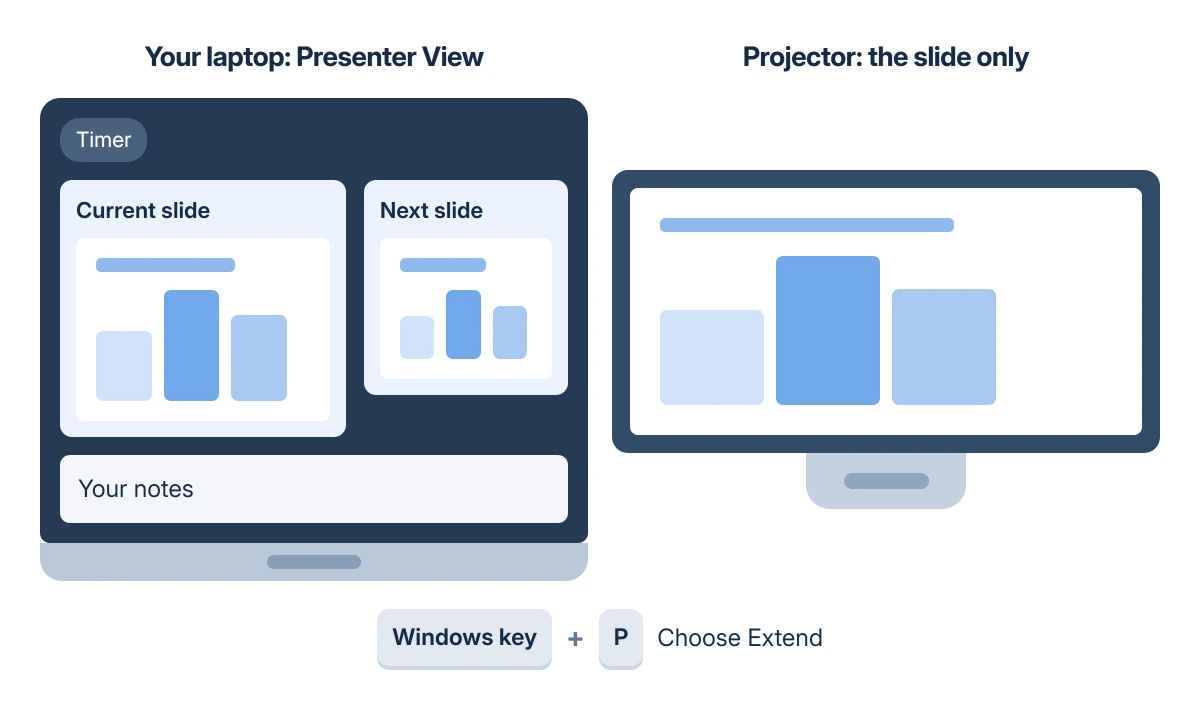
Connect a projector or second monitor and Presenter View opens on your screen with your notes, the next slide and a timer, while the audience sees only the slide.
Alt+F5 opens Presenter View on a single screen for a rehearsal. Two owners on a Q&A thread with 100+ Same question votes confirm it, one after hours of searching and one on PowerPoint 2016.
During the show, B blacks out the screen and W turns it white; the same key brings the slide back. Typing a slide number and pressing Enter jumps straight to that slide.
On a Mac the keys differ: Command-Shift-Return starts from the beginning, Command-Return from the current slide and Option-Return in Presenter View.
Connecting the laptop to the room's screen is its own job, covered in the projector connection guide.
When Presenter View lands on the wrong screen
Click Display Settings at the top of Presenter View, then Swap Presenter View and Slide Show; on a Mac the button is Swap Displays.
For a lasting fix, pick the screen under Slide Show > Monitors. An adviser on Super User says PowerPoint remembers that choice for later presentations.
Windows has to treat the projector as a separate screen, which is Extend mode. Microsoft says PowerPoint switches the displays to Extend when the show starts and back again when it ends.
That switch comes from an option under File > Options > Advanced: "Automatically extend display when presenting on a laptop or tablet".
On desktops it can do nothing. A 2015 asker on Microsoft Q&A found it ignored on a lecture theater PC, and a 2022 asker with university podium PCs found the box made no difference, though a few rooms still switched.
Once the 2015 asker set the PC to Extend by hand, "Presenter View works perfectly," in their words. On a desktop, press Windows key + P and choose Extend before starting the show.
In October 2025 a Microsoft 365 update stopped the switch on laptops as well. On Microsoft Q&A, the reply its asker marked as the answer says the 14 October update fixed it, so install the latest Office update first.
If Presenter View never appears at all, tick Use Presenter View on the Slide Show tab and choose the monitor there, which is Microsoft's own fix.
A lectern PC that only ever mirrors may simply be set to Duplicate. The accepted answer on a Super User question says to check Settings > Display for two screens, then try Windows key + P and Extend.
That worked for the asker, a community college lecturer whose IT staff had said the lectern had only one video output.
Save it and share a PDF
Save the file to OneDrive or SharePoint and the AutoSave switch at the top left turns on, saving every few seconds. Anywhere else AutoSave stays off, so press Ctrl+S as you work.
With AutoSave on, the File menu offers Save a Copy where Save As used to be, because every change already lands in the original. Make that copy before reworking a deck you want to keep as it was.
For people without PowerPoint, send a PDF. On Windows choose File > Export > Create PDF/XPS Document > Create PDF/XPS, then Options to set the slide range or switch Publish what to handouts or the outline.
PowerPoint for Mac saves a PDF from File > Save As or File > Export, but Microsoft lists speaker notes among what that PDF leaves out.
The accepted answer on a Q&A question with 500+ Same question votes is File > Print, Layout: Notes, then PDF > Save as PDF.
When a feature is missing
No Designer button in the desktop app points first to the subscription, since Microsoft gives design ideas there only to Microsoft 365 subscribers.
Next, check that connected experiences are on under File > Account > Account Privacy > Manage Settings. An organization's IT department can also switch Designer off on the PCs it manages.
AutoSave needs a Microsoft 365 subscription and a file on OneDrive or SharePoint, and Microsoft lists the old .ppt format as one thing that keeps it off. Saving the deck as a .pptx removes that cause.
For anything still missing, File > Account names the PowerPoint version and the subscription; have both ready before contacting Microsoft support.
Microsoft's basic PowerPoint tasks page covers the first steps again: themes, new slides, text, pictures, notes, saving and the slide show.
The Short Version
- Choose a theme or Blank Presentation, add slides with Home > New Slide, and type into the layout's boxes.
- Add pictures from Insert, ask Designer for a layout, and keep text large: Microsoft warns that under 30 points is hard to see.
- Write talking points in the Notes pane; Presenter View shows them only to you.
- Present with F5, or Alt+F5 for Presenter View on one screen; set Windows to Extend if the screens mirror.
- With Microsoft 365, save to OneDrive for AutoSave, and export a PDF for people without PowerPoint.
Where to Next
Which PowerPoint are you using: the Microsoft 365 app, PowerPoint 2021 or 2024, or PowerPoint in a browser? Designer, AutoSave and the PDF options differ between them, so say which one in a comment if a step here does not match your screen.

Isaac Smith is the founder and editor of PC Glance, a website that covers computers, laptops, and technology. He is a tech enthusiast and a computer geek who loves to share his insights and help his readers make smart choices when buying tech gadgets or laptops. He is always curious and updated about the latest tech trends.