

A Surface keyboard that stops typing can have a loose connection, a Windows problem or a hardware fault. Detach and reconnect a Type Cover first, then check its lights.
A keyboard that also fails in UEFI needs different help from one that works there.
These checks cover attached Surface Pro and Go keyboards. A detached Flex Keyboard has its own battery and wireless connection, so use Microsoft's Flex instructions for that case.
Check the connector and the keyboard lights
Shut down the Surface and disconnect its power cable. Detach the keyboard, then look along the connector for dirt, damage or anything keeping the two edges apart. Reattach it with the magnets fully aligned.
Microsoft documents this sequence in its Surface keyboard troubleshooting. It applies to removable Pro and Go covers, not a Surface Laptop's built-in keyboard.
Status: Surface Pro and Type Cover guidance checked 22 October 2026. Owner reports include repairs that failed later. No Surface keyboard was tested here.
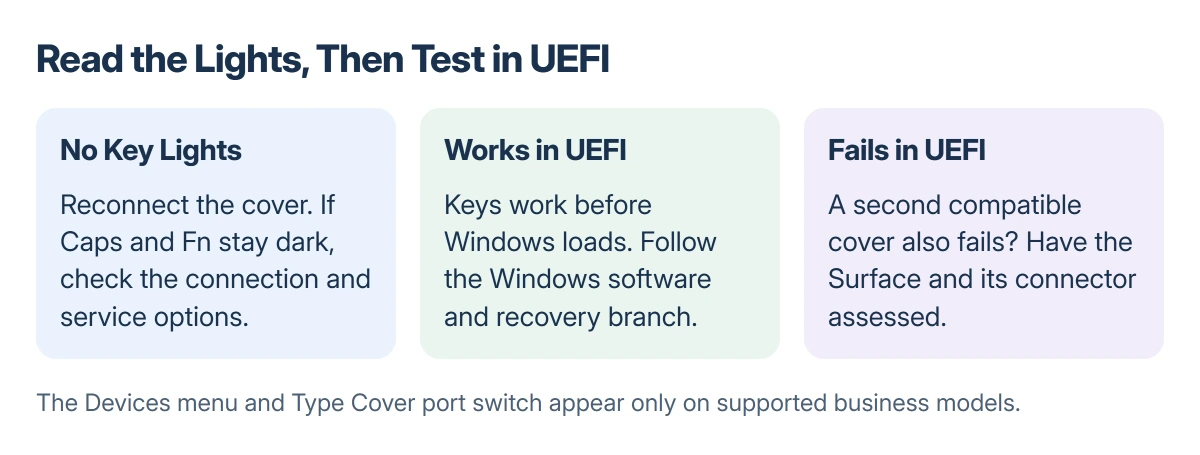
Press Caps and Fn several times. Watch whether their lights switch. A responsive light proves the keyboard has some communication; it does not prove every key or the touchpad works.
Microsoft says that lights which never respond after reconnection can indicate hardware trouble. Check service options rather than repeatedly deleting keyboard drivers without a working connection.
Update the Surface, then use its model's restart
If the touchscreen still works, open the Surface app. Expand Help & support and read the update status. Choose Check for updates when offered, install the available Windows and Surface updates, and finish their restart.
For Surface Pro 5 and later, Microsoft specifies holding the power button for a full 20 seconds after shutting down. Keep holding through the first logo until it appears again.
That timing also covers Surface Go and the other newer models listed on Microsoft's page. Pro 4 and earlier devices need their own shutdown instructions; the newer sequence is not universal.
A working keyboard with the wrong top-row actions is a separate case. Check the Surface Fn lock behavior before treating brightness keys as broken typing keys.
Test the keys before Windows starts
Turn the Surface off and wait 10 seconds. Hold Volume Up, press and release Power, and keep Volume Up held until the UEFI screen opens. Release it when that screen appears.
Try the keyboard's arrow keys in the left menu. Microsoft states that working keys and touchpad in UEFI, followed by failure in Windows, point toward the installed software.
Do not change unrelated firmware settings. The Type Cover port switch mentioned in Microsoft's instructions appears only on supported business models with a Devices menu. A missing menu on a consumer Surface is expected.
A failed UEFI test gives support useful information. Describe whether neither cover works, whether the lights respond, and whether the arrow keys move the UEFI selection.
One owner in Microsoft's Q&A tried a second Type Cover and a driver removal, but neither worked in UEFI. Their cover briefly recovered, then failed again after closing the Surface. That was not a confirmed driver repair.
If typing works in UEFI but fails in Windows
Check Settings > Accessibility > Keyboard in Windows 11. Filter Keys can ignore quick presses, while Sticky Keys changes modifier behavior. Switch off an accidentally enabled option and test ordinary text again.
Windows 10 places those controls under Ease of Access > Keyboard. They explain altered typing, not a physically disconnected cover with no lights.
For a persistent Windows-only failure, Microsoft's next route is Windows recovery. Back up important files and have the device's recovery information available before considering it.
The Keep my files reset keeps personal files but removes installed apps and changes to settings. It is a recovery operation, not a quick keyboard toggle. Ask Surface support to review the UEFI result before proceeding.
If a separate USB keyboard works in Windows but stops in the repair screens, use the Windows Recovery keyboard checks. That environment has its own input limitations.
When to arrange service
A damaged connector, broken keys or failure with another compatible cover deserves a hardware assessment. Check the Surface and separately purchased keyboard's warranty through Microsoft's device service options.
An older Q&A owner reported that driver cleanup helped for a week, then the fault returned. A different owner received a warranty replacement. Neither outcome supports promising a lasting driver fix for every dead cover.
Keep the test results for the service request. A replacement keyboard purchase is a poor first experiment when another compatible cover already fails on the same Surface.
The Short Version
Reconnect the cover and check Caps and Fn lights. Install Surface updates, use the restart for your model, then try the keys in UEFI. Windows-only trouble follows the software route; failure before Windows needs service assessment.
Where to Next
Give Surface support the model, the light behavior and the UEFI result. Those three details help them decide whether to assess the cover, the tablet connector or Windows.

Isaac Smith is the founder and editor of PC Glance, a website that covers computers, laptops, and technology. He is a tech enthusiast and a computer geek who loves to share his insights and help his readers make smart choices when buying tech gadgets or laptops. He is always curious and updated about the latest tech trends.