

To convert a PDF to Excel, use Data > Get Data > From File > From PDF in a supported Windows desktop installation. Inspect the detected tables in Navigator, then load the right table into a worksheet.
This extracts data. It does not promise an editable copy of every page's original layout, and an image-only scan may need text recognition before its numbers can become useful spreadsheet data.
Check for the PDF connector first
Open Excel on Windows and select Data > Get Data > From File. Look for From PDF before preparing the rest of the import.
The controls available depend on the Excel product and installation.
This procedure follows Microsoft's Windows PDF-import route; a similar Get Data button on Mac or in the browser does not establish that the same connector is available there.
Status: Microsoft's PDF connector and Excel import instructions checked 22 October 2026. The route described is Windows desktop Excel; no PDF or workbook was converted here.
Microsoft documents the menu path in its Power Query import instructions, under the Windows File: PDF section.
If the menu is missing, check the product's supported data sources with Microsoft or your administrator. Renaming a PDF to .xlsx does not convert its contents.
Choose the table in Navigator
Select From PDF, browse to the file and choose Open. Navigator lists the information the connector can extract.
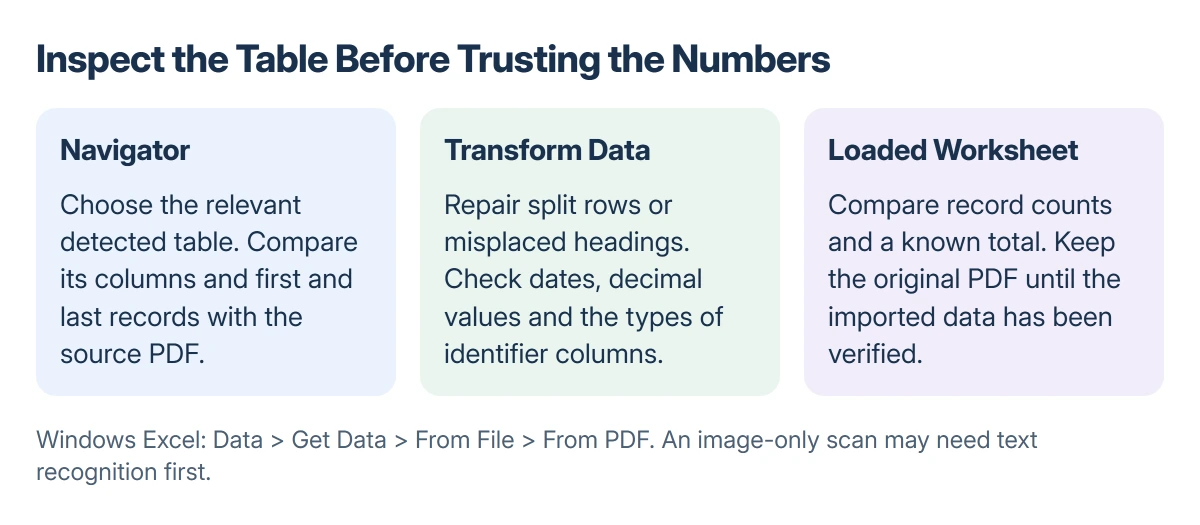
Click a candidate table and inspect its preview. Match its headings, first and last records and number of columns to the PDF. A name such as Table001 is a navigation label, not proof it contains the entire report.
Choose the relevant table rather than importing every detected item indiscriminately. A multipage document can contain headings, page fragments and several unrelated tables.
For an already usable preview, select Load > Load to bring the data directly into Excel. Load To lets you choose a loading destination through the import dialog.
For split rows, stray headings or columns needing cleanup, select Transform Data. This opens Power Query before the result is loaded to the worksheet.
Repair the extraction before trusting the totals
Microsoft says in its PDF connector reference that multiline rows may not be identified correctly. Compare each logical record with the source before removing apparently empty rows.
A name wrapped onto a second line in the PDF might arrive as a separate row. That is a structural problem, not an extra customer or transaction. Keep a source copy while correcting it.
Check headers, decimal separators, negative values, dates and identifier columns. A cell that looks plausible can still have the wrong type, especially when a code resembles a number.
For long identifiers, review Excel's scientific-notation and precision limits before changing their type to Number. Digits lost through numeric conversion cannot be restored by widening a column.
Confirm record counts and a known total against the PDF before using formulas or sending the workbook. Extraction success is not the same as data accuracy.
A scanned or difficult PDF needs a different step
Try selecting an ordinary word in the original PDF. If the page consists only of an image, the missing text layer is a separate problem covered by text that cannot be copied from a PDF.
Use a trusted text-recognition tool or request a text-based export from the sender. Avoid uploading private financial or customer records to an unfamiliar conversion website just to test it.
For a very large PDF, Microsoft states that the imported page range can be restricted through advanced connector options such as StartPage and EndPage. Process the relevant pages instead of assuming the full document must load at once.
If the source is a report from a business system, ask for its Excel or CSV export. That preserves the underlying data more directly than reconstructing table structure from a printed page.
The Short Version
Use Data > Get Data > From File > From PDF, select the right table in Navigator and choose Load or Transform Data. Check the output against the source before calculating with it.
An image-only scan needs text recognition, and a missing PDF connector requires checking Excel's supported features.
Where to Next
Save the verified workbook as an Excel file and retain the PDF for comparison. If rows still merge or split unpredictably, request the original data export rather than guessing which values belong together.

Isaac Smith is the founder and editor of PC Glance, a website that covers computers, laptops, and technology. He is a tech enthusiast and a computer geek who loves to share his insights and help his readers make smart choices when buying tech gadgets or laptops. He is always curious and updated about the latest tech trends.