
Page numbers in Word should come from Insert > Page Number, rather than numbers typed into each page. Choose a position and style, then check whether the title page should display a number.
Hiding the first number and making the second page start at 1 are different settings. A longer introduction with a new numbering scheme needs a section break as well.
Insert the automatic page number
In desktop Word for Windows, open Insert > Page Number and choose the location and style. Check the placement in the header or footer before leaving that editing area.
Microsoft documents automatic numbering through its page-number instructions. Use the generated field so the number can follow the document's pagination as text moves.
Status: Microsoft's desktop Word pagination instructions checked 22 October 2026. First-page visibility, second-page numbering and section links were reviewed; no layout was tested.
Choose Close Header and Footer or press Esc when finished. To return, double-click in the relevant header or footer area.
Leave the title page without a visible number
Select Different First Page on the Header & Footer tab when the cover should not show a number.
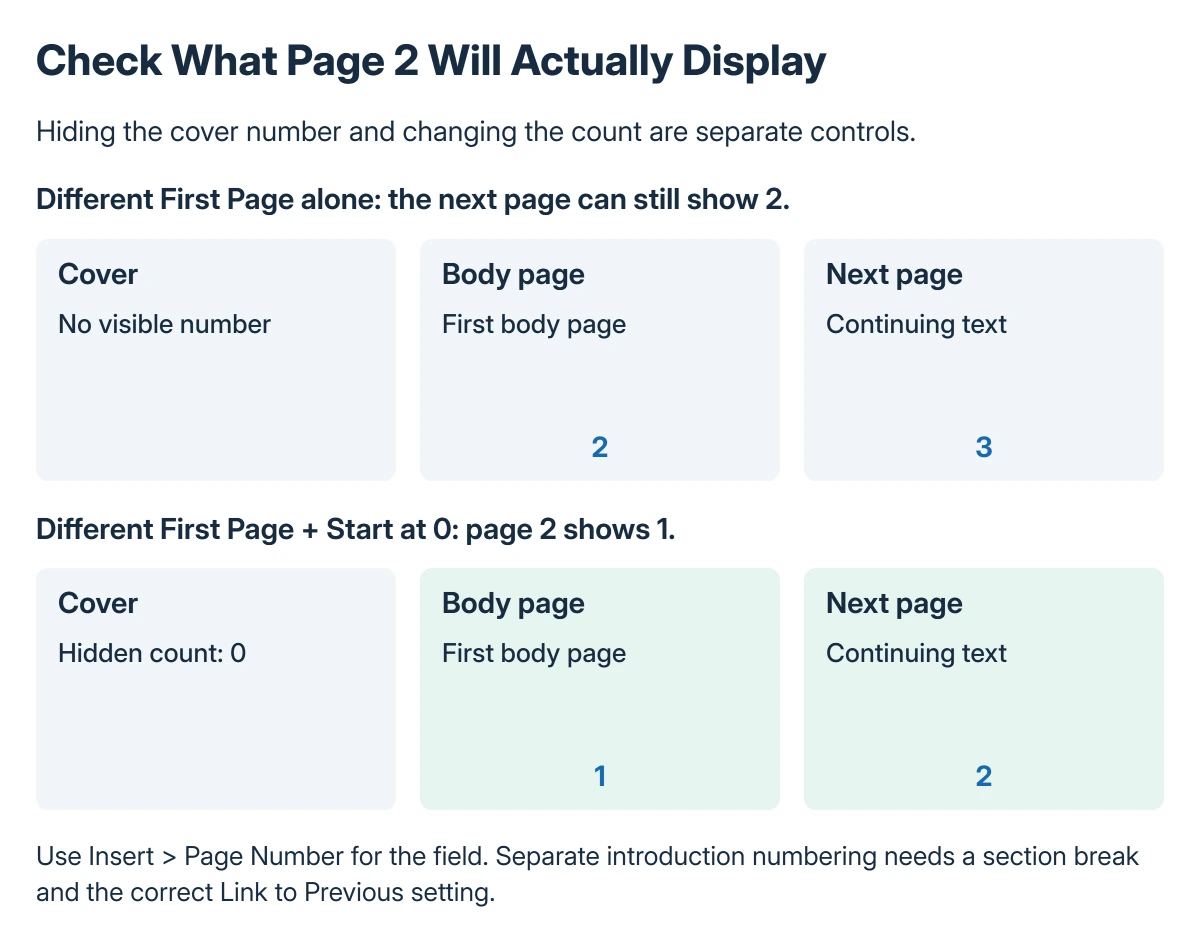
That controls the first page's header or footer layout. Check page 2 afterward: hiding a cover number alone does not establish that the next page is counted as 1.
If an unwanted blank page is affecting the document's page count, use the Word blank-page checks before compensating by typing over generated numbers.
Start the second page at 1
For the Windows method Microsoft describes, open Page Number > Format Page Numbers and set Start at to 0. Combine that with Different First Page so the hidden cover is counted as zero and page 2 shows 1.
Microsoft says to use that starting value for this particular second-page arrangement. It is not the general answer for a document with several introductory pages.
Inspect the first few pages after confirming. A title page, a blank separator page and the first body page are three physical pages even if their displayed labels differ.
Use sections for a separate introduction
For Roman numerals in an introduction and ordinary numbers in the main body, place the cursor at the boundary and choose Layout > Breaks > Next Page to create the new section.
In the body section's header or footer, turn off Link to Previous. Microsoft states that headers and footers are linked separately, so change the one containing the page number.
Use Page Number > Format Page Numbers to choose the number format and the body's starting value. Microsoft gives the full sequence in its section-numbering guide.
If Link to Previous is unavailable, check that a section break was actually created. A normal page break moves content without establishing that separate numbering section.
Mac menus and the final layout check
On Mac, choose Insert > Page Number > Page Number, then select the position and alignment. Use the formatting control for the numbering style; the section guide also provides the Mac-specific format dialog.
Follow the document's submission requirements for headers and note text. A Word footnote reference and a page number serve separate purposes, even when both display small numbers near the page edge.
Review the finished document in print preview. Check a title page, the first numbered body page and a later page before exporting it.
If numbering still restarts unexpectedly, have the editor inspect a separate copy, including its section boundaries and linked headers.
Microsoft Support can help with persistent formatting faults. Repeatedly inserting more numbers makes that structure harder to assess.
The Short Version
Insert the generated number from the Insert tab. Use Different First Page to hide the cover number, and the documented Start at 0 arrangement when page 2 should show 1.
For multiple numbering schemes, create separate sections, adjust the relevant header or footer link and set each section's format deliberately.
Where to Next
Check the exported copy too, particularly after moving a section or adding pages. Its visible numbering should match the document you intend the reader to use.

Isaac Smith is the founder and editor of PC Glance, a website that covers computers, laptops, and technology. He is a tech enthusiast and a computer geek who loves to share his insights and help his readers make smart choices when buying tech gadgets or laptops. He is always curious and updated about the latest tech trends.