
System Settings search can return nothing on macOS 27 even while Finder still finds files. One owner restored it by removing a duplicate preferred language and restarting, but that result did not carry over to every affected Mac.
Check whether the language list actually contains that duplicate before changing it. When it does not, navigate through the sidebar and report the failed search rather than repeatedly rebuilding Spotlight.
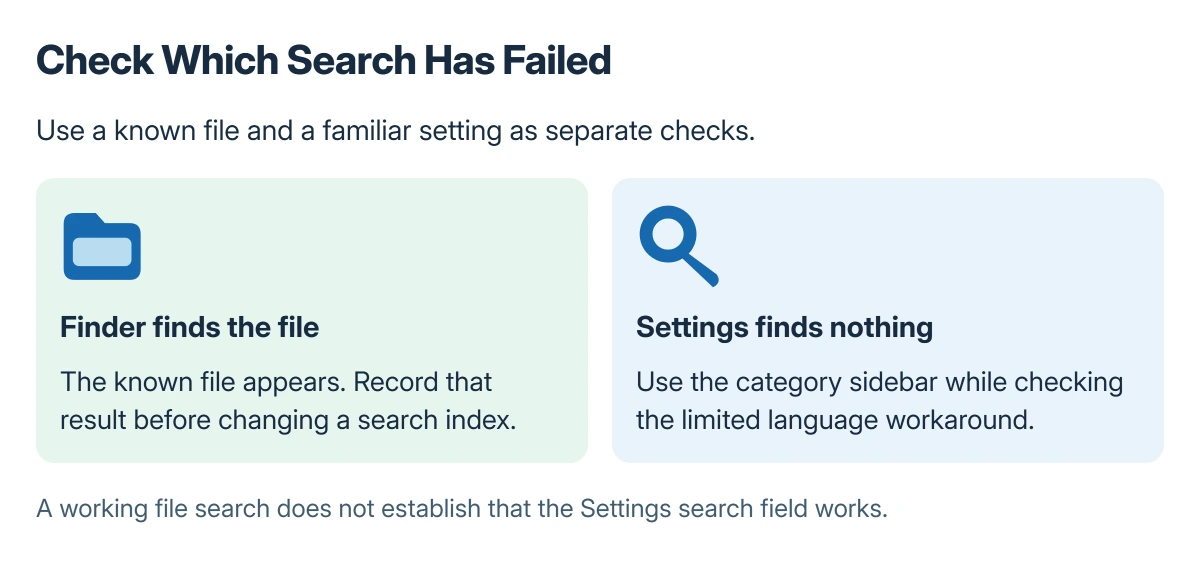
Check which search has stopped working
Choose System Settings in the Apple menu and enter a familiar setting, such as Keyboard. Then use Finder to search for a file whose name and location are known.
When Finder works and the Settings field stays empty, keep the two results separate. The forum reports include that exact combination, including cases where a Spotlight result opened General instead of the intended settings pane.
Status: macOS 27 owner reports and Apple's settings instructions checked 22 October 2026. The duplicate-language workaround has one confirmed result and documented failures in other cases.
Apple documents browsing categories in its System Settings guide. That route remains useful while the search field is broken.
For a missing display control, the Mac rotation options distinguish a hidden control from a search problem. Finding the category manually prevents one symptom being mistaken for the other.
Remove a duplicate language only when one exists
Choose General > Language & Region and inspect Preferred Languages. The successful report had a primary German regional entry plus a second plain German entry after a migration.
Note the existing list and primary language. If the same duplication is present, select the redundant entry, use the remove control and restart the Mac. Leave the primary language and other languages that are needed in place.
The owner confirmed that Settings search returned immediately after restarting. Their later posts clarified that a duplicate was one possible trigger, rather than proof of a single cause for every failed search.
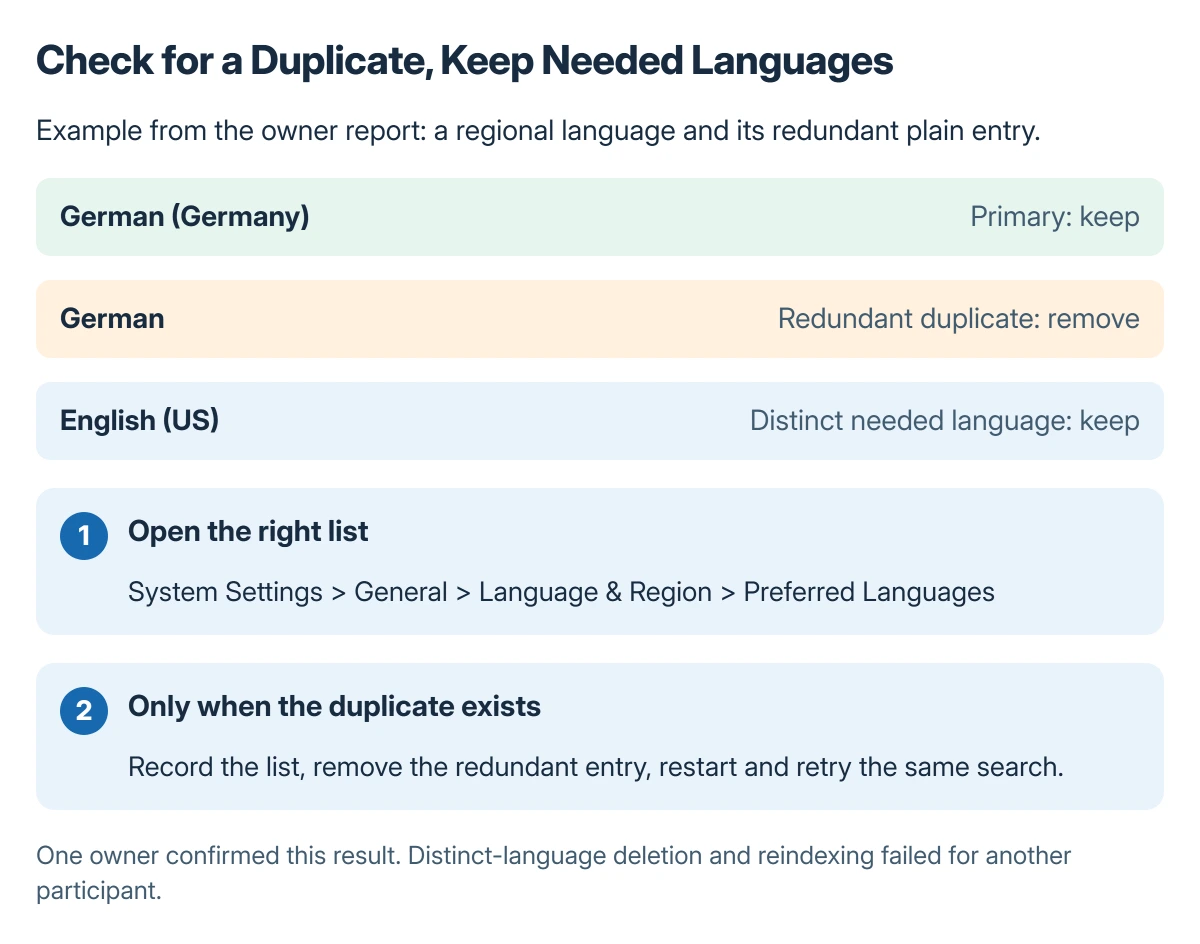
Apple says Preferred Languages controls language choices in macOS and apps in its Language & Region reference. It is not the Keyboard input-source list.
Do not delete distinct languages as a general search repair. That was reported as failing by another participant, who also corrected an initial mix-up between keyboard layouts and system languages.
Keep the unsuccessful results in view
Another affected owner found no improvement after updating to 27.0.1 and rebuilding Spotlight. An experimental language-addition suggestion also failed for them.
That owner later reported working search without knowing which event restored it. A later participant said search began working hours after another clean installation, but the post did not establish that erasing the Mac was necessary.
These outcomes do not justify repeated reindexing, deleting unrelated preferences or another clean installation. The original thread's explanations about an internal language index are owner theories, not an Apple diagnosis.
Work through the sidebar and report the remaining fault
Use the relevant category directly until a confirmed repair applies. For example, Mac date and time controls have their own permission and location requirements after the pane is open.
If search still returns nothing, give Apple Support the macOS build, whether the account was migrated, the language list and the Finder comparison. Include whether Spotlight opens the correct settings pane or just General.
Keep any report specific to this Mac. The saved discussion contains successful and unsuccessful machines on macOS 27, so a working result elsewhere cannot establish that an update repaired this installation.
The Short Version
Compare Settings search with a known-file search in Finder. A redundant preferred-language entry is a limited owner-confirmed workaround; remove only that duplicate and restart when the same arrangement exists.
Otherwise, use the settings sidebar and give Apple the exact symptoms. Spotlight rebuilds and broad language changes failed in the discussion and should not be presented as established cures.
Where to Next
After the next macOS update, try the same settings term and check that the result opens the intended pane. Keep that result with the support report rather than assuming an empty field means a missing setting.

Isaac Smith is the founder and editor of PC Glance, a website that covers computers, laptops, and technology. He is a tech enthusiast and a computer geek who loves to share his insights and help his readers make smart choices when buying tech gadgets or laptops. He is always curious and updated about the latest tech trends.